
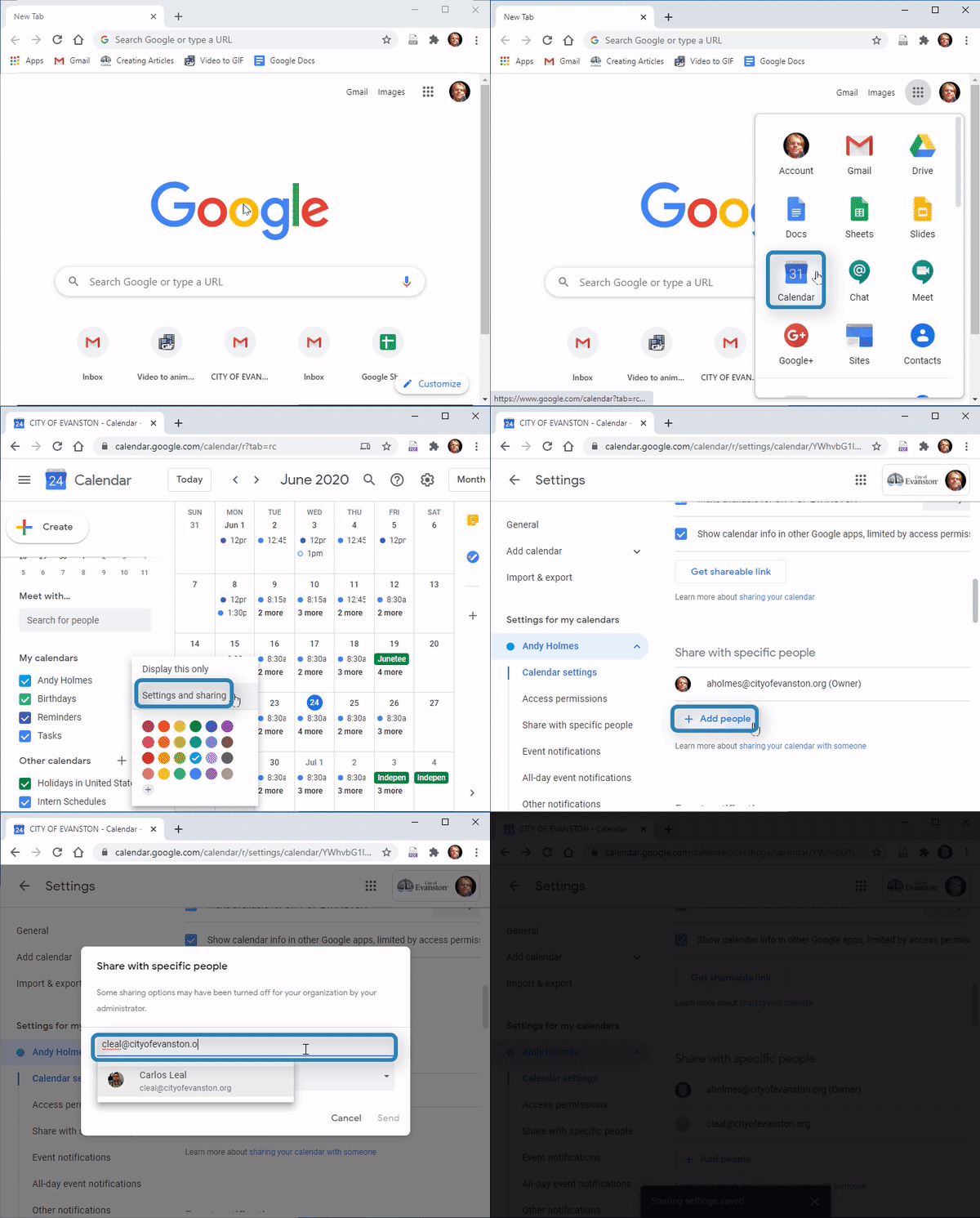
1. Open the google apps menu in the top right corner and select "calendar"
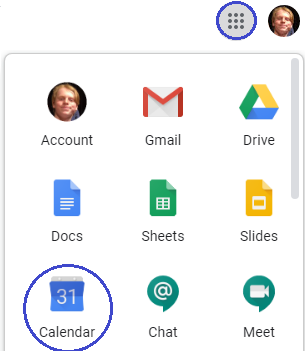
or
type "https://calendar.google.com/calendar/r?tab=rc" in the address bar

2. Scroll down to the calendar you’d like to share
3. Select the menu button, then select "Settings and sharing"
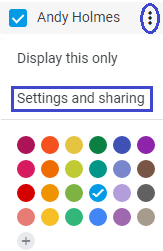
4. Scroll down to “Share with specific people” and select “Add people” 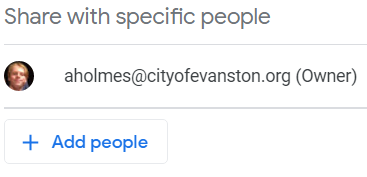
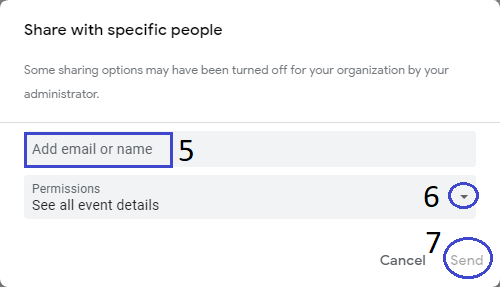
5. Enter the name or email of the person you wish to share your calendar with
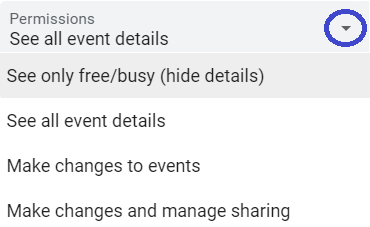
6. Then, select the proper permission setting, per the permissions selection menu
7. Select 
Once you click Save, the person you selected to share the calendar with will receive an email invitation to view your calendar. The person will need to click on the link contained in the email to add the calendar to his/her Other calendars list, the calendar will not be automatically added to the user’s Calendar account.
Learn more about permission settings for shared calendars
You can also grant the following levels of access to particular people for a particular calendar:
Make changes AND manage sharing
This person has owner rights to this calendar.Make changes to events
This person can see and change all events, including private ones.See all event details
This person can view the details of all events except those marked as private.See free/busy information (no details)
This person can see when your calendar is booked and when it has free time, but will not be able to see the names or details of any of your events.
Helpful or Related Links:
Export and Import Your Google Calendar