Here's what appears upon joining a call

Live Streaming
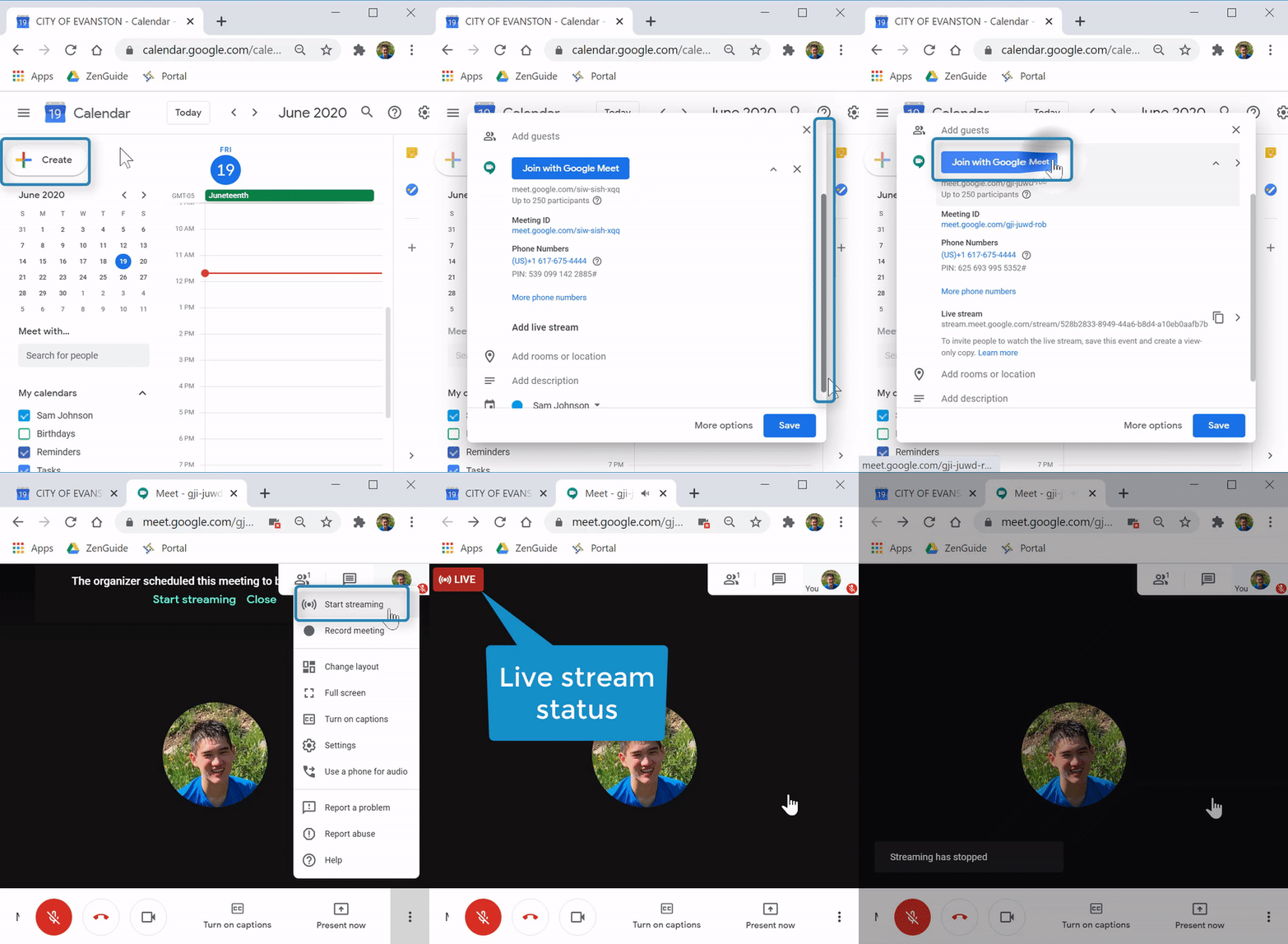
In a Google Meet, you can create a live stream, a view-only version of your call. Up to 100,000 people will be able to watch, but not participate.
(Video Loading)
Steps
1. After creating a conference in Google Calendar, select "Add live stream" 
to create a link
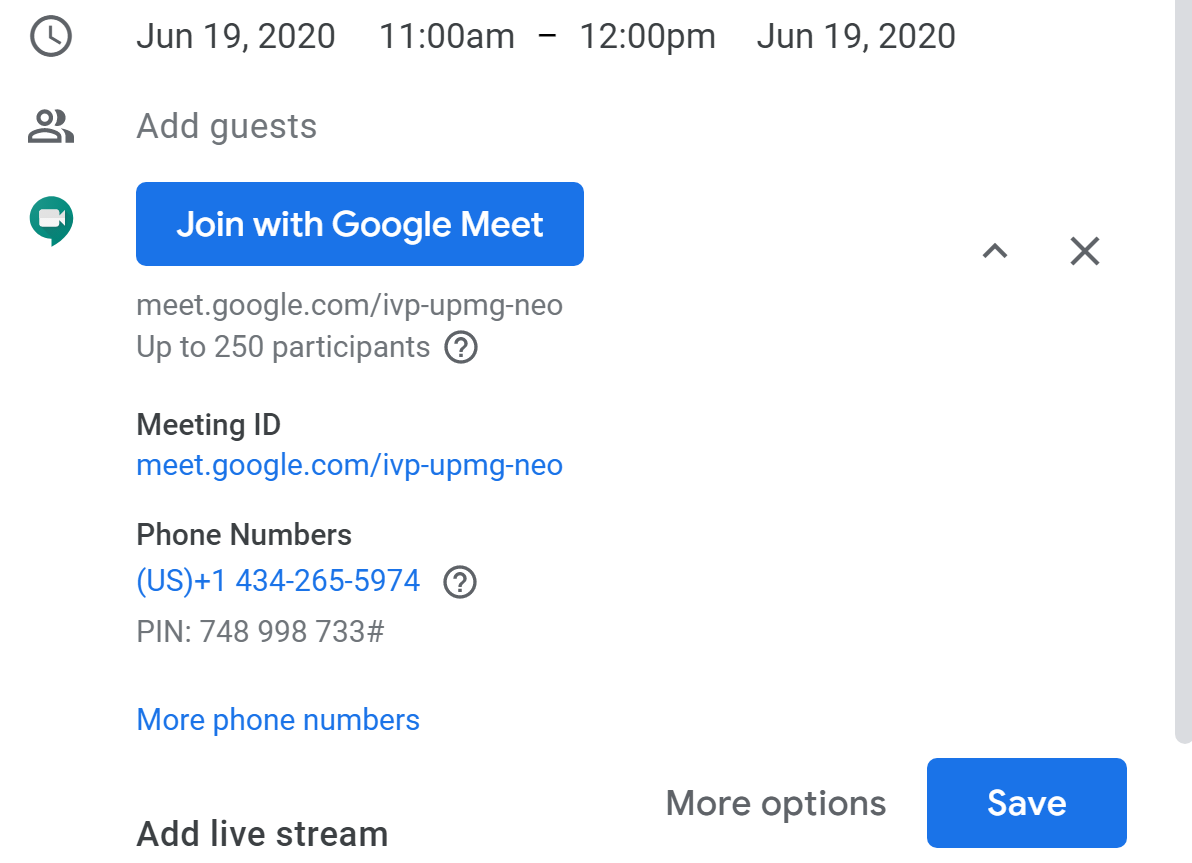
2. Select the "copy stream link" button  to copy the link
3. Share the link to include people in the live stream
4. During the call, select the "More options" button  at the bottom right
5. Select "Start streaming" 
6. Select "Start streaming" 
7. To stop streaming, select the "More options" button , select  , then select
Recording
(Video Loading)
Steps
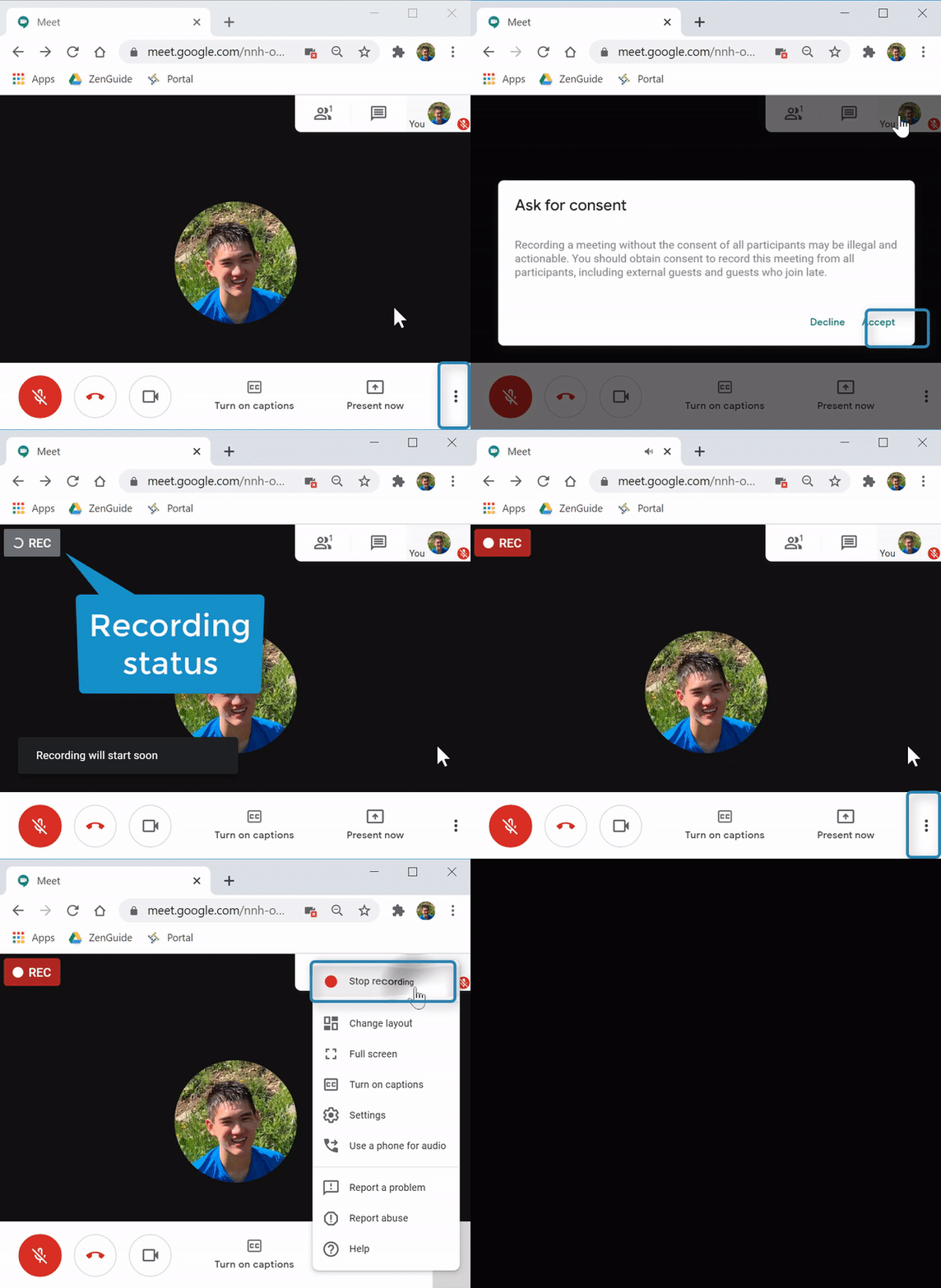
1. After joining a call, select the "More options" button at the bottom right
2. Select "Record meeting"  at the top of of the menu
3. Read the message and select "Accept" 
4. To stop the recording, end the call  or select the "More options" button , select
  , then select
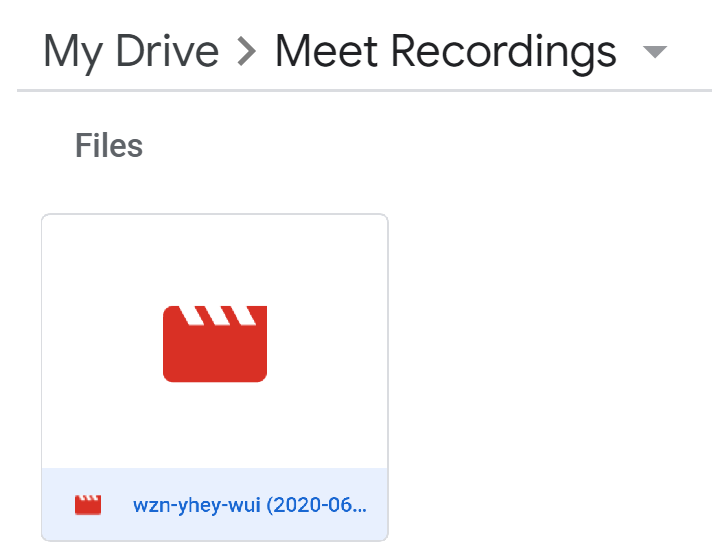
Your recording is saved to your Google Drive, in a folder called "Meet Recordings"