
1 Upload Photos
2 Delete Photos
3 Albums
4 Sharing
4.1 Share Photos
4.2 Share Albums
4.3 View Shared
5 IPhone Installation
Upload Photos
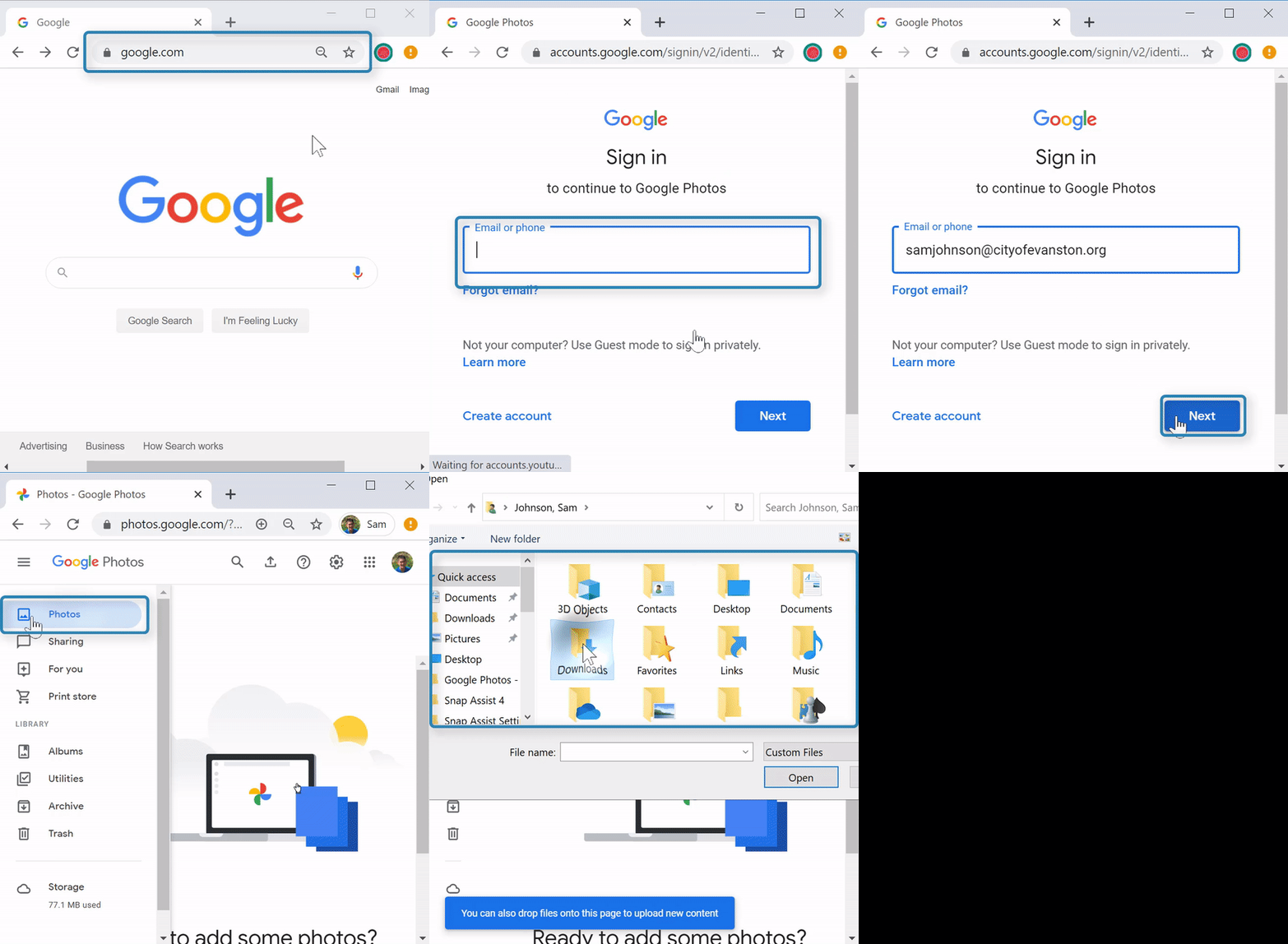
Steps
1. Open a web browser 


2. Open "photos.google.com" 
3. If not signed in, select "Go to Google Photos" or "Get Google Photos"  and sign in (see related articles at the bottom)
4. Select the "Photos" tab at the left 
5. Use either method below to upload
- Drag and drop photos or videos from another window
- At the top right, select "Upload"

- Select "Computer"

- Locate your file(s)
- Select "Open"

- If you are only uploading one file, select
 and
and 
- Select "Computer"
Delete Photos

Steps
1. Open a web browser
2. Open "photos.google.com"
3. If not signed in, select "Go to Google Photos" or "Get Google Photos" and sign in (see related articles at the bottom)
4. Locate the files to delete if they are not in "Photos"
5. Select the check  in the top left corner of all files to delete

6. Select the "trash" icon  at the top right
7. Select "Move to trash" 
Albums
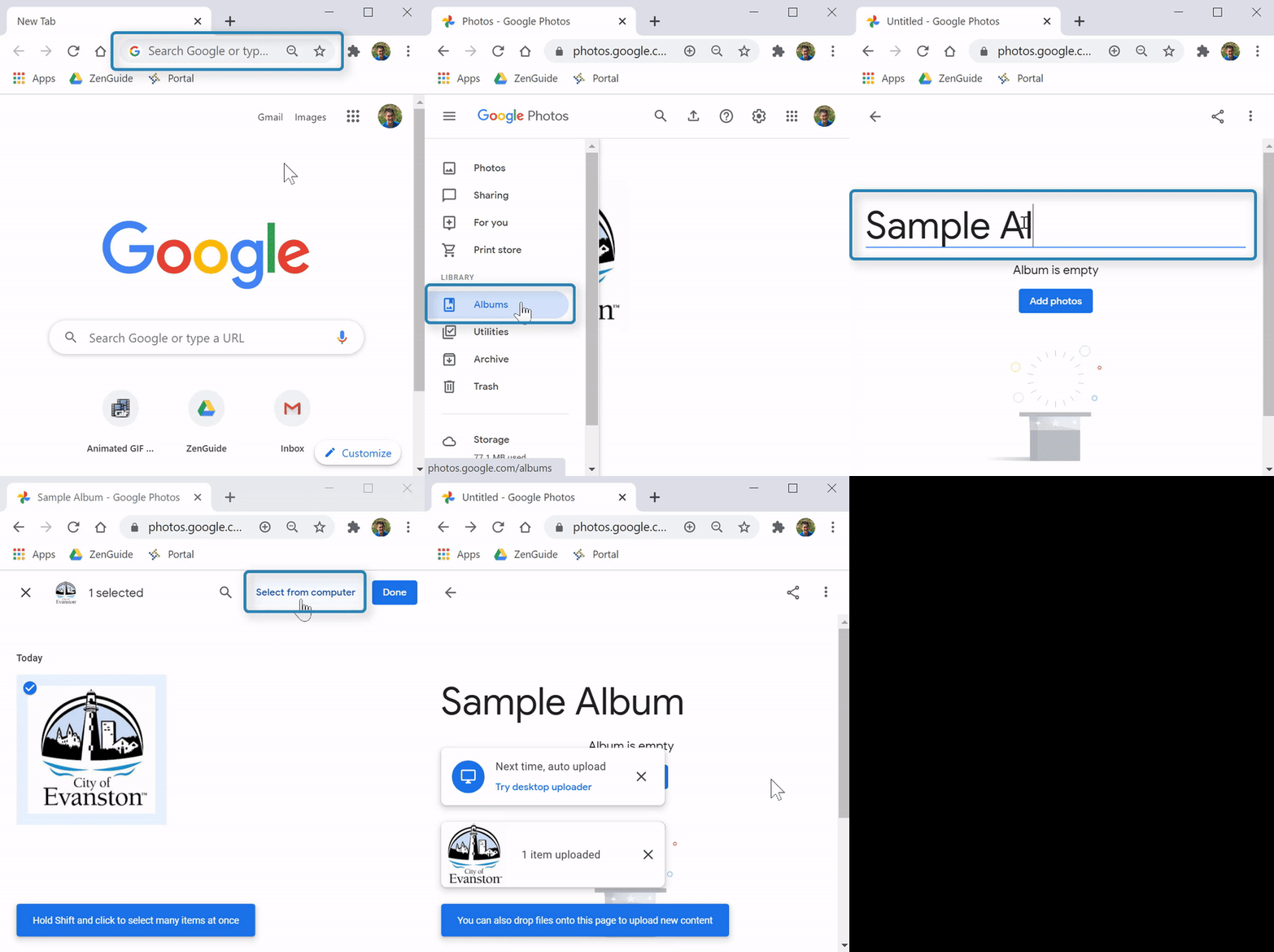
(Video Loading)
Steps
1. Open a web browser
2. Open "photos.google.com"
3. If not signed in, select "Go to Google Photos" or "Get Google Photos" and sign in (see related articles at the bottom)
4. Select the "Albums" tab at the left 
5. Select "Create album" at the top right 
6. Enter the album title 
7. Select "Add photos" 
8. Select the check in the top left corner of all files to add to the album, or select  at the top right to upload new files to the album
9. Select "Done" 
Sharing
Share Photos
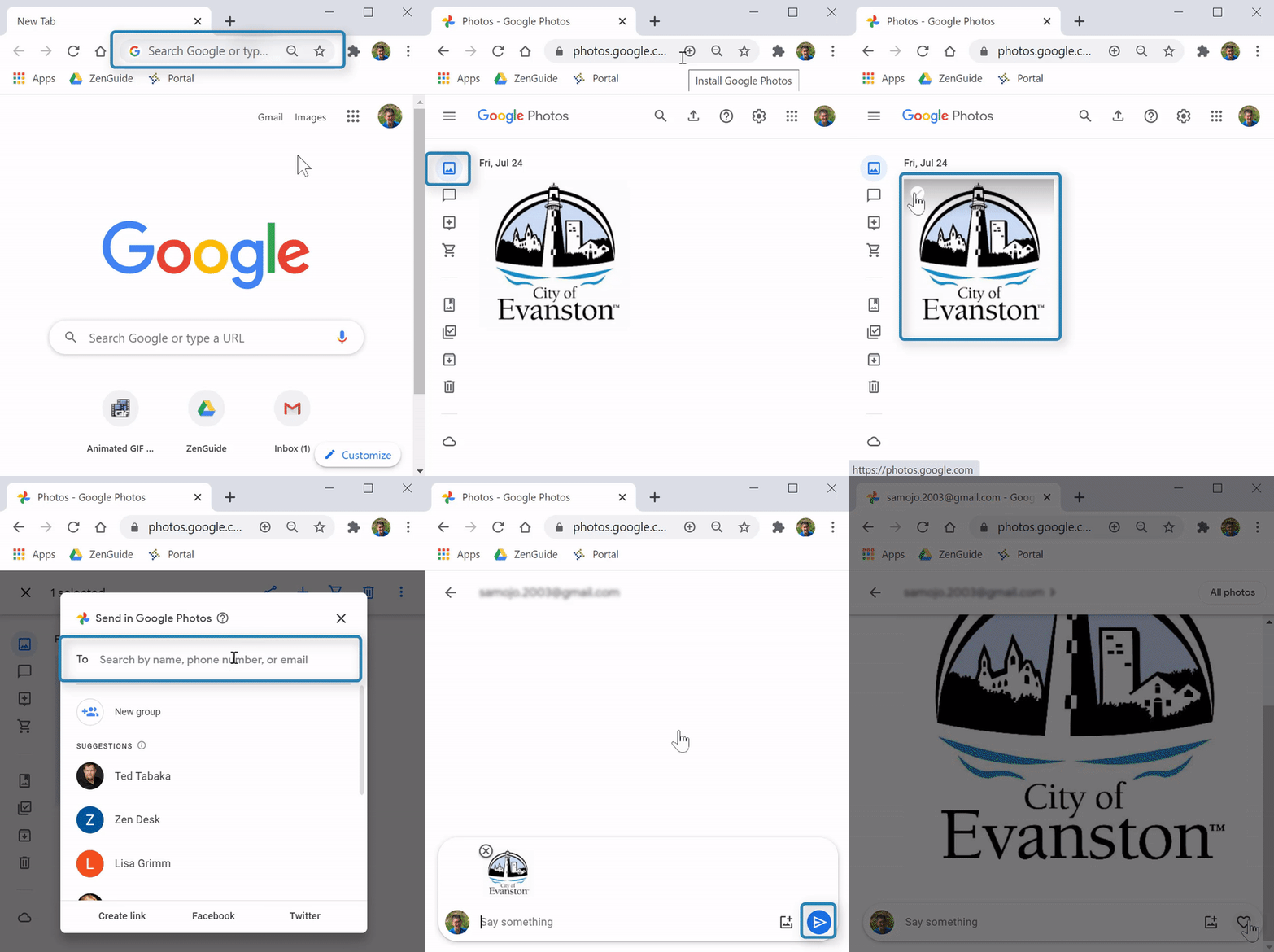
(Video Loading)
Steps
1. Open a web browser
2. Open "photos.google.com"
3. If not signed in, select "Go to Google Photos" or "Get Google Photos" and sign in (see related articles at the bottom)
4. Select the "Photos" tab at the left
5. Select the check in the top left corner of all files to share
6. Select the "Share" icon  at the top right
7. Enter name, phone number or email of recipients

8. To create a link for sharing, select "Create link" 
9. Optional: Enter a message 
10. Select the "Send" icon 
Share Albums
Shared albums can be added to and viewed by everyone it's shared with
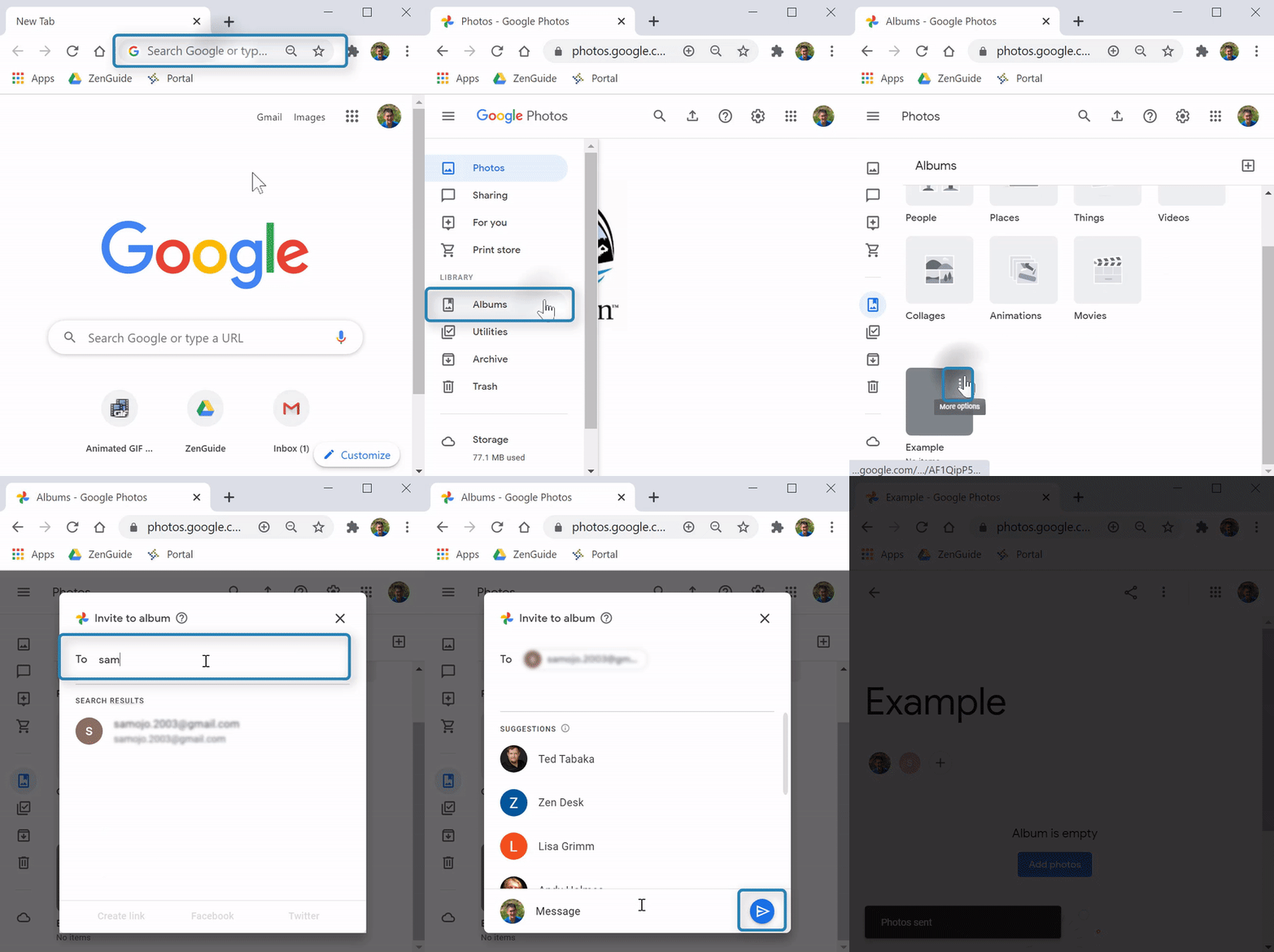
(Video Loading)
Steps
1. Open a web browser
2. Open "photos.google.com"
3. If not signed in, select "Go to Google Photos" or "Get Google Photos" and sign in (see related articles at the bottom)
4. Select the "Albums" tab at the left
5. Scroll down to the album
6. Select the "Menu" icon at the top right corner of the album
7. Select "Share album"
8. Enter name, phone number or email of recipients
9. To create a link for sharing, select "Create link"
10. Optional: Enter a message
11. Select the "Send" icon
View Shared
(Video Loading)
Steps
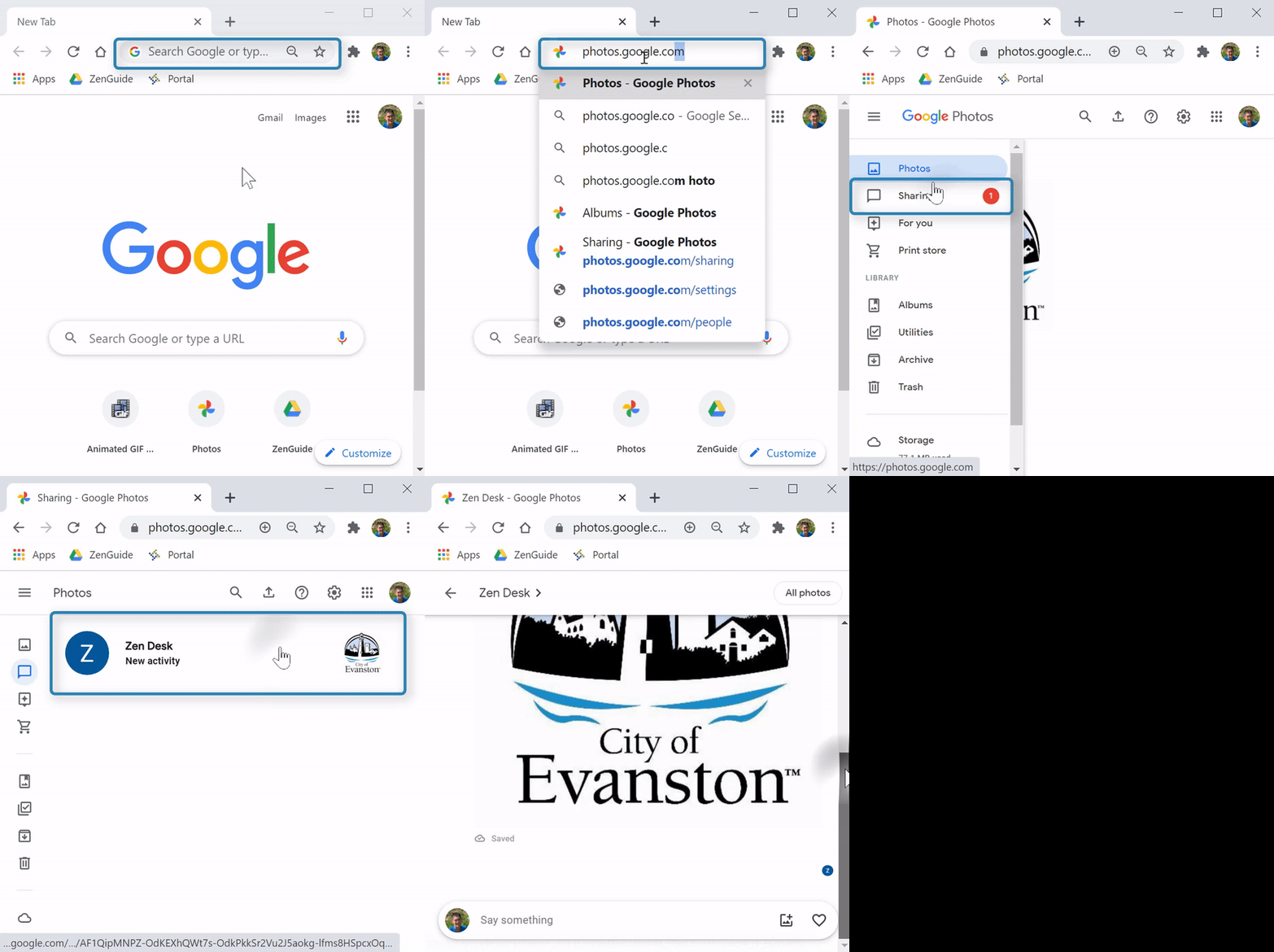
1. Open a web browser
2. Open "photos.google.com"
3. If not signed in, select "Go to Google Photos" or "Get Google Photos" and sign in (see related articles at the bottom)
4. Select the "Sharing" tab at the left 
5. Files shared with you will appear here
IPhone Installation

(Video Loading)
Steps
1. Open the "App Store" 
2. Select "Search"  at the bottom right
3. In the search bar, enter "Google Photos" 
4. Select "search" 
5. Scroll down to "Google Photos"
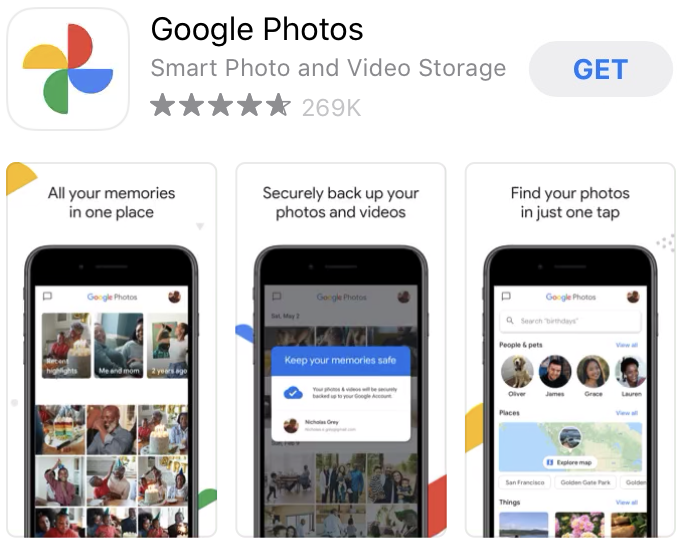
6. Select "GET" 
7. Press for your Touch ID or enter your Apple ID password to install
Helpful and Related Article(s):