
Exporting All Your Google Calendars
Exporting One of Your Google Calendars
Importing Into Your Google Calendar
Exporting All Your Google Calendars

(Video Loading)
1. Open Google Calendar  on a computer (or select the blue text in this step)
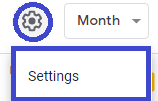
2. Select the gear icon in the top right corner of the screen
3. Select "Settings"
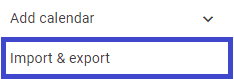
4. Select "Import and Export" on the left side of the screen.
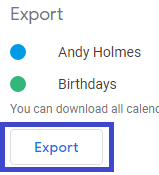
5. Under the "Export" section, select "Export." A ZIP file containing your calendars will now be downloaded to your computer.
Exporting One of Your Google Calendars
(Video Loading)
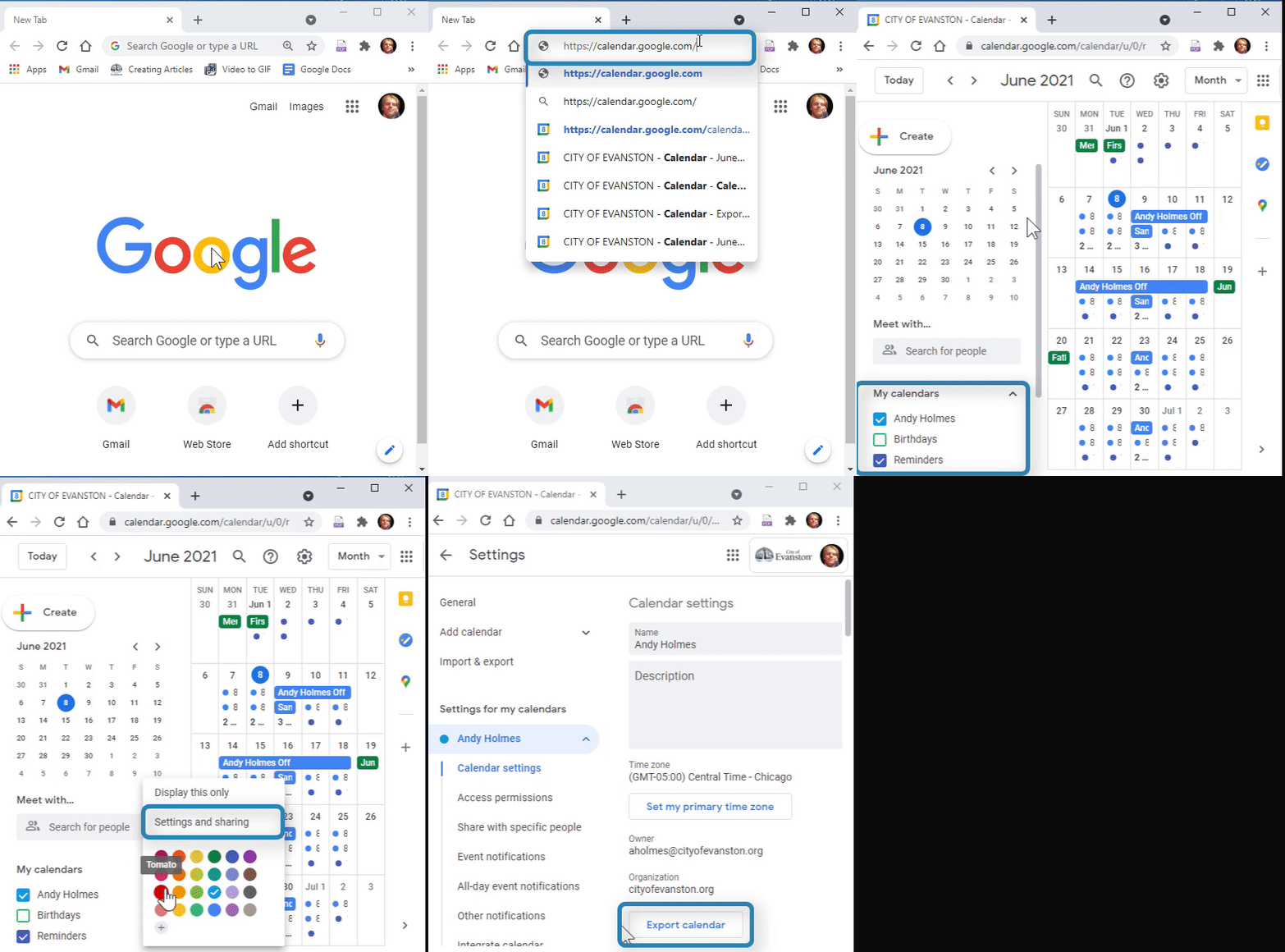
1. Open Google Calendaron a computer (or select the blue text in this step)
2. Find the "My Calendars" drop-down on the left side of the page
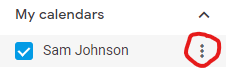
3. Select the "More" icon  on the calendar you want to export
4. Select "Settings and sharing"
5. Select "Export calendar."  An ICS file containing your calendar will now be downloaded to your computer.
Importing Into Your Google Calendar
(Video Loading)
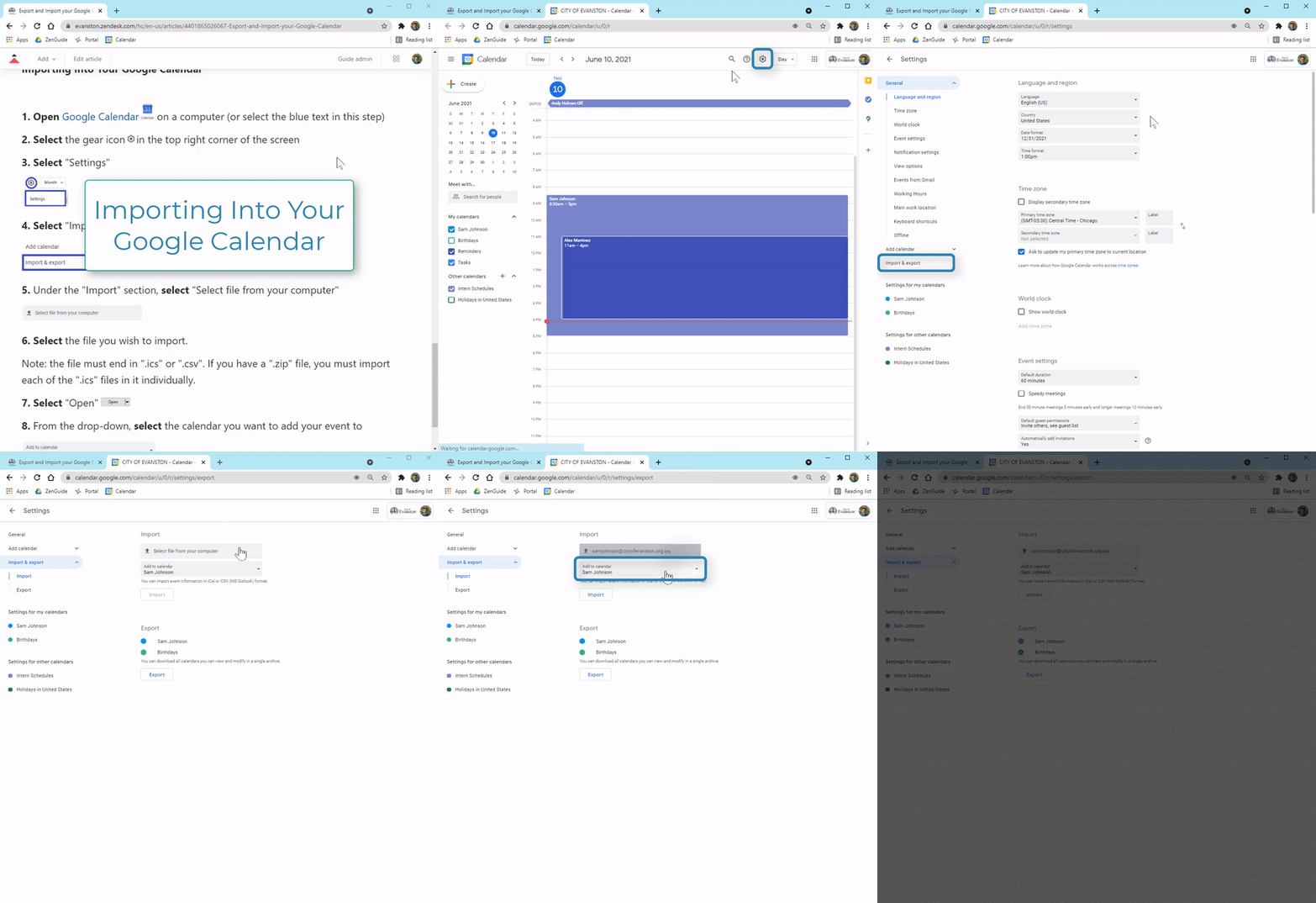
1. Open Google Calendaron a computer (or select the blue text in this step)
2. Select the gear iconin the top right corner of the screen
3. Select "Settings"
4. Select "Import and Export" on the left side of the screen.
5. Under the "Import" section, select "Select file from your computer"

6. Select the file you wish to import.
Note: the file must end in ".ics" or ".csv". If you have a ".zip" file, you must import each of the ".ics" files in it individually.
7. Select "Open" 
8. From the drop-down, select the calendar you want to add your event to

9. Select "Import."  The event(s) you selected will now be imported into your calendar.
Helpful or Related Articles:Ex