
3. Setting Google as the default program
Installation
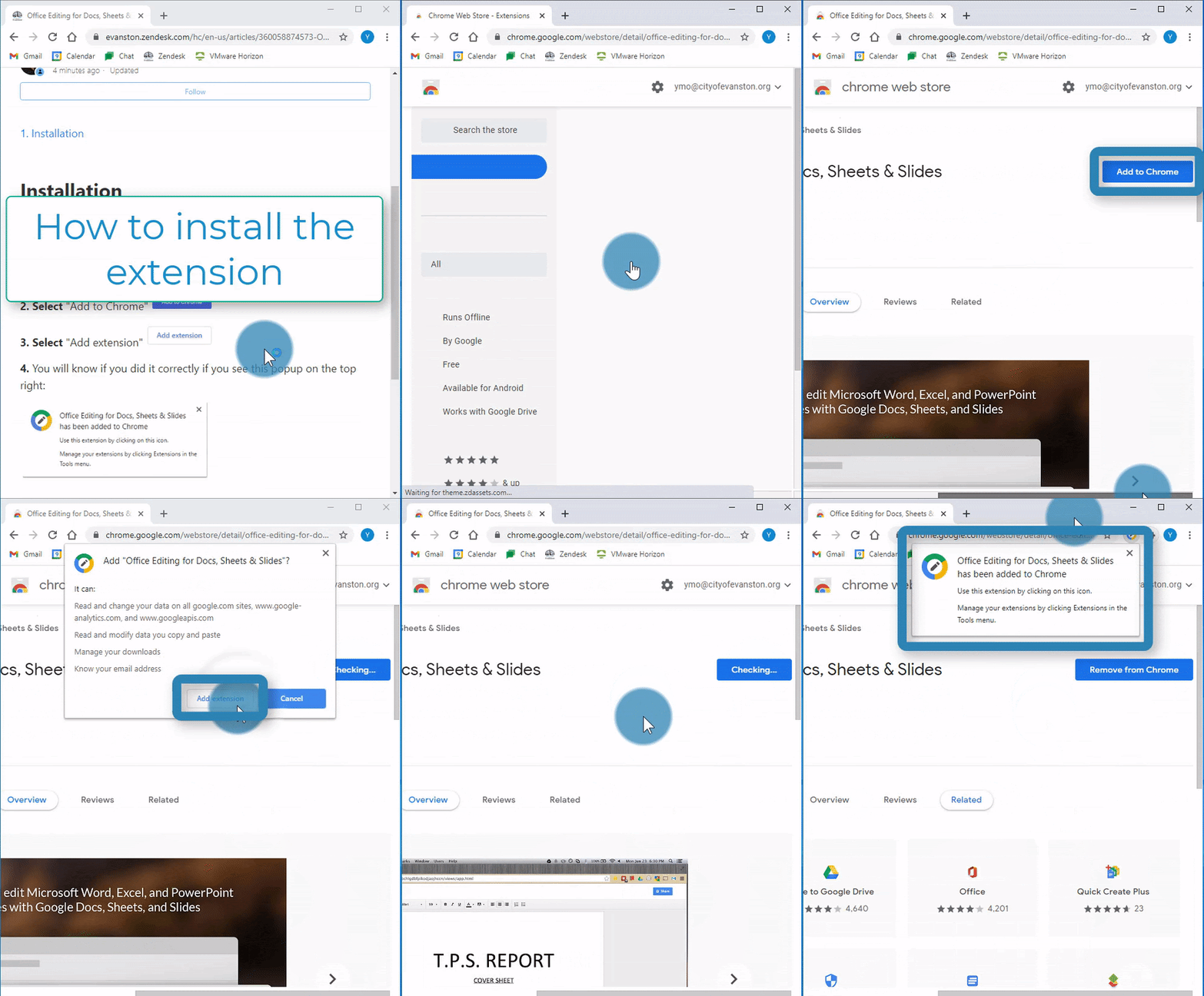
Steps:
1. Select this link: https://chrome.google.com/webstore/detail/office-editing-for-docs-s/gbkeegbaiigmenfmjfclcdgdpimamgkj
2. Select "Add to Chrome" 
3. Select "Add extension" 
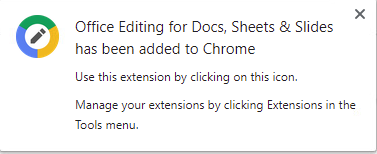
4. You will know if you did it correctly if you see this popup on the top right:
Opening a file in Google
Steps:
1. Open a Google Chrome browser 
2. Drag and Drop a Word, Excel, or PowerPoint file into the browser


3. Once the file opens up, Select "Got it"
Setting Google as the default program

Steps:
1. Right-click on the Excel file (or any Microsoft file)
2. Select "Properties" 
3. Select "Change..." 
4. Select "Google Chrome"
5. Select "OK" 
6. Select "OK" 
Note: Opening the file will automatically open it in the Google Workspace equivalent (Docs, Sheets, or Slides)