
A delegated inbox allows a user to view and manage another user's emails.
Setup and Adding Accounts
(Video Loading)
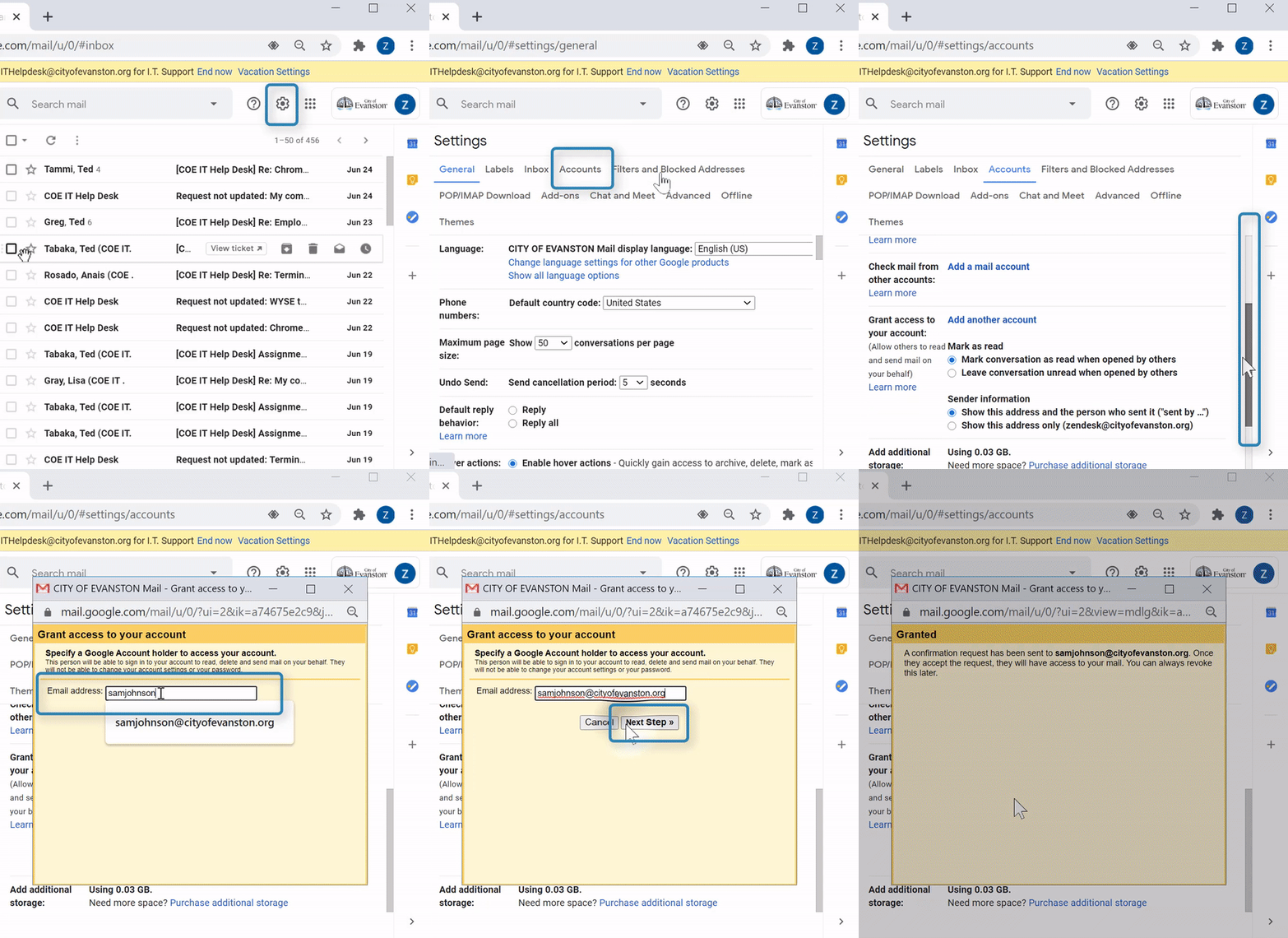
Steps
1. Open a web browser 


2. Open Gmail 
3. Select the "settings" icon  from the top right
4. Select "See all settings" 
5. Select the "Accounts" tab 
6. Scroll down to the "Grant access to your account" section
7. Select "Add another account" 
8. In the pop-up window, Enter the email address to share your account with 
9. Select "Next step" 
10. Select "Send email to grant access"  to send a email for the recipient to accept or deny
Accept Invitation and View
(Video Loading)
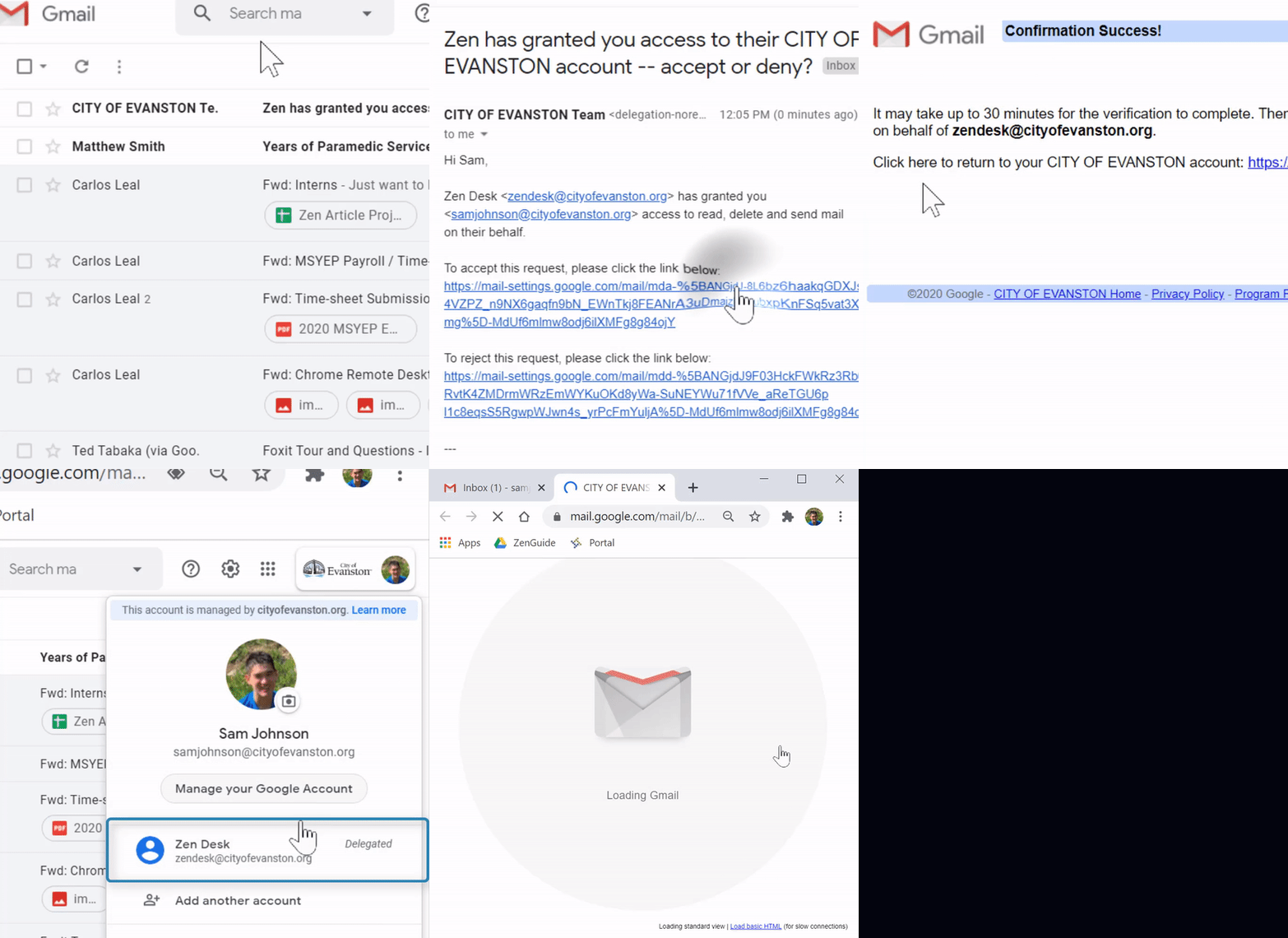
Steps
1. You must wait 30 minutes AFTER you've accepted the invitation and FIRST log off and log on to email BEFORE proceeding.
2. Open a web browser
3. Open Gmail
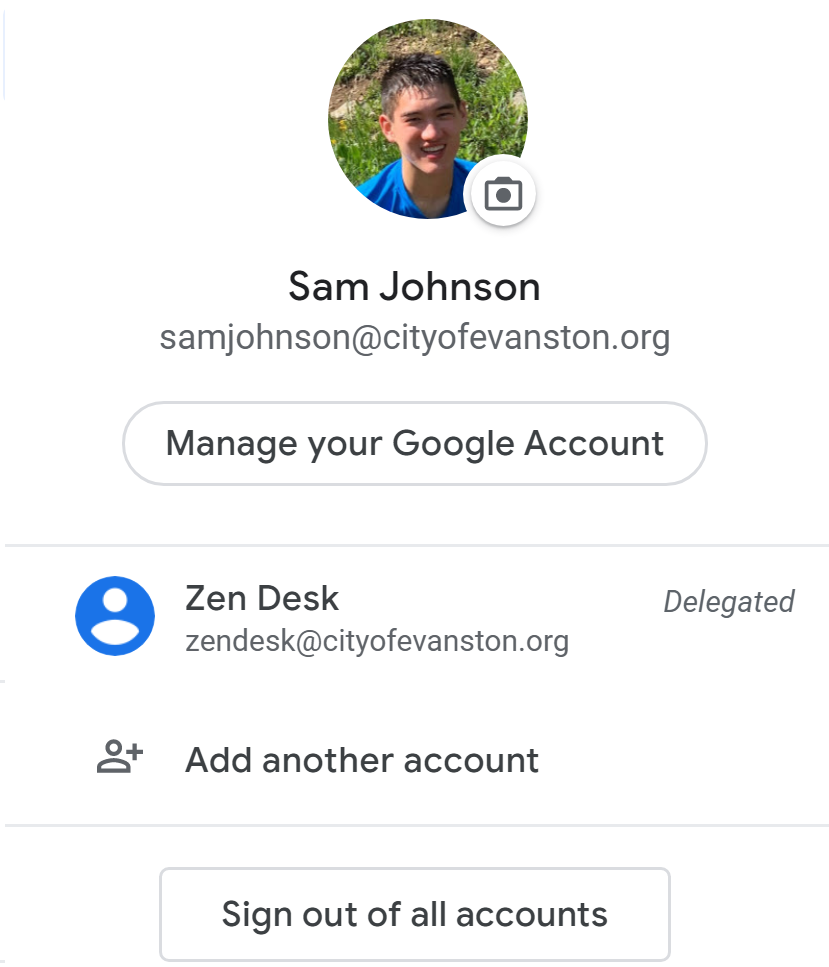
4. Select your profile  in the top right
5. Select the account with the label "Delegated" 
Remove Accounts
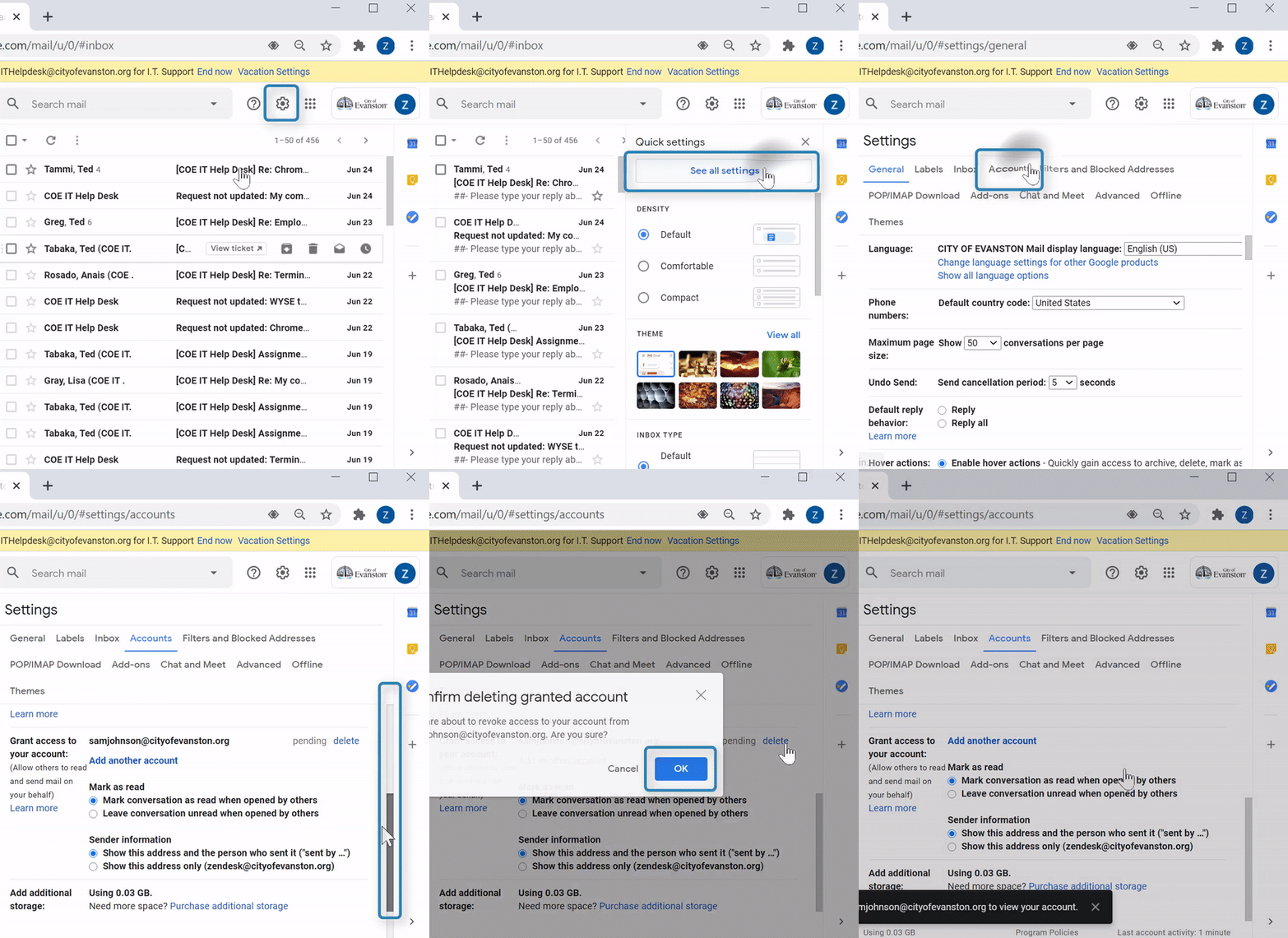
(Video Loading)
Steps
1. Open a web browser
2. Open Gmail 
3. Select the "settings" icon from the top right
4. Select "See all settings"
5. Select the "Accounts" tab
6. Scroll down to the "Grant access to your account" section
7. Next to the desired account, select "delete" 
