
Conference lines can use multiple devices such as webcam video, computer microphone, or phone dial-in using Google Calendar and Gmail. You can also record
and create view-only live streams of your call.
*Cisco Phone MeetMe is no longer being supported
Here's what appears upon joining a call

Google Calendar
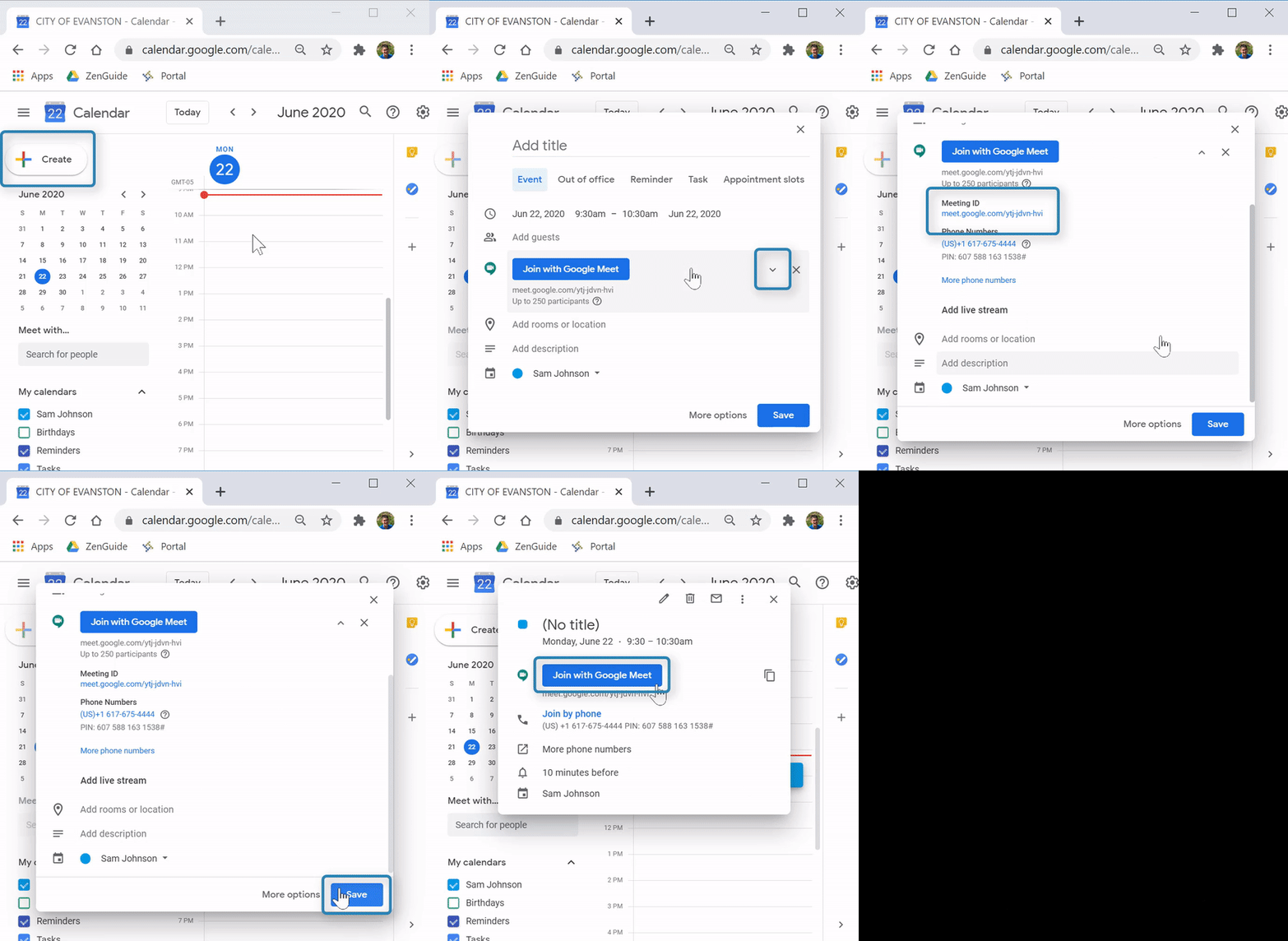
(Video Loading)
Steps
1. Open Google Calendar, create a new event 
2. Select "Add Google Meet video conferencing" 
3. Select the drop-down arrow  at the right
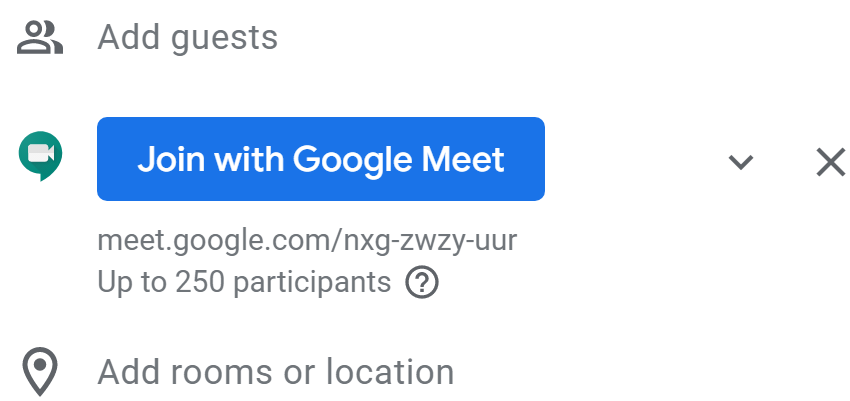
4. Share the meeting ID or phone number to add guests to the call 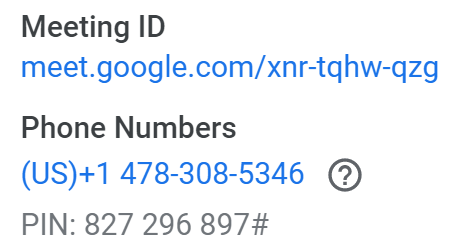
5. To enter the call, return to the Google Calendar event and select "Join with Google Meet" 
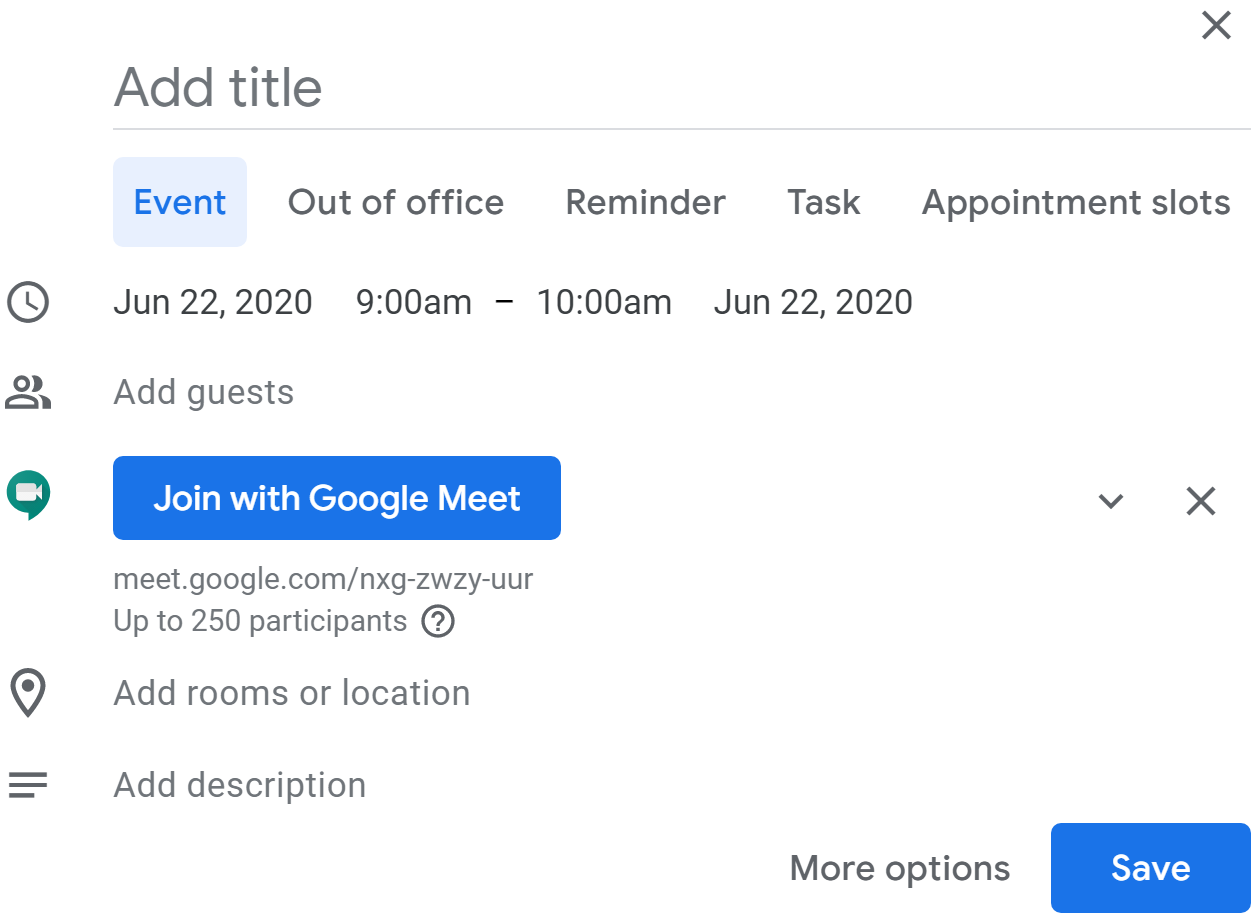
6. Select "Join now" 
Gmail
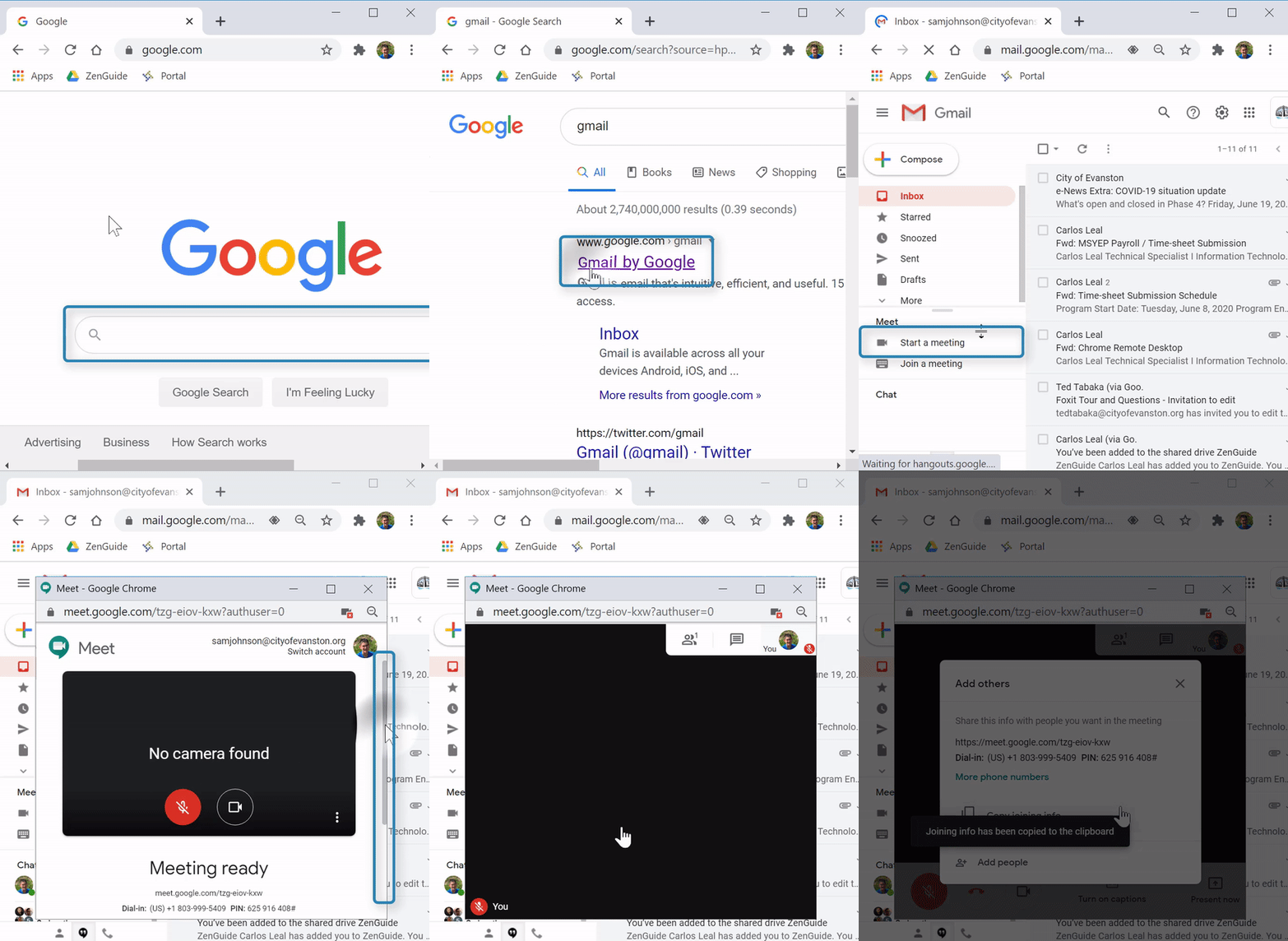
(Video Loading)
Steps
1. Open Gmail, then select "Start a meeting" 
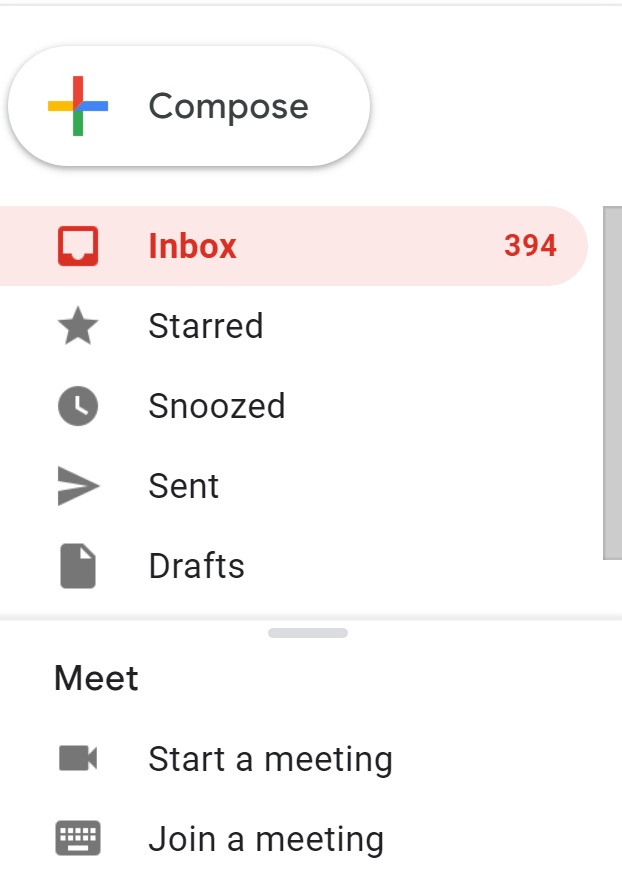
 from the pop-up to share with guests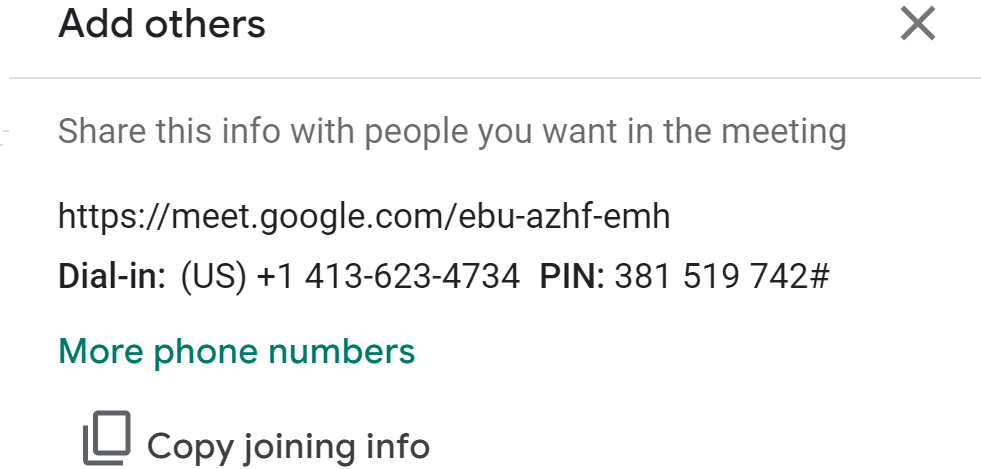
Google Chat
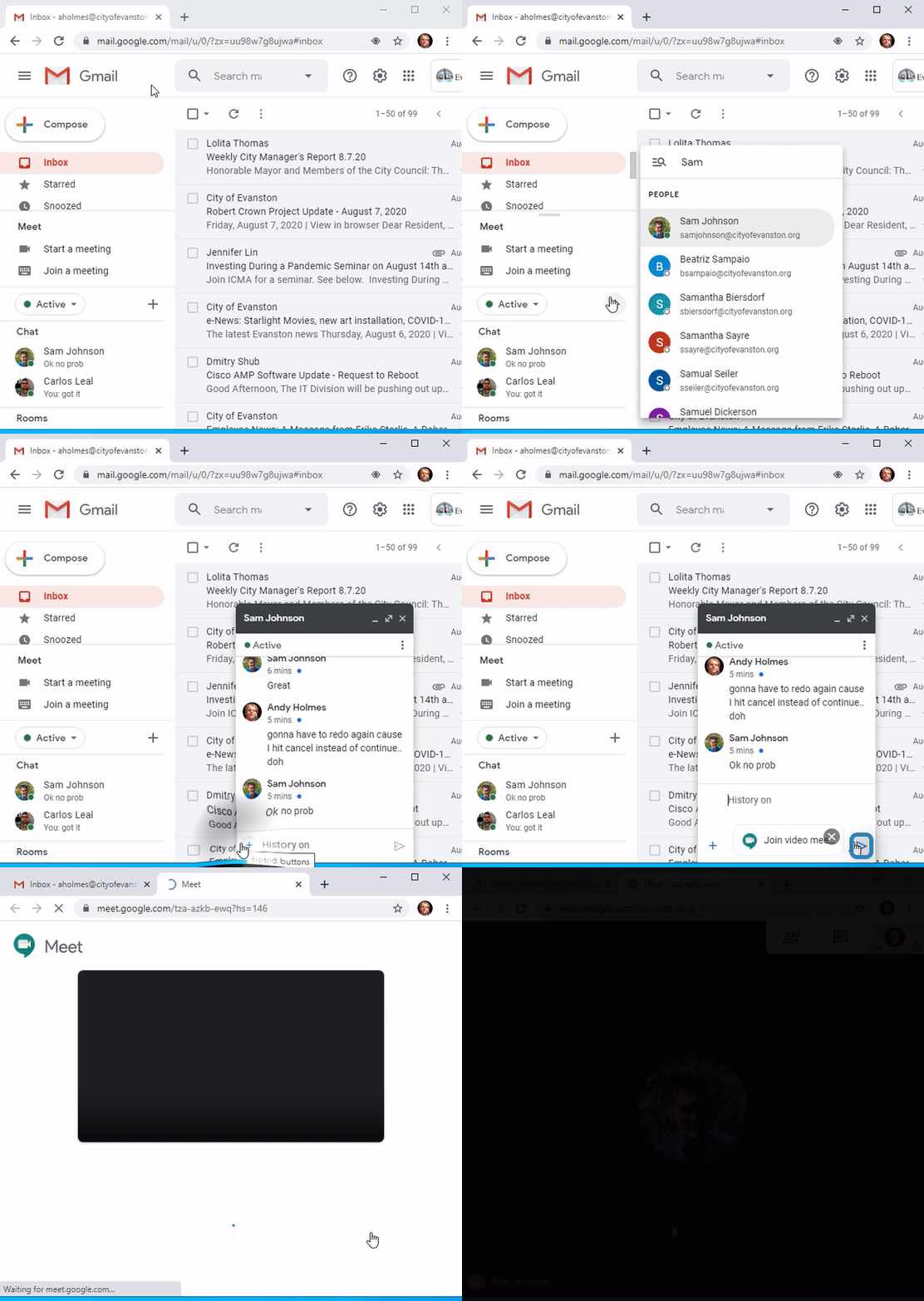
Steps
1. Open Gmail then select the "Start a conversation" button above "Chat" 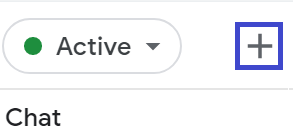
2. Enter and select the person you'd like to start a conference with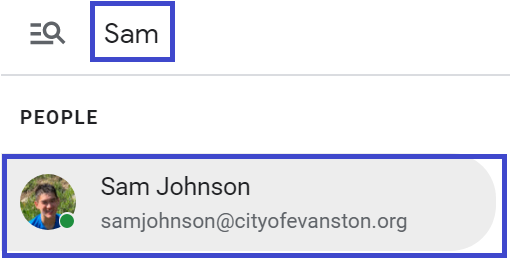
3. Select the expand button for a conference with one person. If you don't see this, skip to step 4

4. Select the "Add video meeting" button

5. The meeting will autofill in your Google Chat. Select "Send message"

6. Select the meeting invite you just sent. This will open a new tab

7. Select "Join now"