
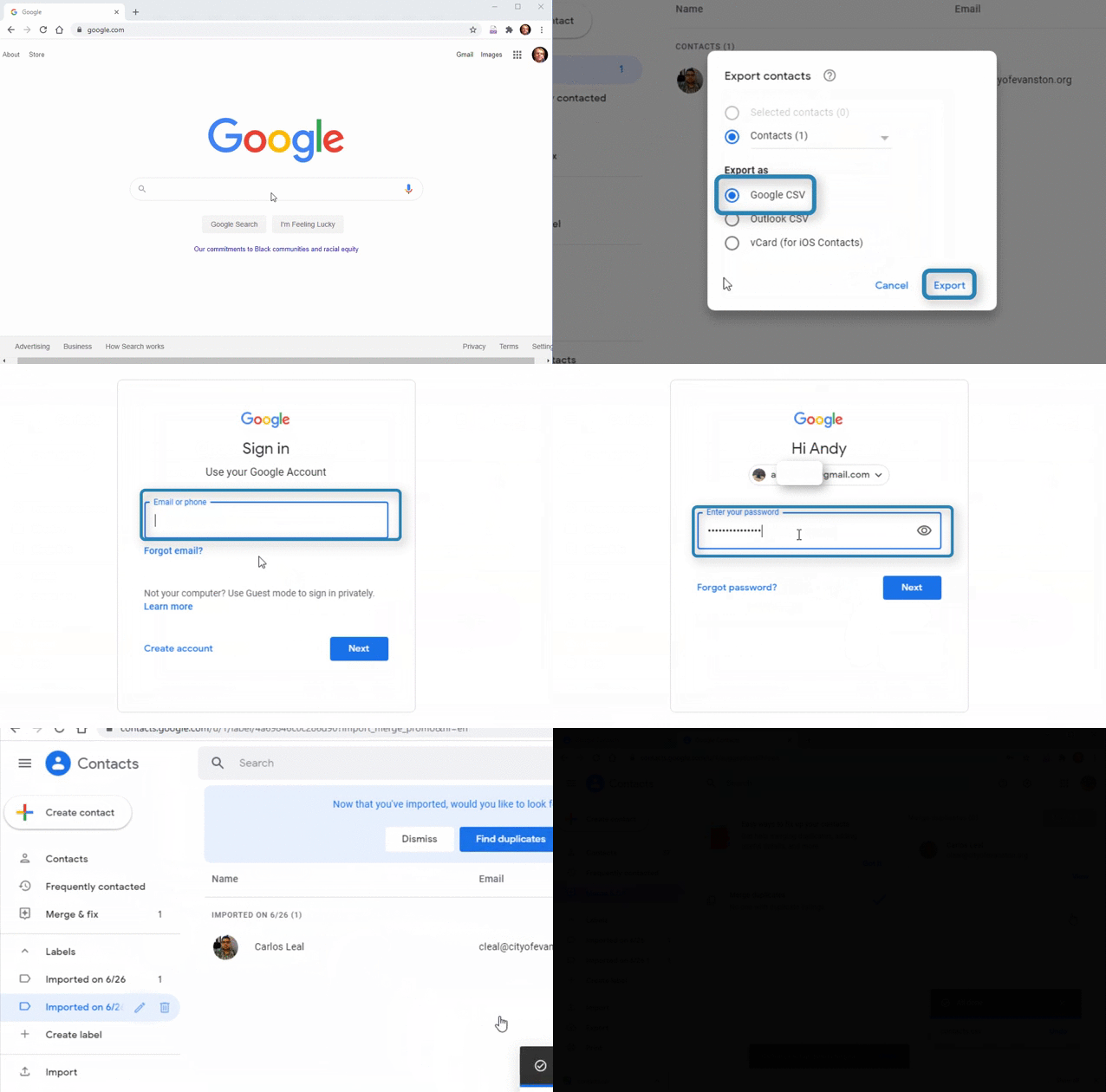
1. Go to contacts by clicking here, or selecting the Google Apps Menu and “Contacts”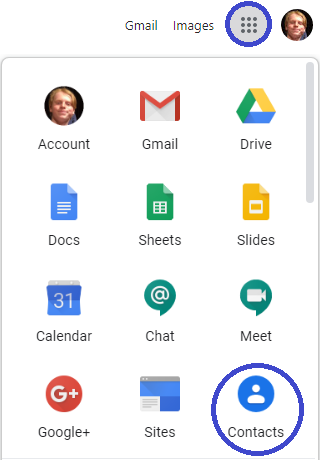
2. Choose the contacts that you want to export by selecting the menu button to the left of their name, or if you want to export all of your contacts, skip to Step 3
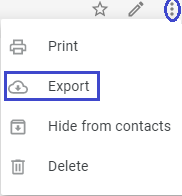
3. Select the menu button at the top if it isn’t already open, and select "Export"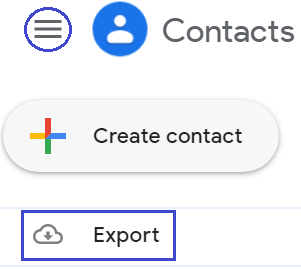
4. A pop-up will appear. Select “Google CSV” under “Export as” then select “Export”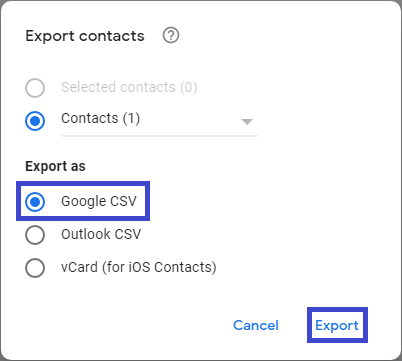
5. Sign in to your other account by selecting your profile icon and “Add another account” then entering your email and password 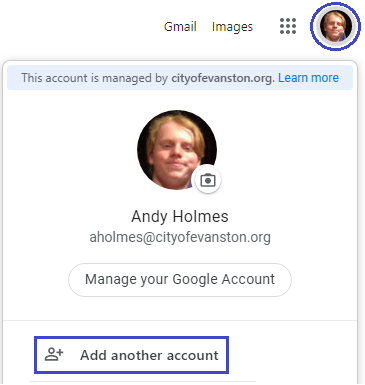
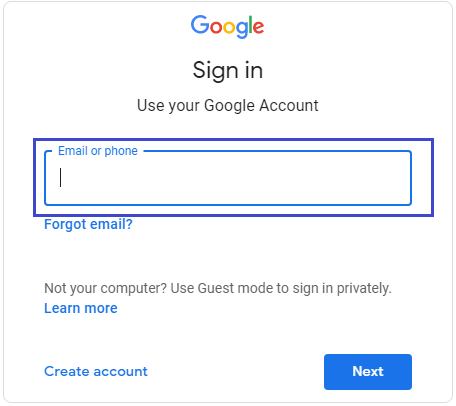
6. Select the menu button and “Contacts” after signing in to your other account
7. Select “Import” on the left side of the screen and your windows files will pop-up 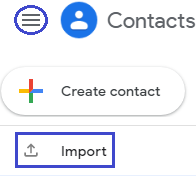
8. Select the “Downloads” folder
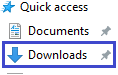
9. Select “contacts” in downloads 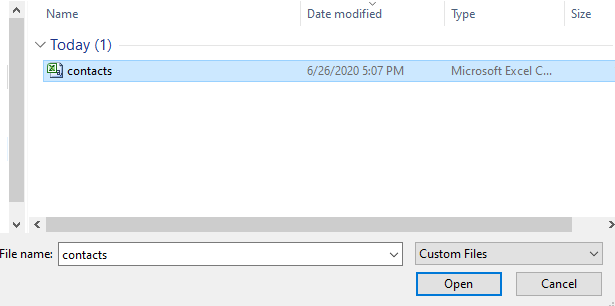
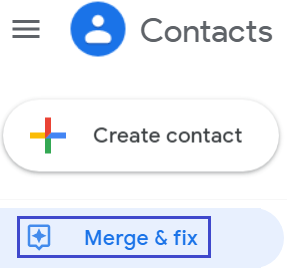
10. Select “Merge and fix” and merge any duplicates
Now you've successfully moved your contacts from one google account to another!