
A Collaborative Inbox is a mail-enabled Google Group with its own email address. Any member can view and respond to an email sent to the group. It is generally used to provide a unique email address for public or internal inquiries where multiple staff are responsible for responding to these inquiries.
Access and Use Collaborative Inbox
1. Open a web browser 


2. Contact IT to create a group.
3. Once it has been configured, open Gmail 
4. Select the "Google apps" icon  at the top right
5. Scroll down and select the "Groups" app 
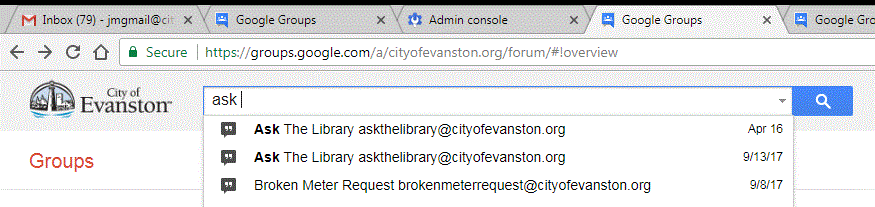
This opens the Groups app in a separate browser tab. You can search for the group by its email address.
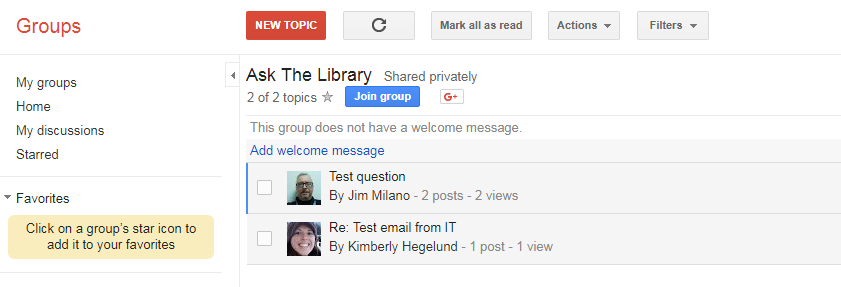
Once you’ve opened your group inbox, new and existing messages will appear in the order that they were received. Messages or questions will appear as “Topics”. Only group members will see this view. To non-members (the public) this will seem to be a simple email conversation. They will not have access to the group. Depending on how group members are set up copies of these messages may also be sent to the members mailbox’s.
When you open a new message, you will see the option to “Take” the question. Managers of the group can also “Assign” questions to specific group members. This alerts other group members that you’ve taken ownership of the question (even if you haven’t replied yet). Once a group member has taken or been assigned a question, these buttons will disappear.
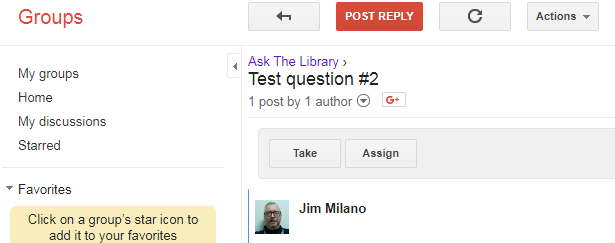
Taking the message or selecting “Post Reply” will launch the email reply dialog.
You must change “By” to “Post on behalf of <your group name>” or the reply will come from your email address and any future discussion will not be visible in the group.
Leave “original author” checked as this is the person who posted the question. Your replies will always appear in the group.
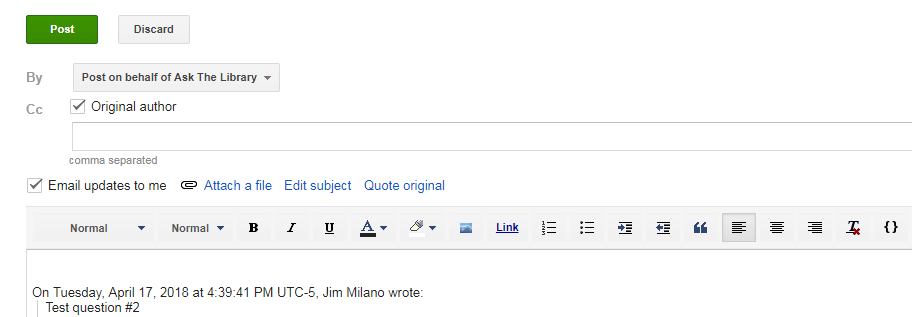
From here on, you can continue the conversation and all posts will appear to the entire group.