In order to 'Send As' another account, you must already be a member of that group.
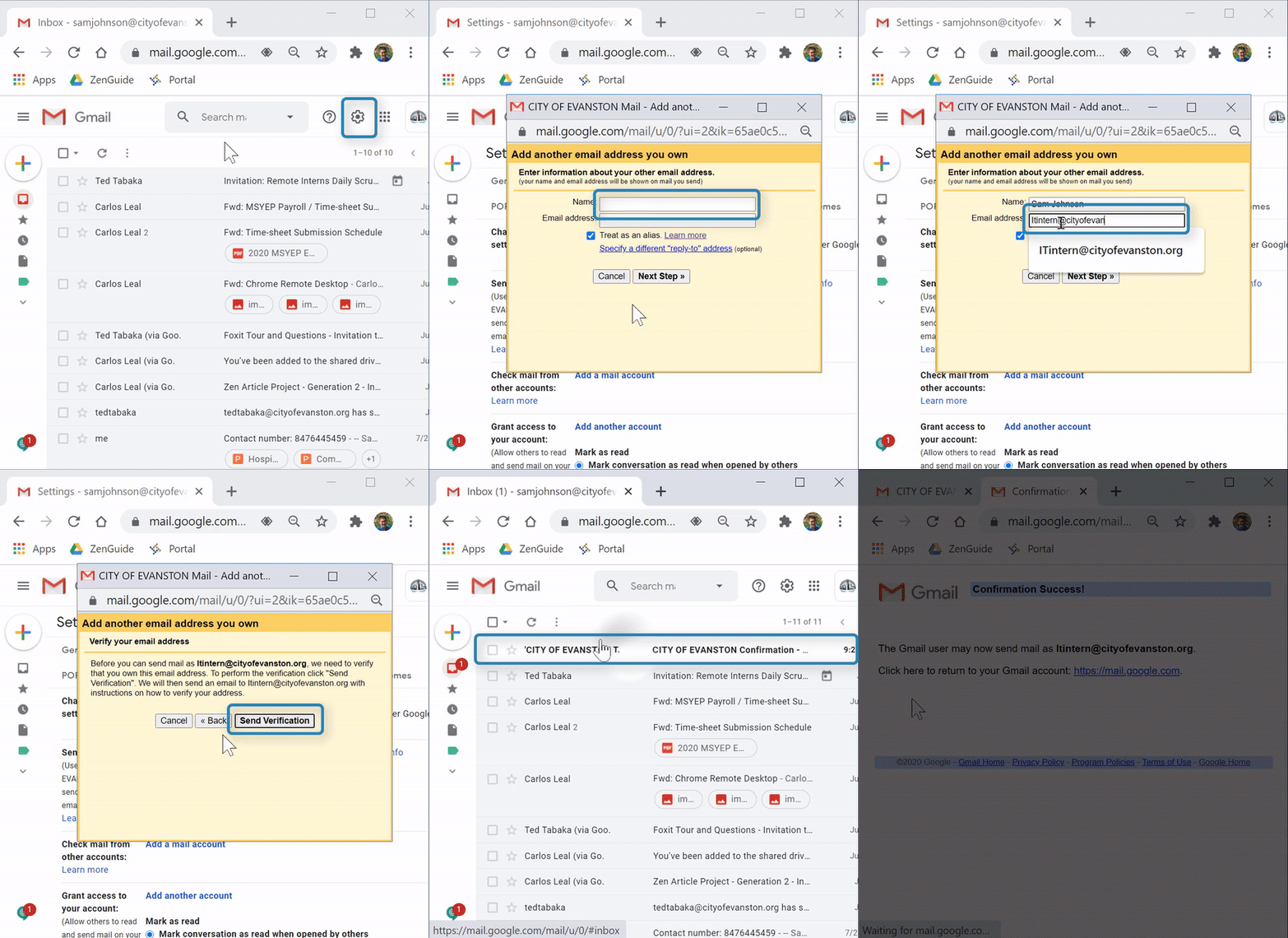
(Video Loading)
Steps
1. Open a web browser 


2. Open Gmail 
3. Select the "settings" icon  from the top right
4. Select "See all settings" 
5. Select the "Accounts" tab 
6. Under "Send mail as," select "Add another email address" 
7. Enter the "Name" people will see you as 
8. Enter the email address of the distribution group 
9. Confirm "Treat as alias" is checked 
10. Select "Next Step" 
11. Select "Send Verification" 
12. Open the confirmation email in your inbox

13. Copy and paste the verification code or select the link to confirm
- For copy and paste: Copy the verification code from the email, paste it into the verification code field
 , then select "Verify"
- For selecting link: Select the link from the email, then select "Confirm"