
Google Meet Troubleshooting
1. Setting Default Audio Output/Input Device
Setting Default Audio Output/Input Device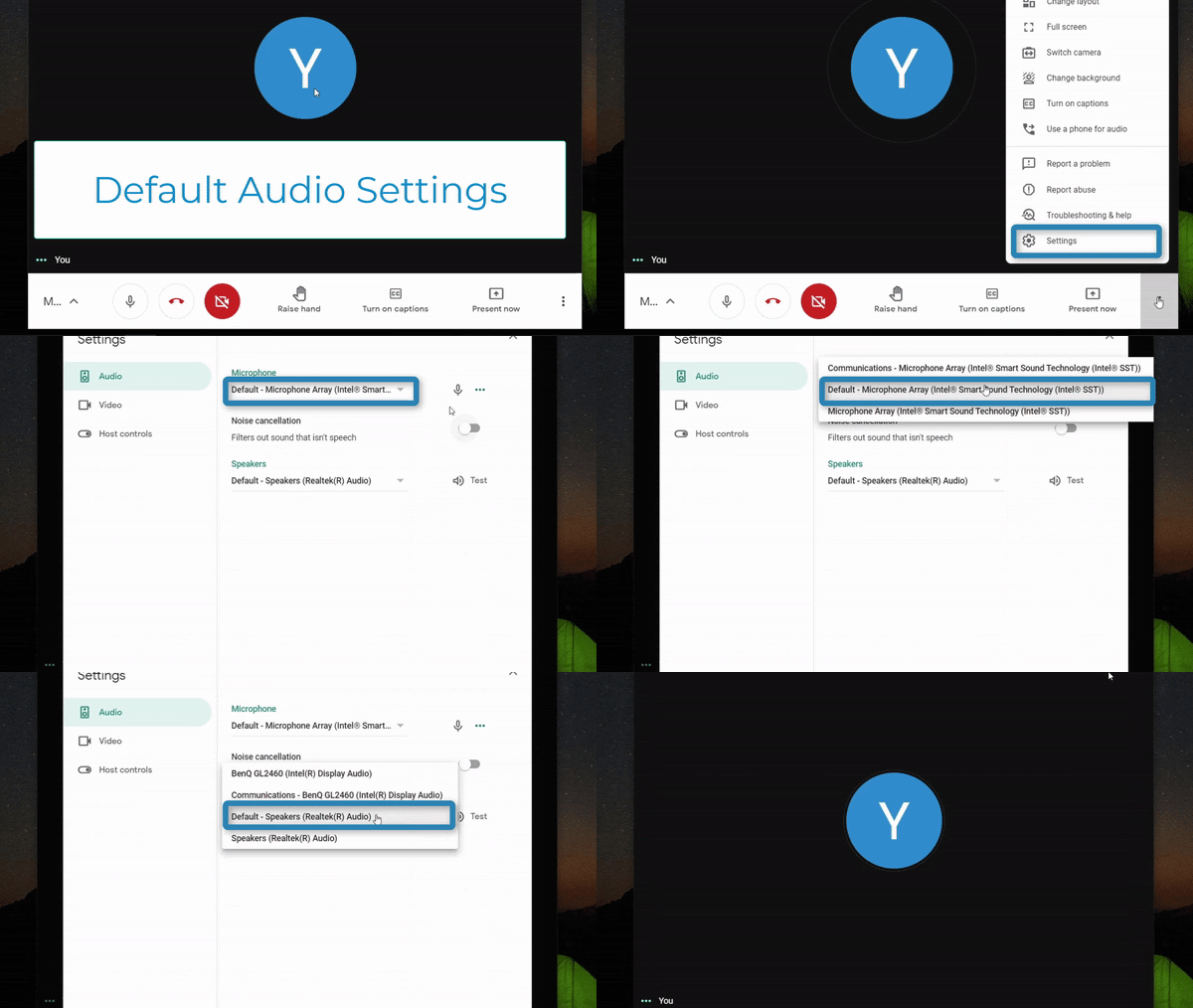
Steps:
1. Select the three dots on the bottom right 
2. Select "Settings" 
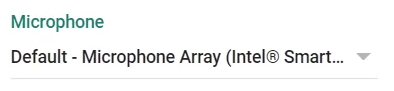
3. Select the tab under "Microphone
- Typically, selecting the Microphone listed "default" will work but you can also select the specific microphone you would like to use
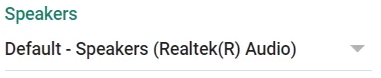
4. Select the tab under "Speakers"
- Typically, selecting the Speaker listed "default" will work but you can also select the specific speaker you would like to use
Enabling Webcam Access

Steps:
1. Select the camera with a red X on the top right 
2. Select "Always allow https://meet.google.com to access your camera and microphone

3. Select "Done" 
Note: You will only need to do this if you accidently denied access to your webcam and microphone during your first time using Google Meet
Increase Microphone Volume

Steps:
1. Right Click on the volume button on the bottom right 
2. Select "Open Sound Settings" 
3. Select "Device Properties" under the input section
Note: Make sure the correct input device is selected first

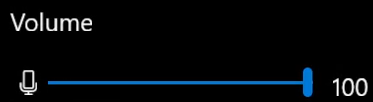
4. Use the slider to set the desired volume for your microphone
Allow Microphone Access

Steps:
1. Open Google Chrome 
2. Select the three dots on the top right 
3. Select "Settings" 
4. Type "Microphone" in the search bar

5. Select "Site Settings"
6. Scroll down and Select "Microphone" 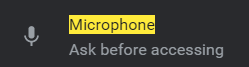
7. If there is anything under the "Block" list, Select the recycling bin next to the site 

8. (Optionally) Do the same thing in Step 7 to the "Allow" list to reset everything
9. If a pop up ever appears, please make sure to Select on "Allow"