
Google Chrome can automatically remember passwords for the websites you visit. When you create new password, you should immediately be prompted by Chrome to update your password. If you did not do this, follow the steps below to change your saved password to the new one.

Steps:
1. Open Chrome 
2. Select the "Menu" icon  (top right corner)→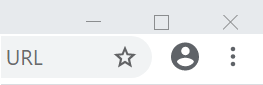
3. Select "Settings" 
4. Under the "autofill" section select “Passwords” 
5. In the search bar, type the corresponding website or username for the password you want to remove, or scroll down and find it 
6. Select the menu button to the right of that password
7. Select "Remove" or "Edit password" as desired
For editing password:
8. Type your windows password and select "OK"
9. In the "Password" field, type your new password. MAKE SURE THIS PASSWORD IS CORRECT.

10. Select "Save" 