
Users can reset their own password with a temporary password given from the IT department. Passwords may be given to managers. Please follow the instructions below to reset your password once you have been given a temporary password. The password can be reset on your laptop or mobile device. Either method shown below works.
VMware Horizon Method
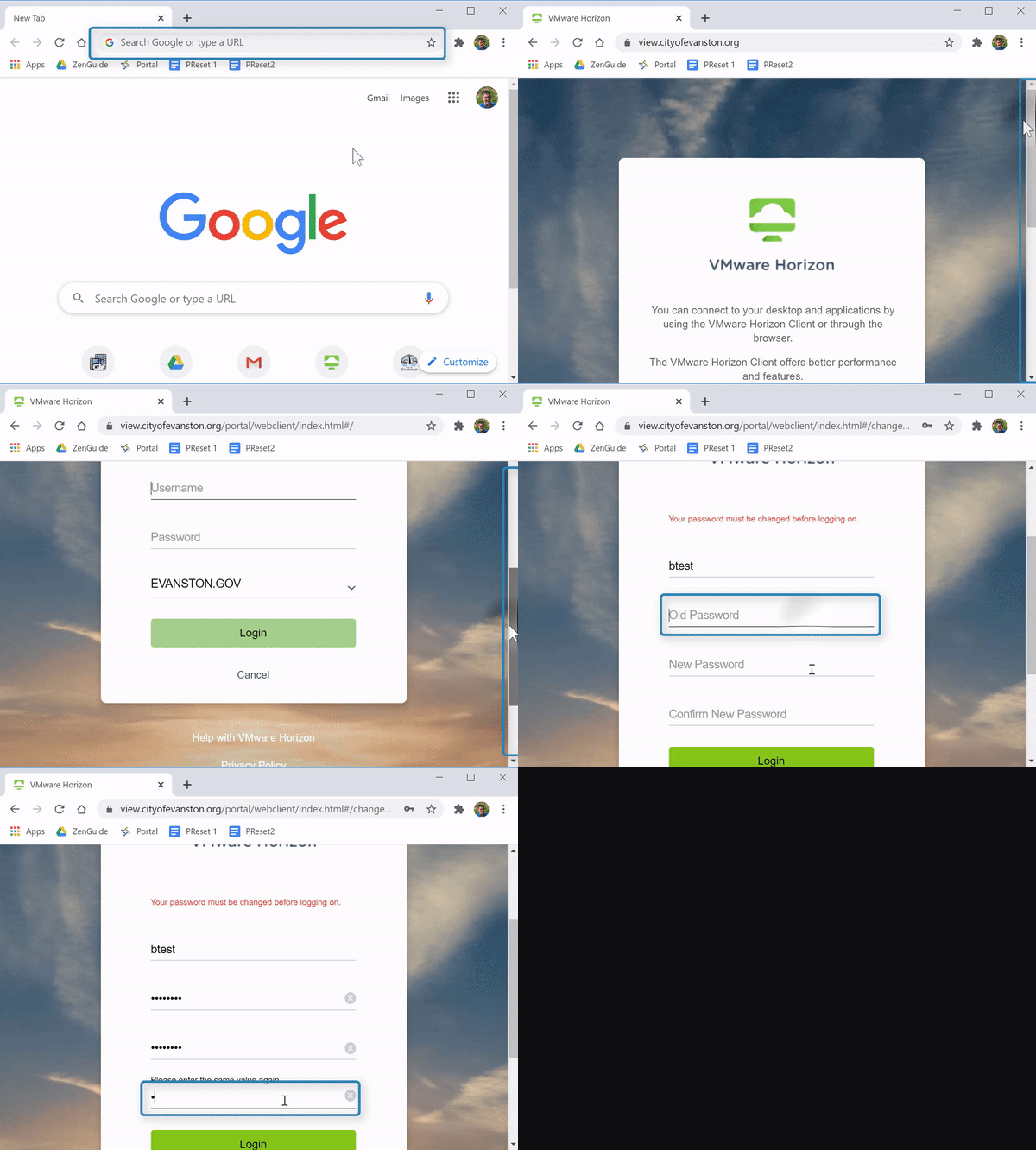
Steps
1. Open a web browser (Do not use Safari) 


2. Enter "view.cityofevanston.org" into the search bar  and press "Enter"
3. Select "VMware Horizon HTML Access" 
4. Select "Accept" 
5. Enter your username
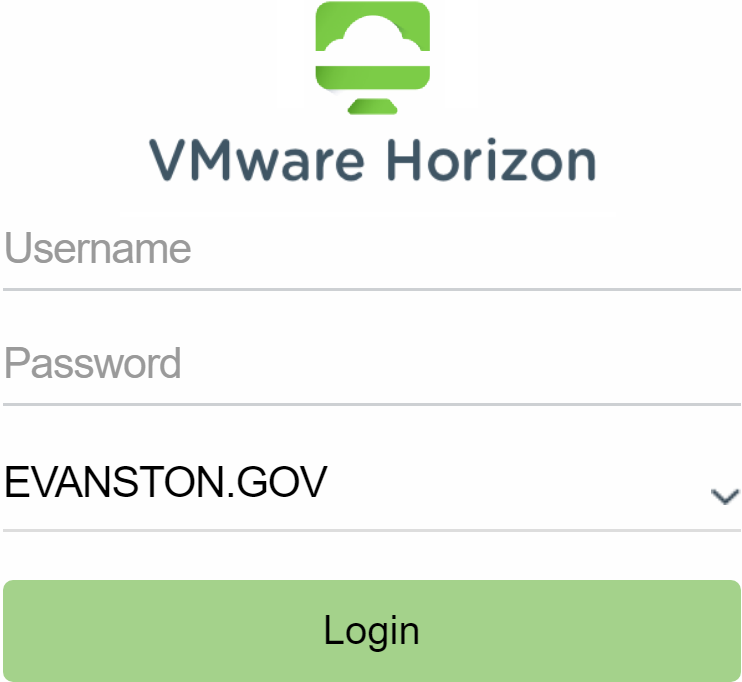
6. Enter the temporary password you've been given
7. Select "Login" 
8. You will receive a message indicating "Your password must be changed before logging on." In the "Old password" field, enter your assigned password

9. In the "New password" and "Confirm new password" fields, enter your new password


- New passwords require at least 16 characters. This can be a series of random words or a sentence. Upper/lower case characters, symbols and numbers are not necessary.
- Examples:
- Spring is my favorite season
- Bears eat Packers for lunch
- arosebyanyothername
- Examples:
10. Disregard any error message. You may get an "Error" prompt with the message "You cannot access your applications or desktops from the web client." If prompted, select "OK"
11. Test your password with steps at the bottom of this page
Password Reset Tool Method
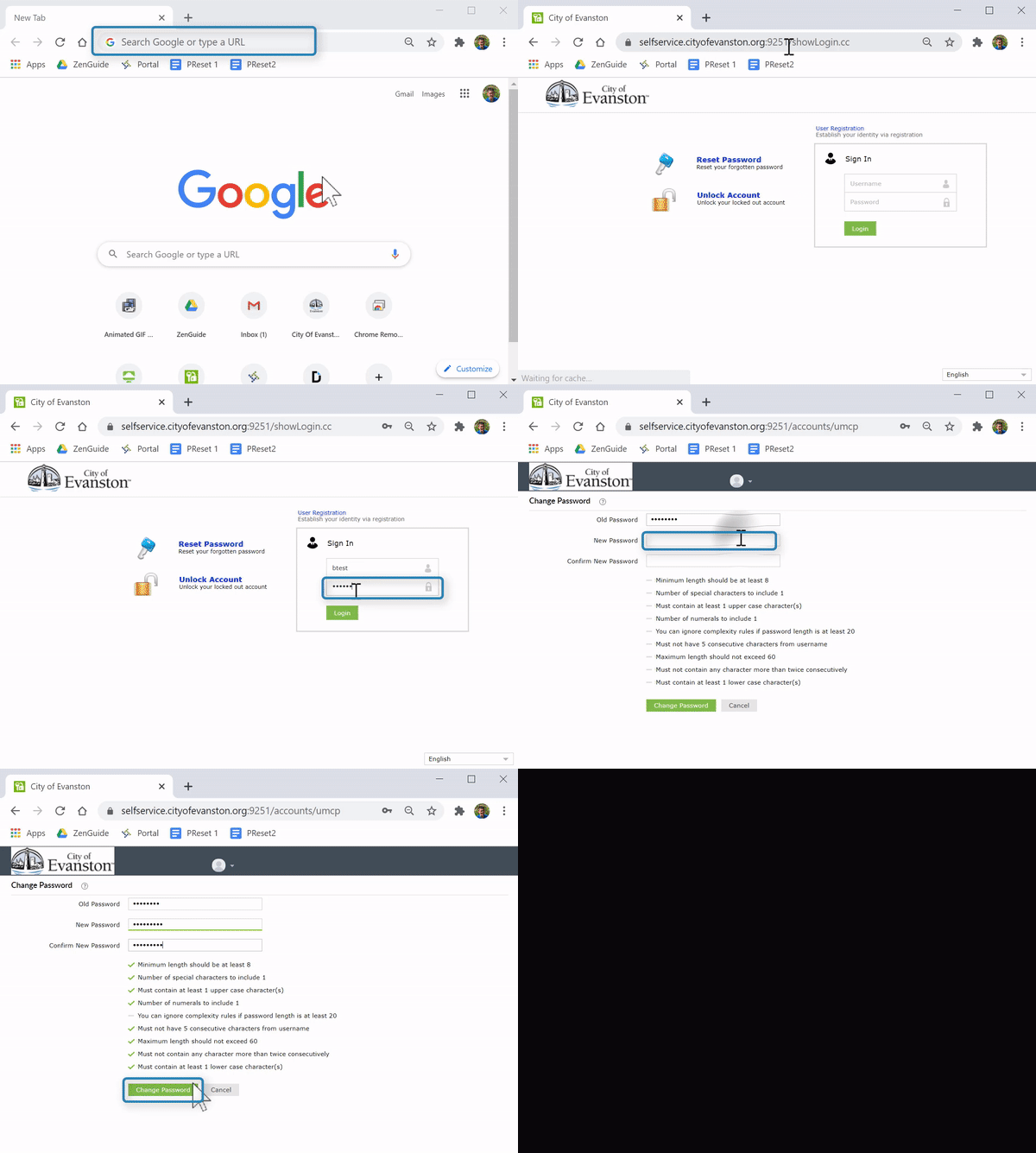
Steps
1. Open a web browser (Do not use Safari)
2. Enter "cityofevanston.org/pw" into the search bar  and press "Enter"
3. Enter your username 
4. Enter the temporary password you've been given 
5. Select "Login" 
6. Enter the temporary password again in the "Old password" field

7. Enter your new password 
- New passwords require at least 16 characters. This can be a series of random words or a sentence. Upper/lower case characters, symbols and numbers are not necessary.
- Examples:
- Spring is my favorite season
- Bears eat Packers for lunch
- arosebyanyothername
- Examples:
8. Enter your new password again

9. Select "Change password" 
10. Test your password with steps at the bottom of this page
Test New Password
1. Open a new incognito window (Ctrl+Shift+N)  to test your login
2. Enter "mail.google.com" into the search bar 
3. Select "Sign in"  at the top right
4. Enter you City of Evanston email (xxxxxx@cityofevanston.org)

5. Select "Next" 
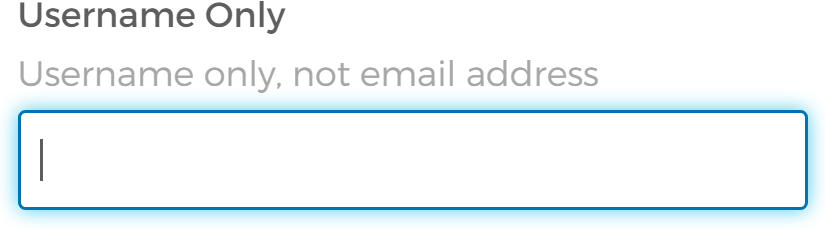
6. Enter your username (not email address)
7. Enter your new password

8. Check "Remember me" 
9. Select "Sign in" 
10. Logging in is verification of a successful password change.
If you have any questions please contact City of Evanston Helpdesk at ITHelpdesk@cityofevanston.org. We recommend all staff to please use IT knowledgebase for all of your questions.
Helpful or Related Article(s):