
Foxit
Adobe Acrobat DC Pro
Adobe Acrobat 9.5 Pro
Foxit
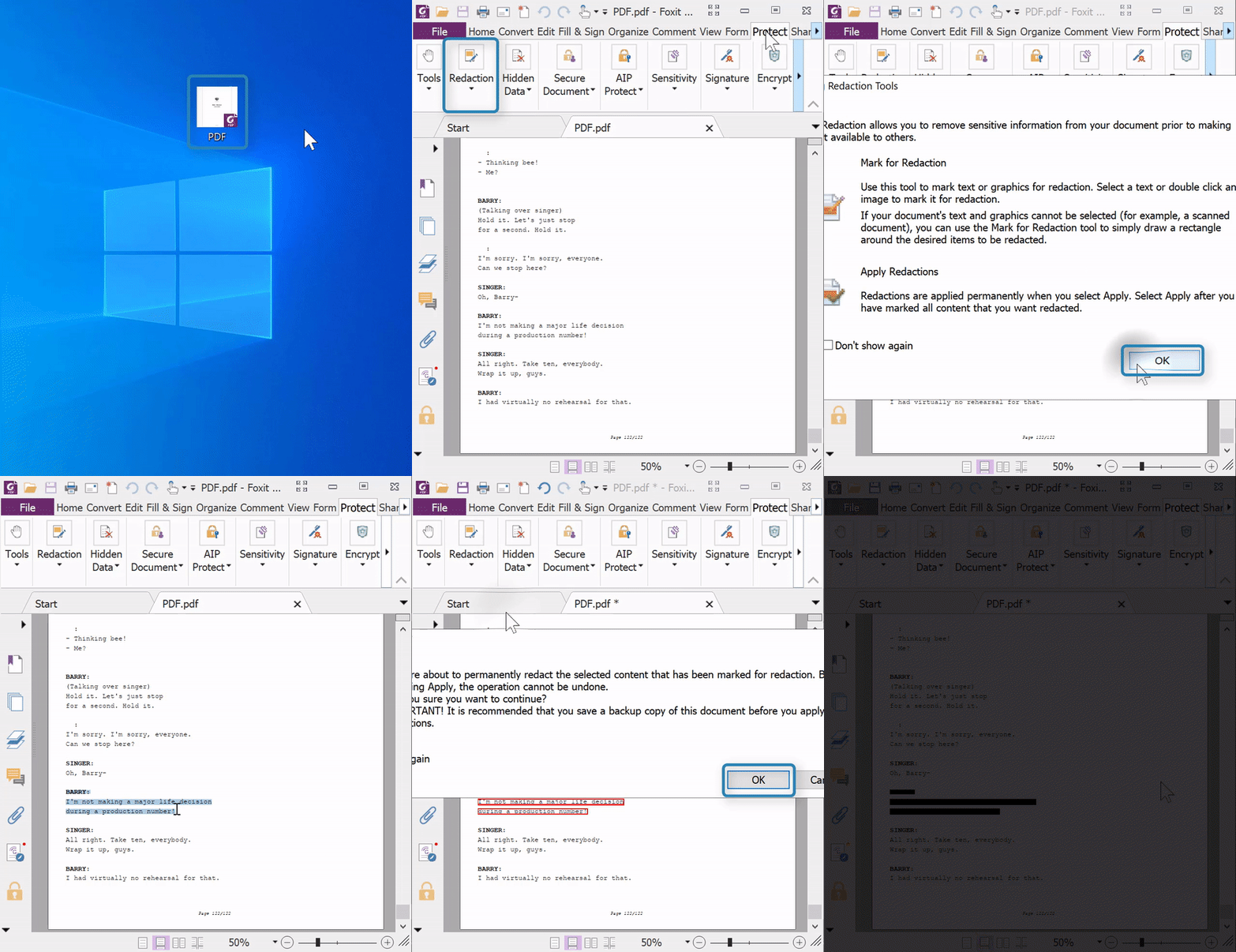
(Video Loading)
Steps
1. Open the PDF with Foxit
NOTE: If Foxit is not the default program for PDFs, see the linked article at the bottom. Or, right click the PDF, select "Open with" → "Foxit Phantom PDF 10.0"
2. Select "Protect" tab 
3. In the "Redaction" section (you may have to select "Redaction"), select "Mark for Redaction" 
4. If prompted, select "OK"  (Optional: check "Don't show again")
5. Select areas for redaction 
- Double click on images to mark the entire image
6. In the "Redaction" section, select "Apply Redaction" 
7. Read the disclaimer, then select "OK" (Optional: check "Don't show again")
8. Select "File" → "Save"
Adobe Acrobat DC Pro
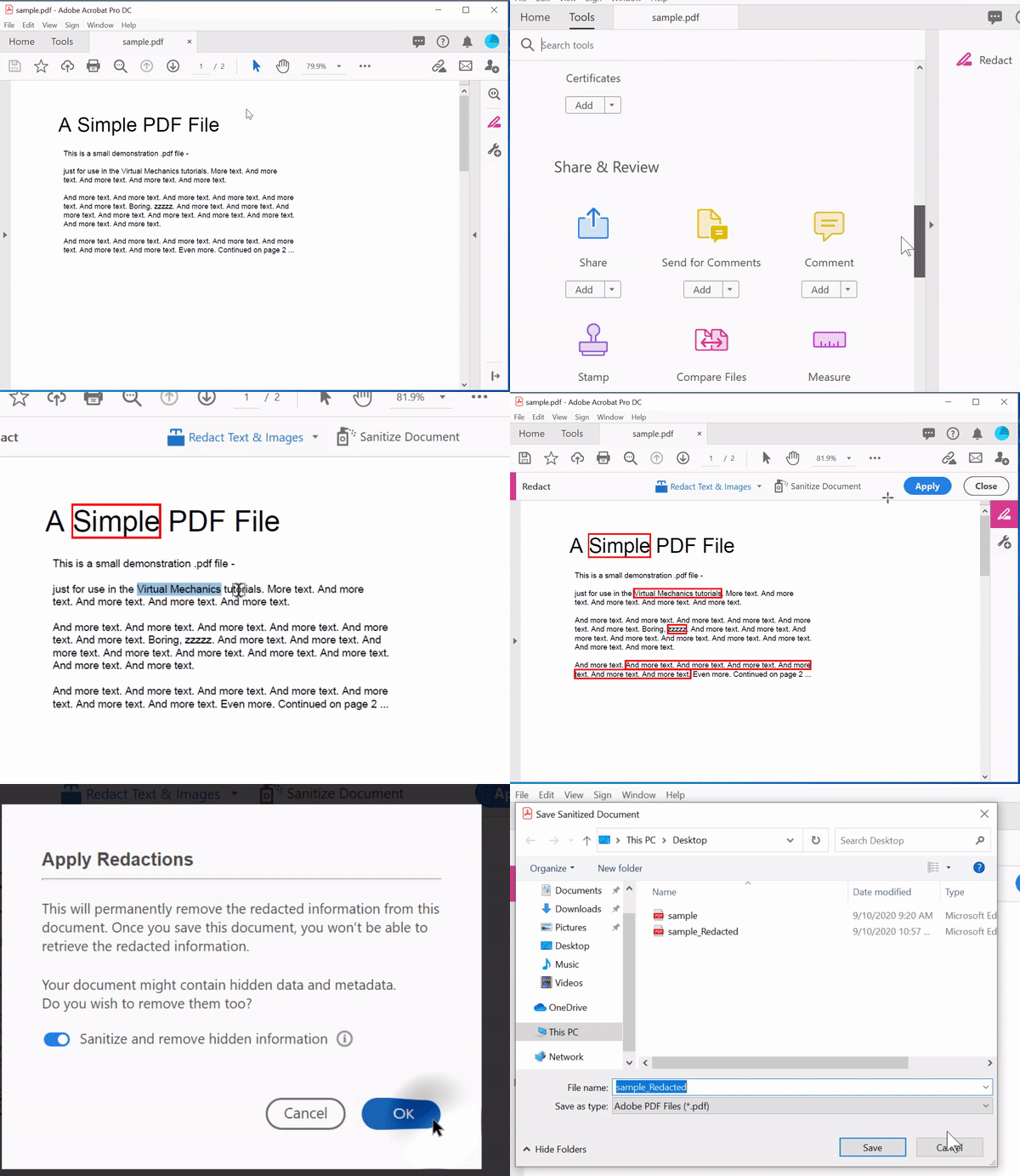
(Video Loading)
Steps
1. Open the PDF with Adobe DC Pro
2. Select "Tools" tab 
3. Scroll down to find the "Protect & Standardize" sub-menu 
4. Select the redact tool, by selecting 'open' 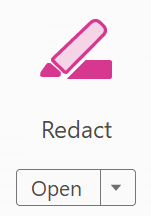
5. Select areas for redaction

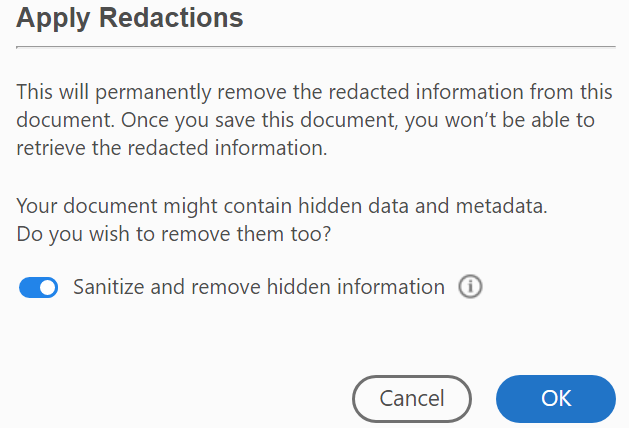
5. Select Apply, you will be asked to sanitize and re-save. All set. 
Adobe Acrobat 9.5 Pro
(Video Loading)
Steps
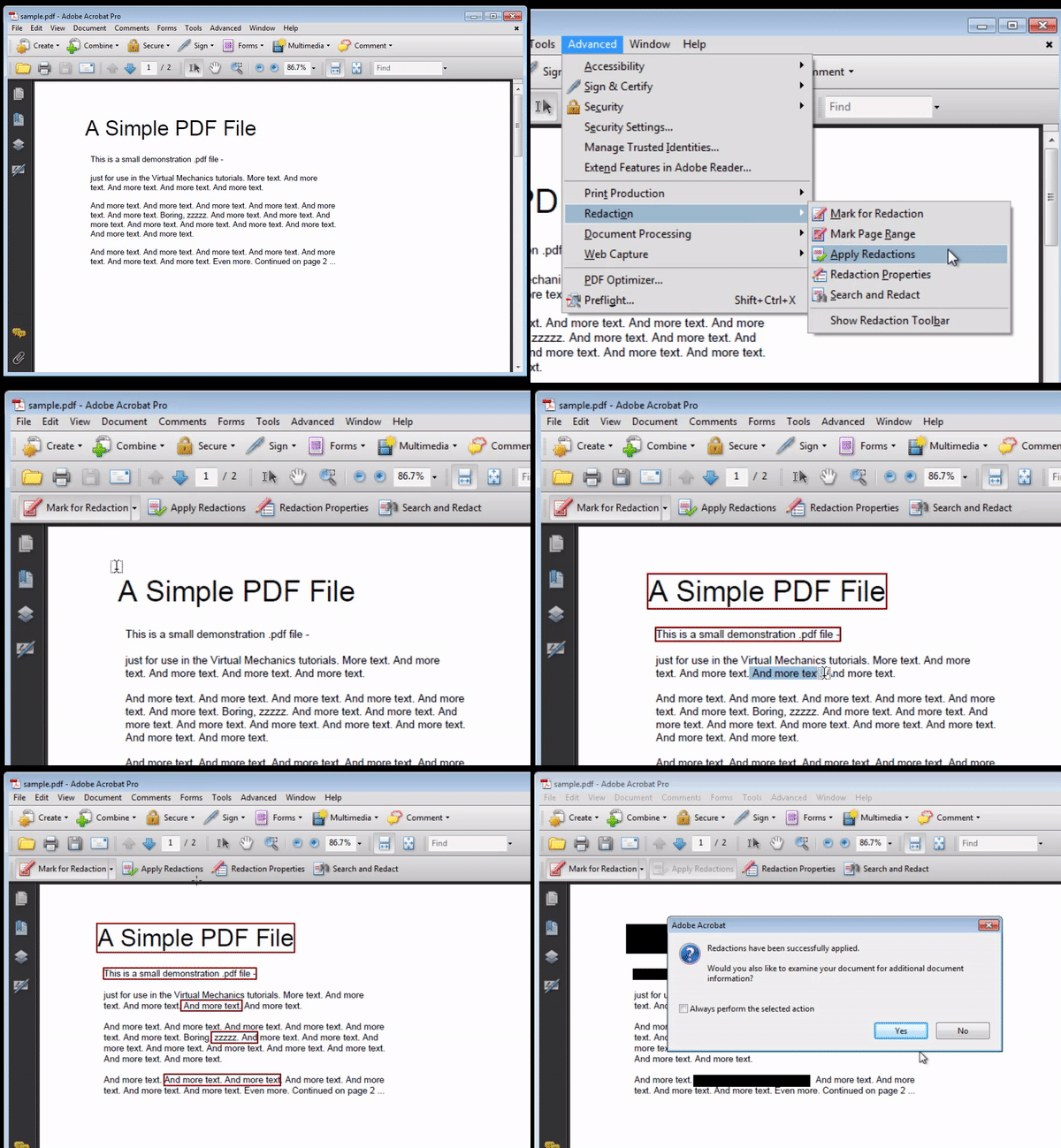
1. Open the PDF with Adobe 9.5 Pro
2. Select Advanced->Redaction->Show Redaction Toolbar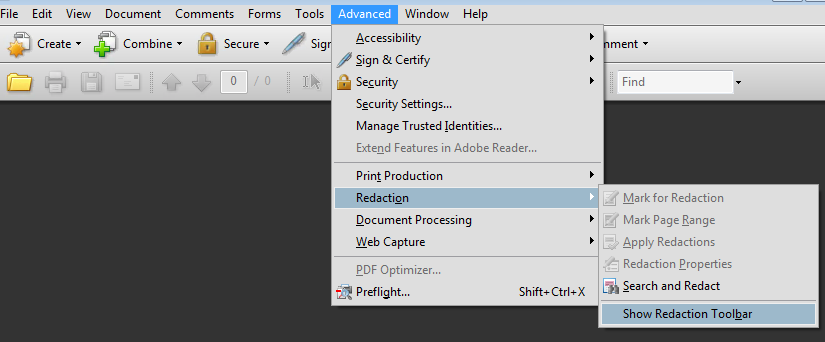
3. Select "Mark for Redaction" from the toolbar 
4. Highlight the text you want to redact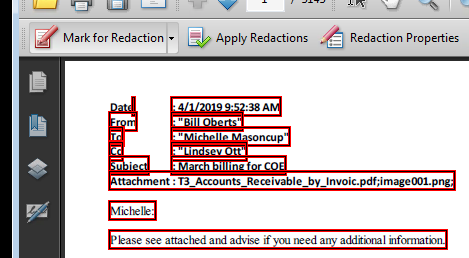
5. Select Apply Redaction from the toolbar menu, when you have finalized all the text/images you want to redact.
6. Select "OK" on the redaction disclaimer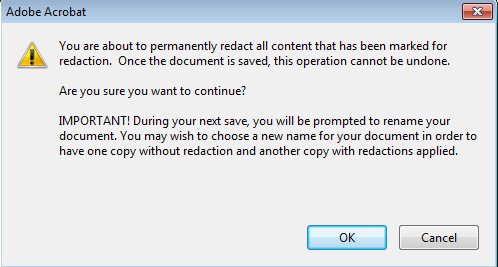
7. Save the document. All set.