
S2 Building Access Control System
* See below to solve for 'Your Connection is not private
* The S2 Building Access Control System is only available on our network. Virtual desktop (remotely) only.
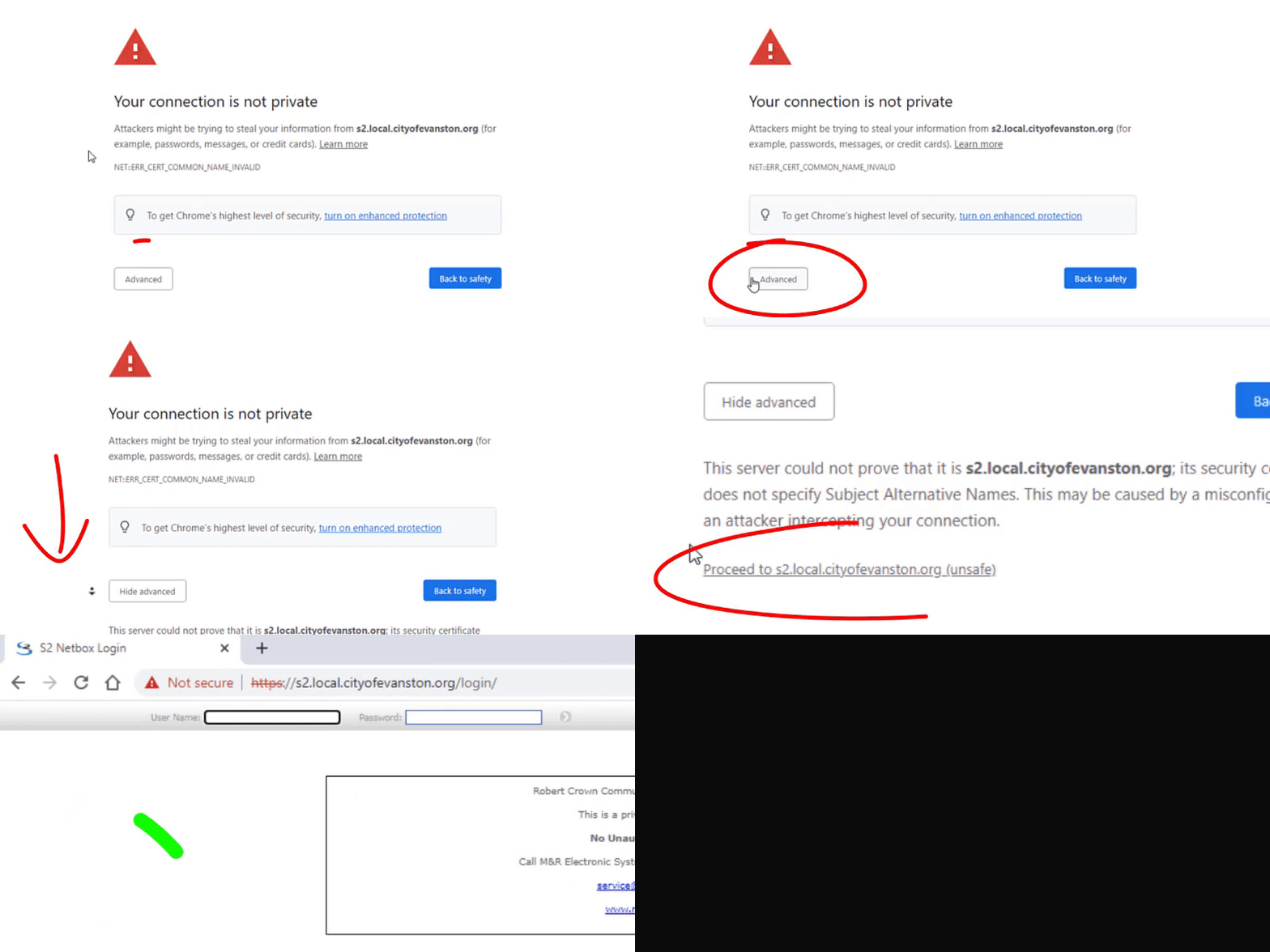
(video loading)
Table of Contents
1. Overview
2. Search Functions
3. Create New User + Associate Keycard
4. Deactivate User + Card
1. Overview
The S2 Building Access Control System is an internally published web server. Administrator who work in this platform, can login with their computer/email credentials. The system is only accessible via an onsite computer, or a virtual desktop.
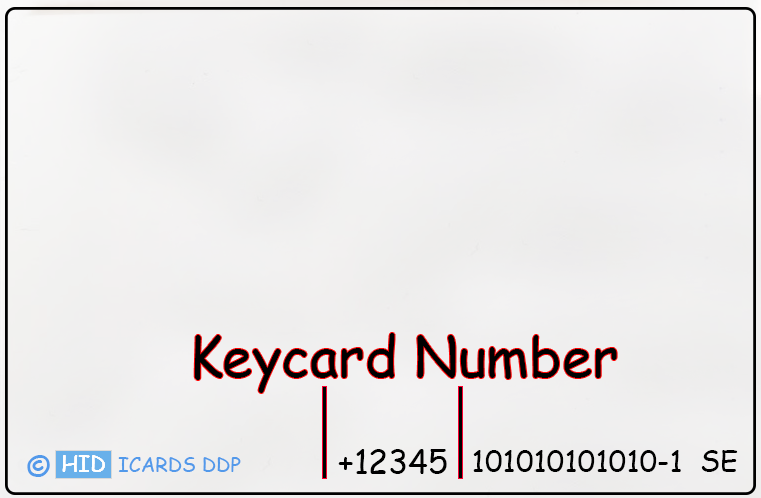
Users are assigned key cards. The keycards are programmed to the user, then permission levels are applied to the card/user. If a keycard is not able to open a door, this means they do not have the correct permission on the card being utilized, or the card is not registered (properly). All keycards and doors have accounting logs turned on. There are 100% logs for every door, keycard, and user.
Example Keycard:
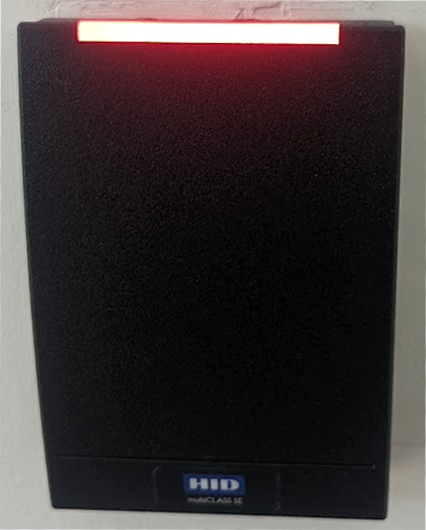
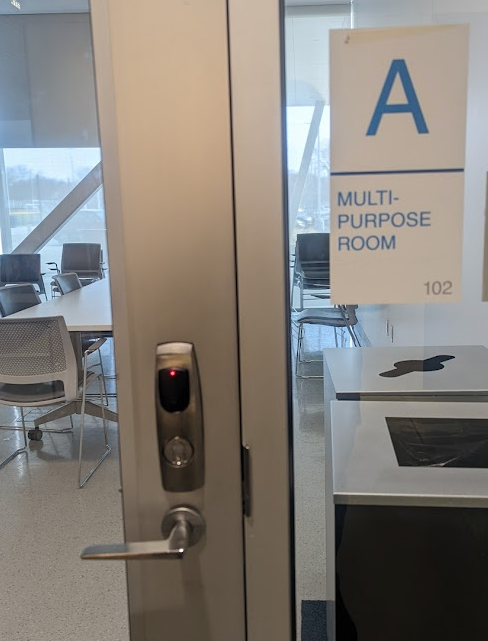
Example Door Controllers:
Example Keycard Use:
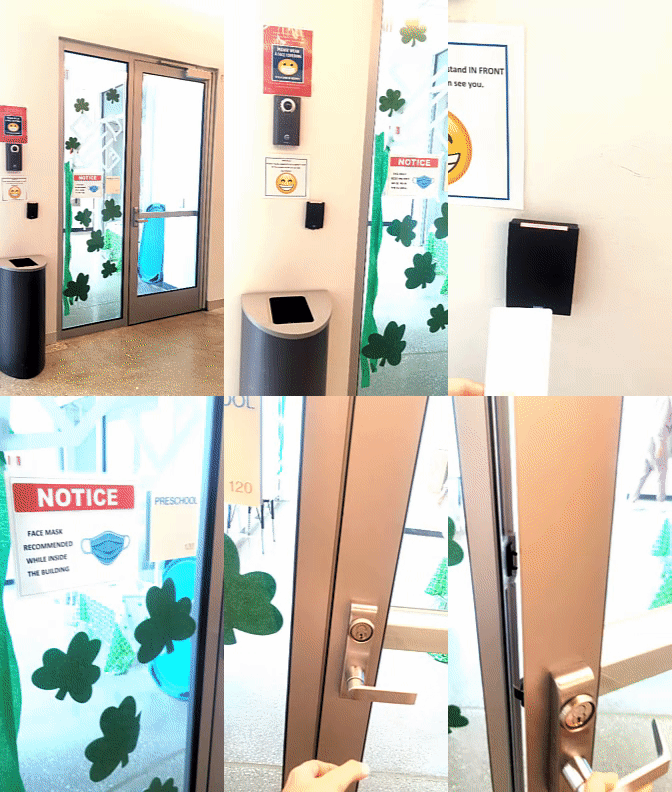
(video loading)
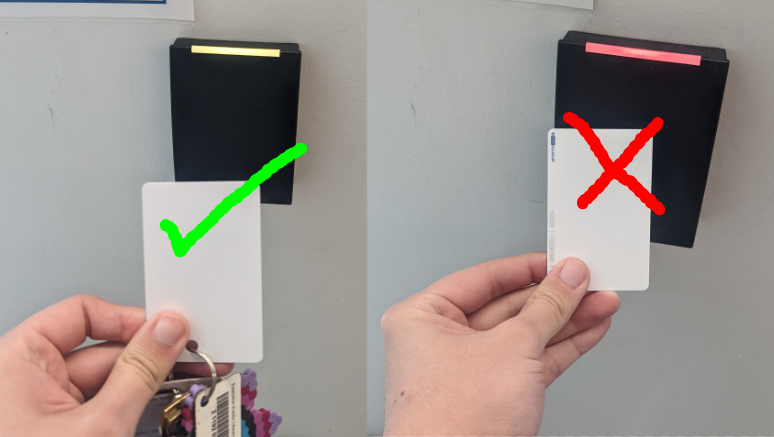
The door controller color will change to yellow/green, when the door has been successfully opened by a keycard. The door controller will continuously show 'red' to if the door is locked. and/or if the keycard is unsuccessful.
Example Logs:
08:31:54 Access granted for Bill Gates at FRONT DESK SKATE RENTAL DOOR 180
13:01:29 Access denied for Bill Gates at LIBRARY MEETING RM 114
16:00:01 Door KITCHEN 107 HELD OPEN
10:12:10 Access not completed by Bill Gates at ENTRY TO CHILD CARE 230
2. Search Functions
The search function will show if a user or keycard is already registered. This is helpful if you don't know if the user or the keycard is new to the system. The search also includes items like groups and group memberships.
How To use Search
ID Number
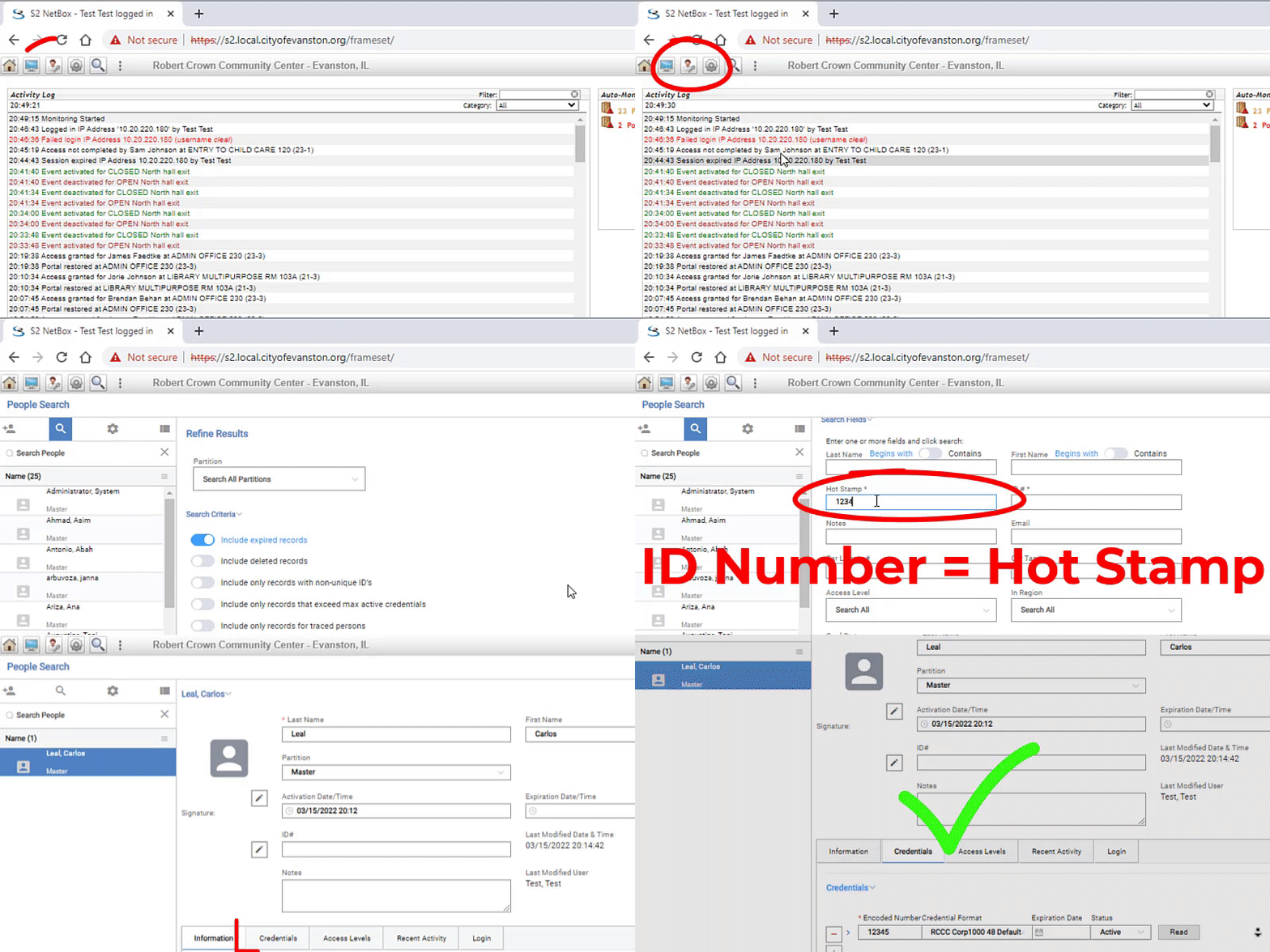
(video loading)
User Name
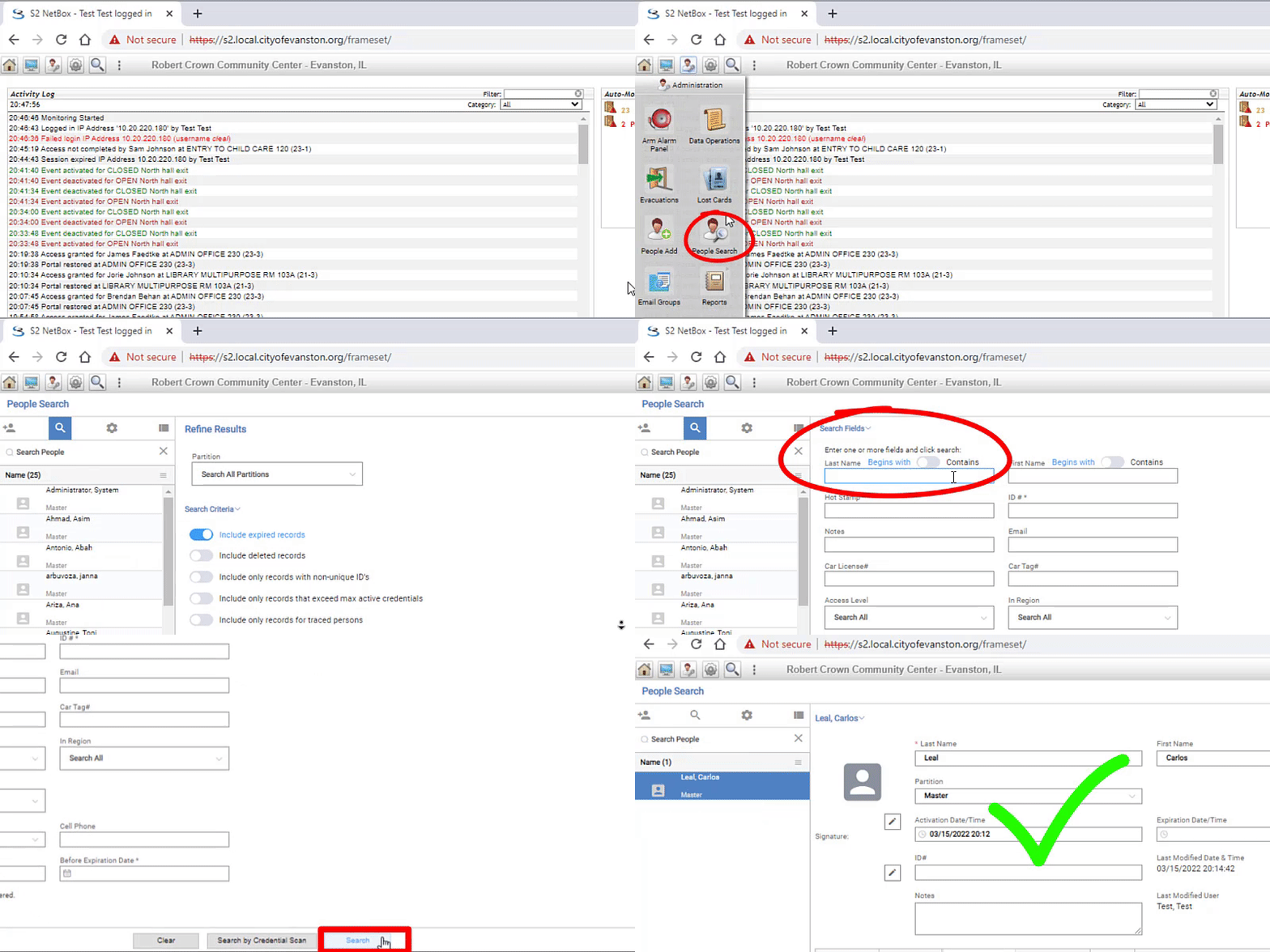
(video loading)
Access Level (Permissions)

(video loading)
3. Create New User + Associate Keycard
Create User (Name)
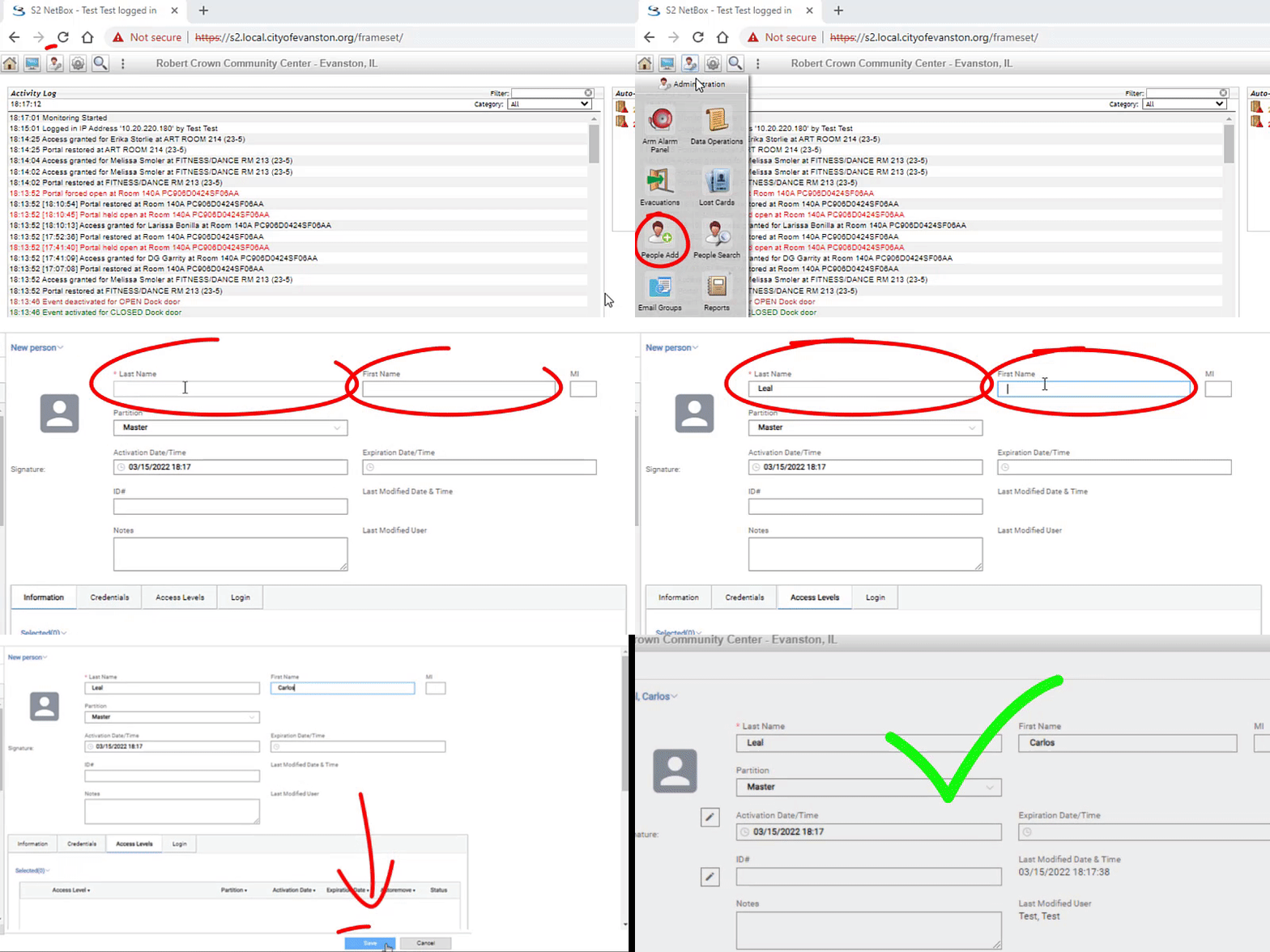
(video loading)
Add Access Levels
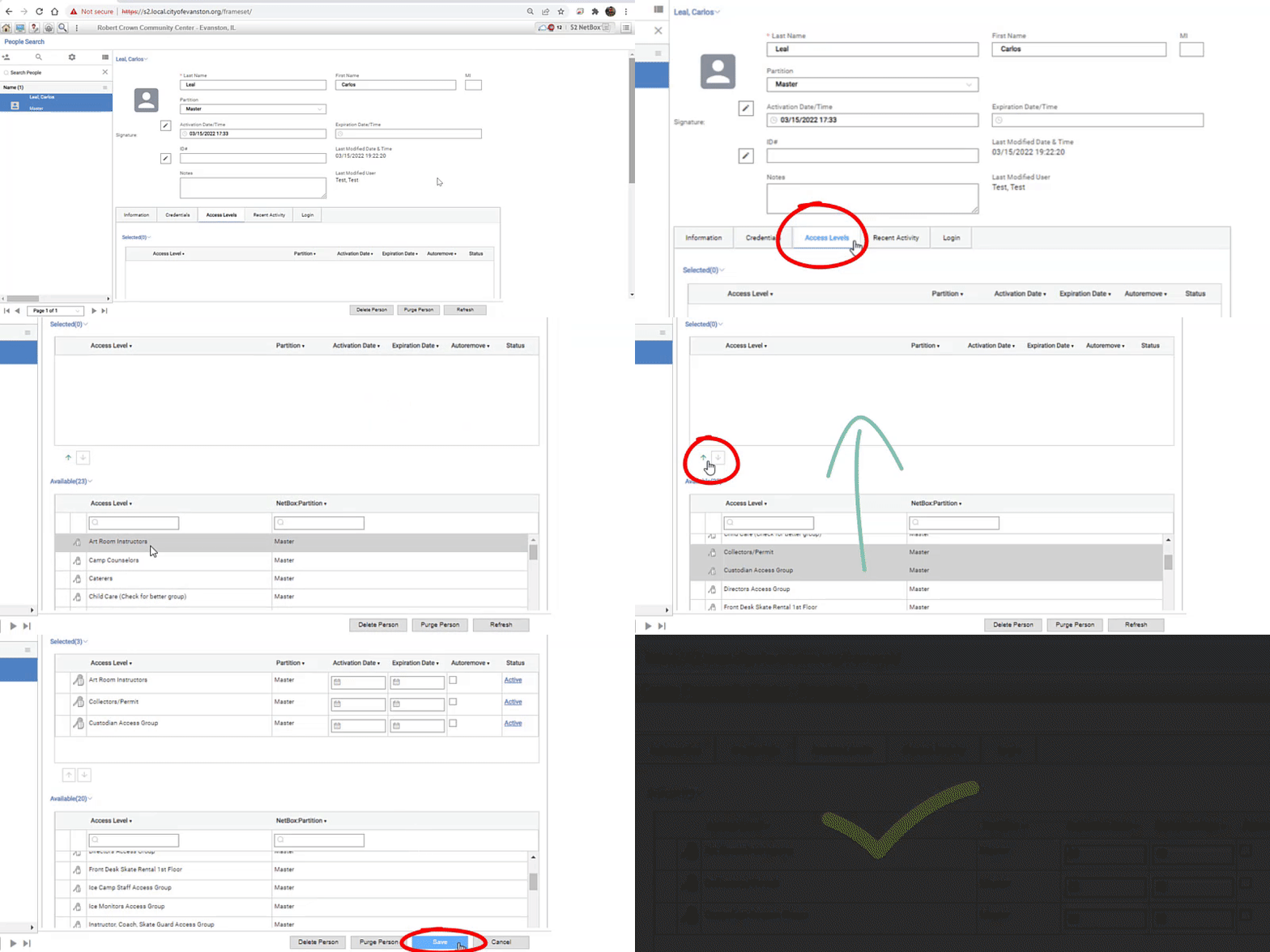
(video loading)
Add Security Keycard
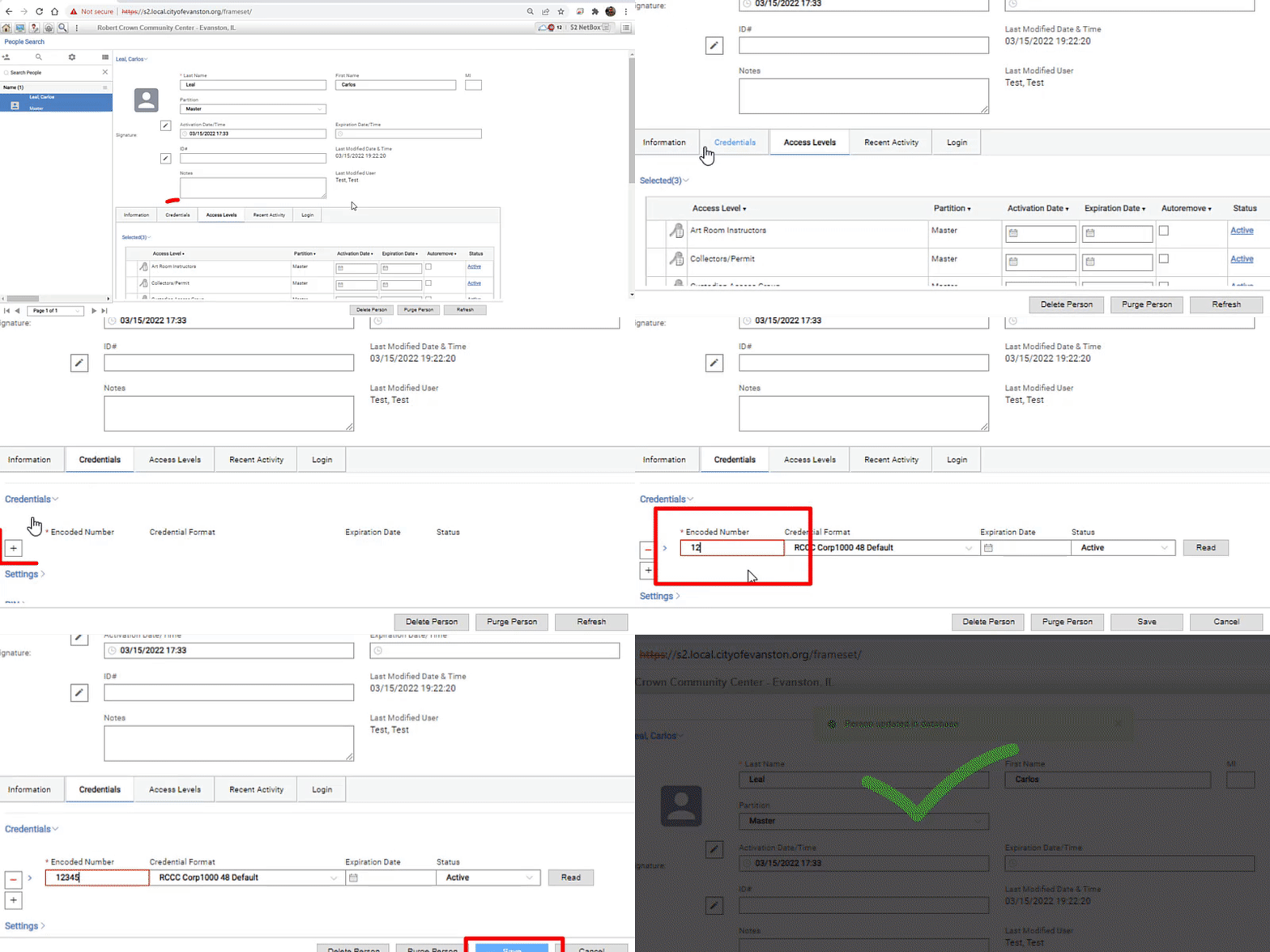
(video loading)
4. Deactivate User + Card
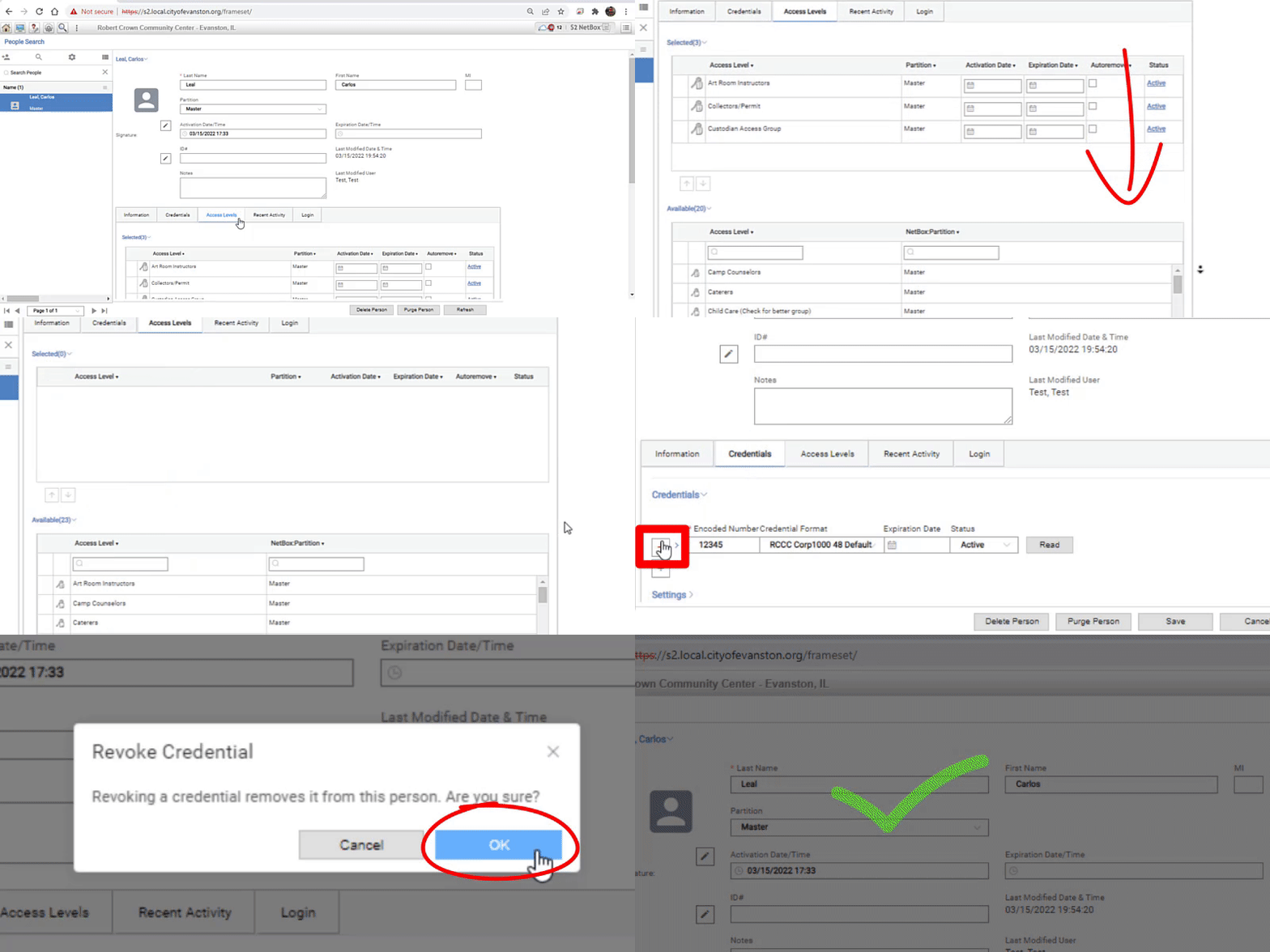
(video loading)