
Disable Randomized MAC Address on Android
MAC addresses are used by devices when connecting to a Wi-Fi network or an access point. Because these MAC addresses are transmitted without encryption, they can be captured and used to potentially track a user's location. Historically, devices use the factory MAC address to associate to a Wi-Fi network. The factory MAC address is globally unique and static, allowing the device to be tracked and individually identified.
In Android 10+, MAC randomization is enabled by default for client mode, SoftAp, and Wi-Fi Direct. MAC randomization prevents listeners from using MAC addresses to build a history of device activity, thus increasing user privacy.
If you have issues, it could be related to MAC address randomization. You might first need to connect to the "CityOfEvanston_Guest" network, and accept the agreement one time. However, this can cause problems with the authentication. You may need to disable random MAC on the specific wireless network.
You can disable random MAC Addresses by going to the following:
Step 1. Connect to "CityOfEvanston_Guest" network and accept the "Accept" agreement.
Step 2. Open Android "Settings" in the app drawer.
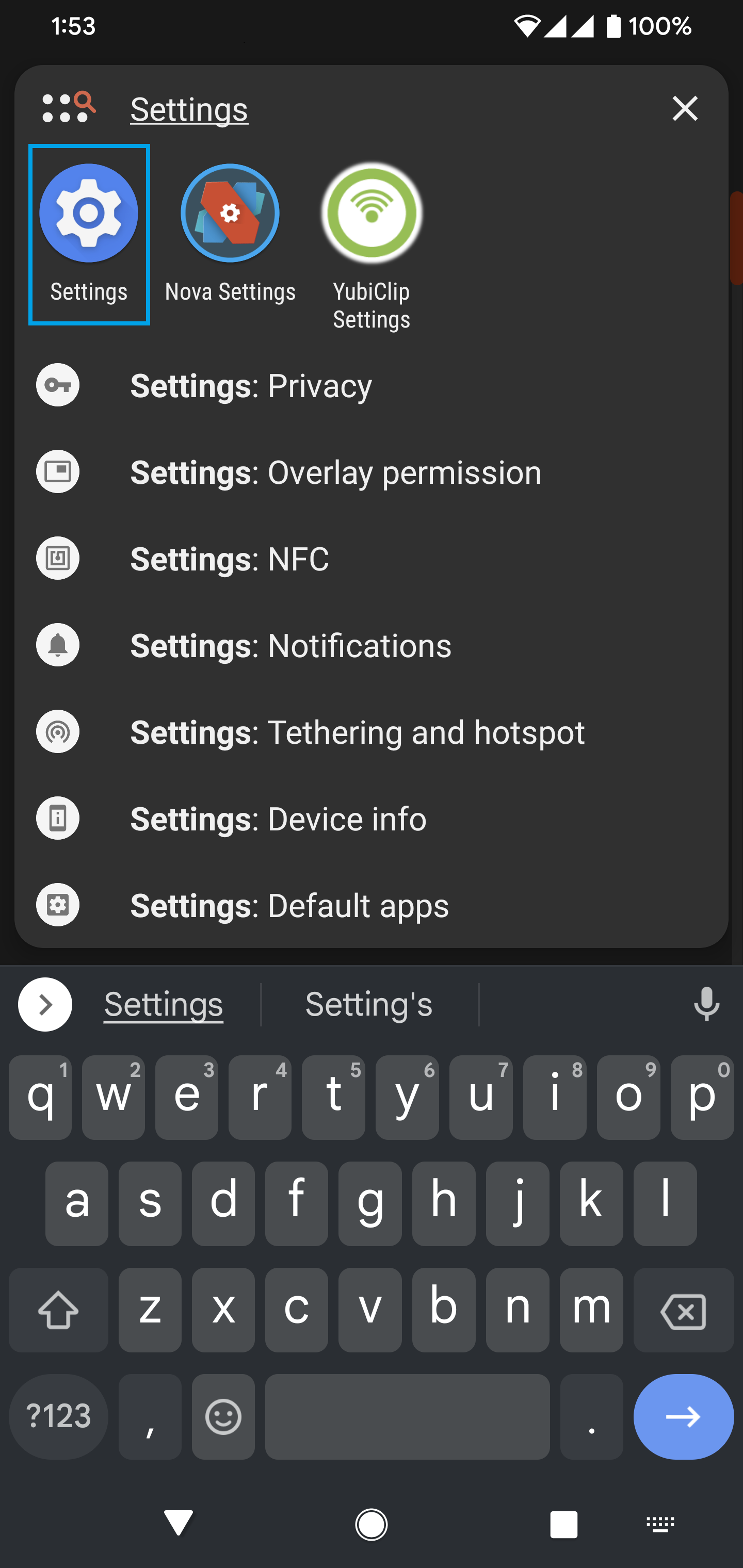
Step 3. Click on "Network & internet".

Step 4. Click on "Internet".
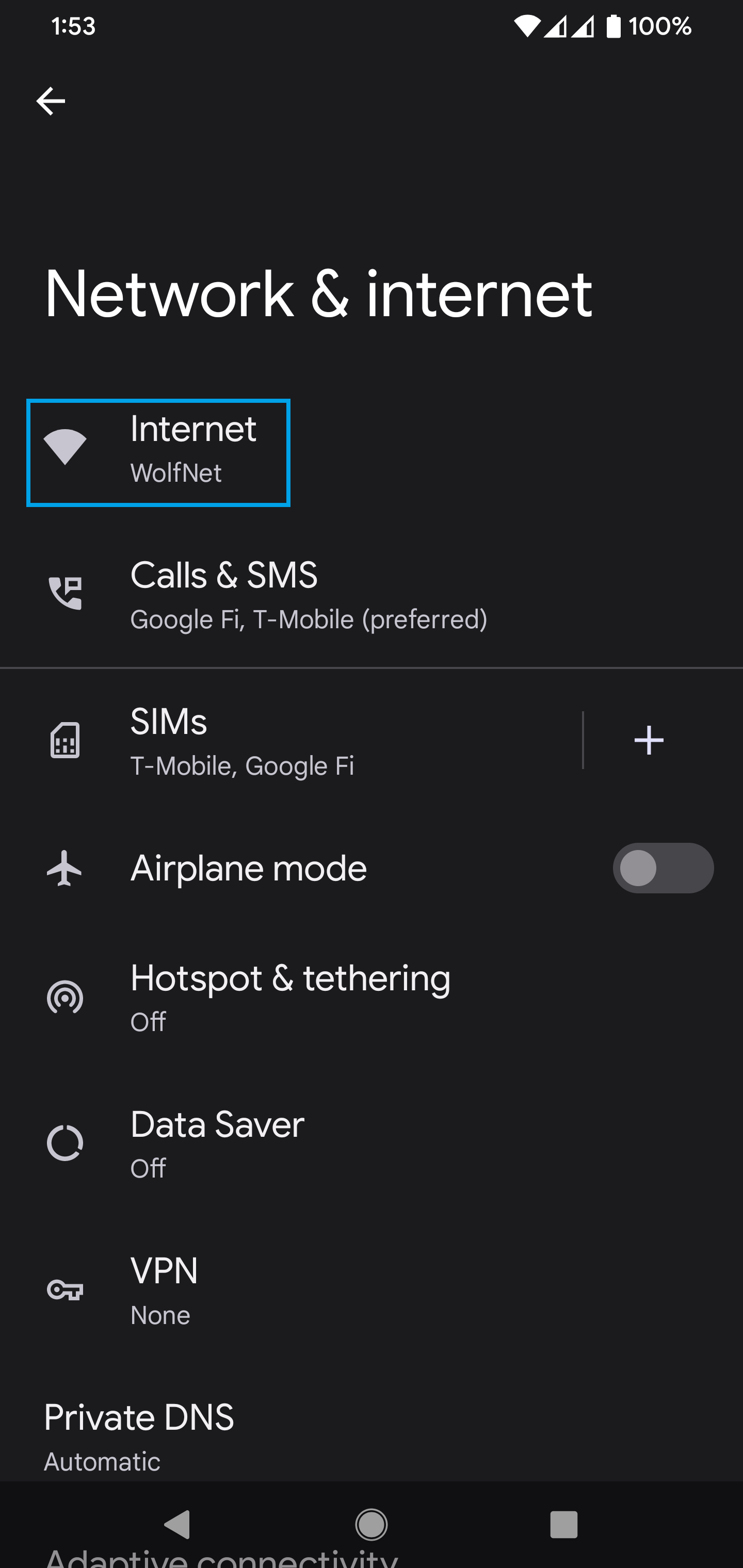
Step 5. Scroll to the bottom and click on "Saved networks"
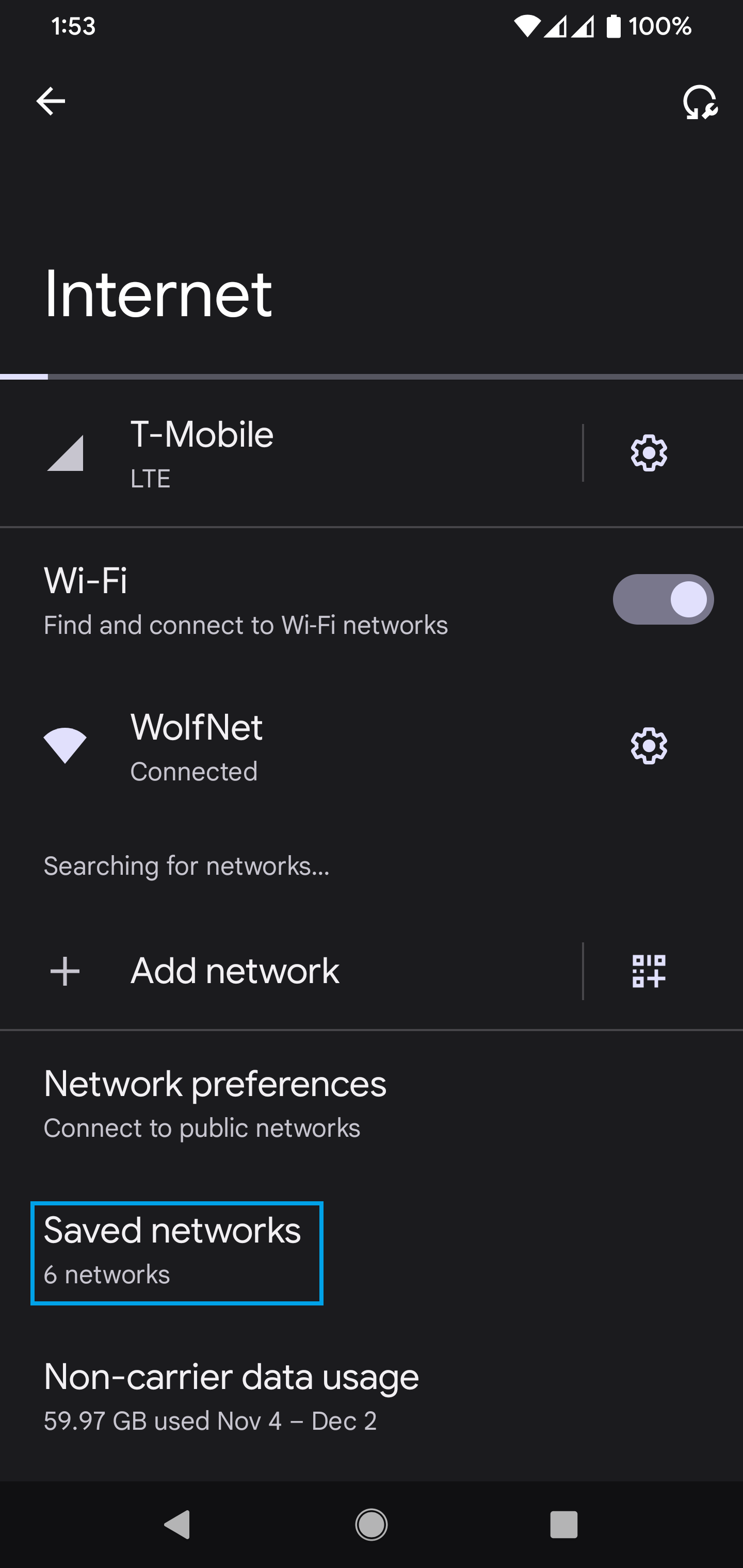
Step 6. Click on "CityOfEvanston_Guest" network under "Other networks"

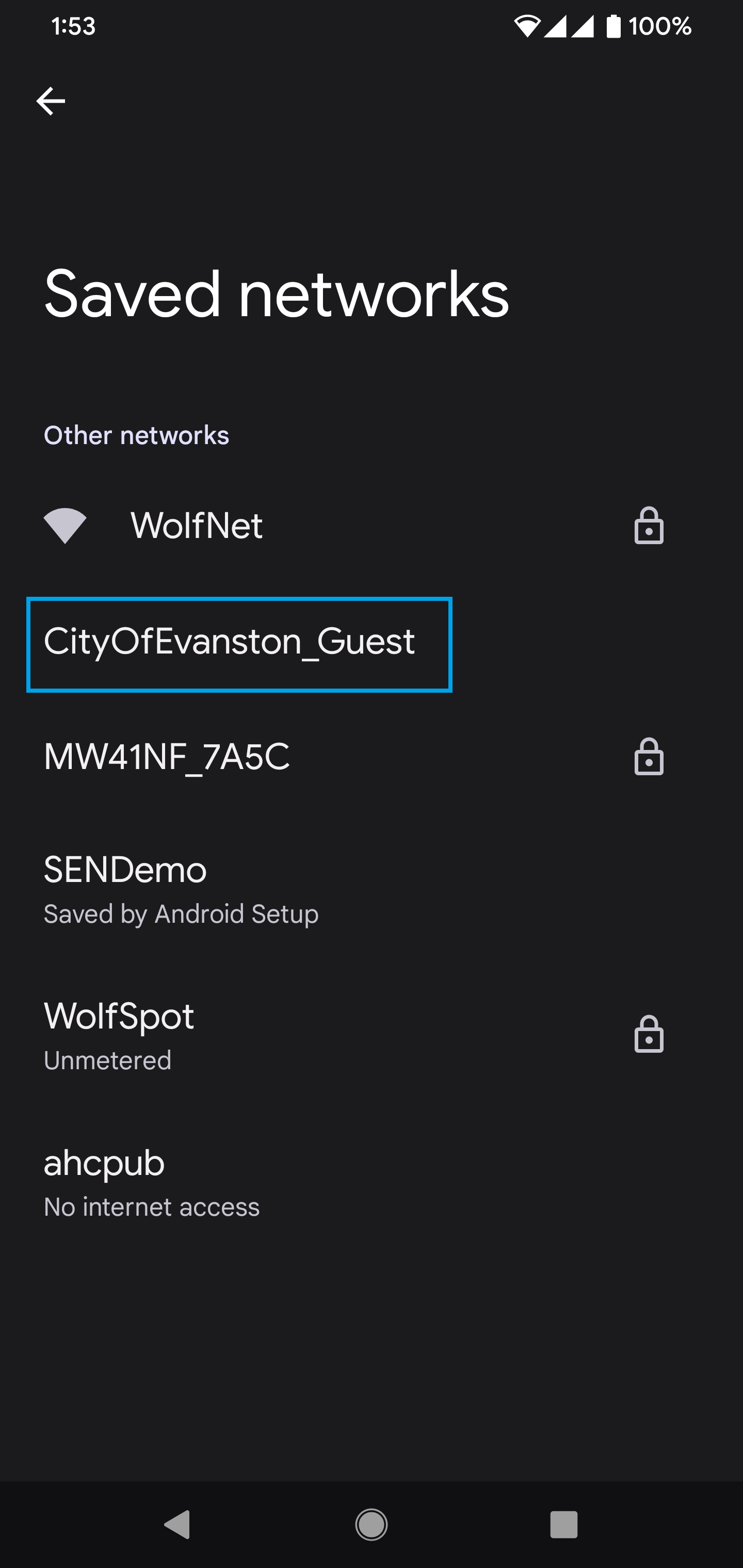
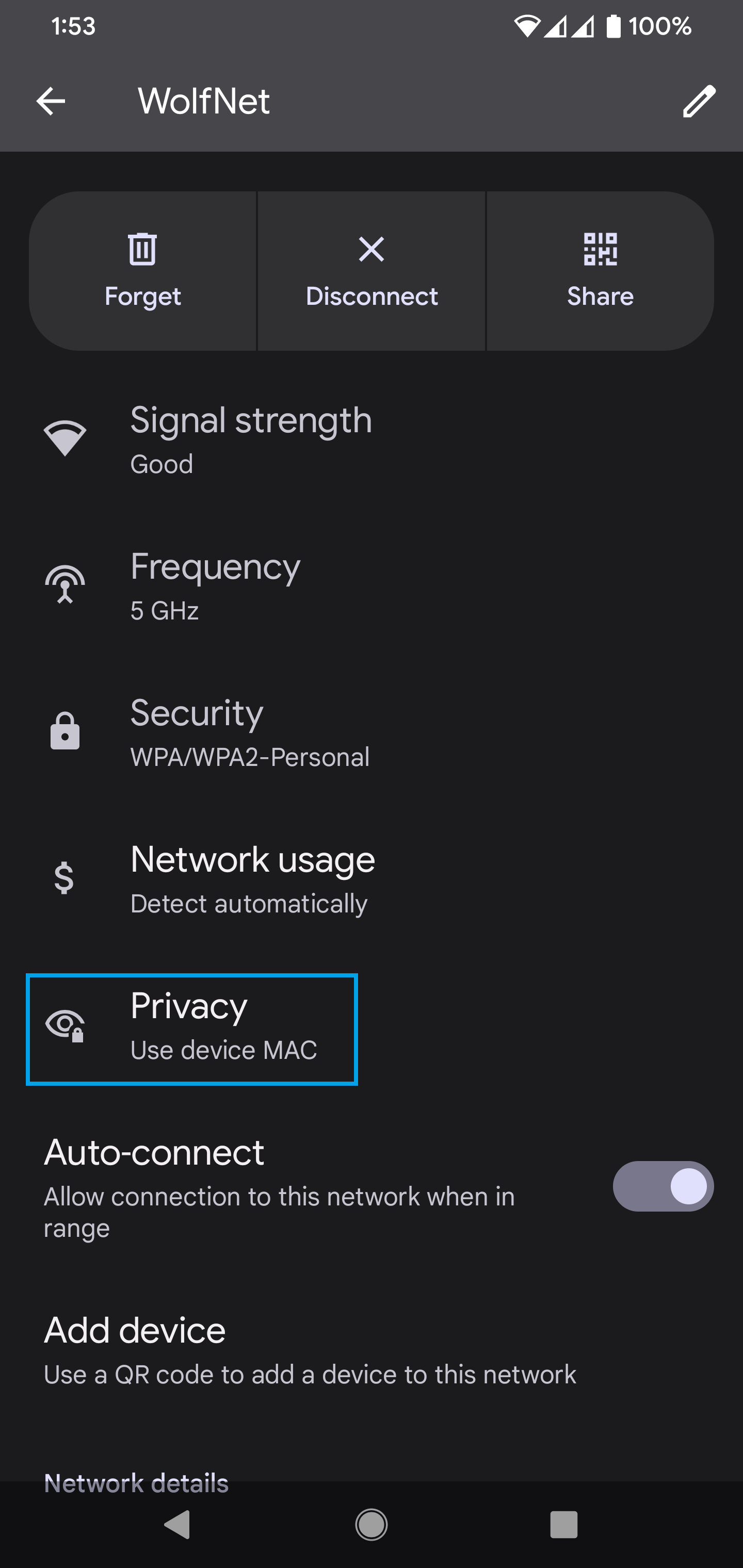
Step 7. Click on "Privacy" and select "Use device MAC" The default is "Use randomized MAC (default)".

Step 8. Scroll down to "Device MAC address" and provide the updated MAC address.
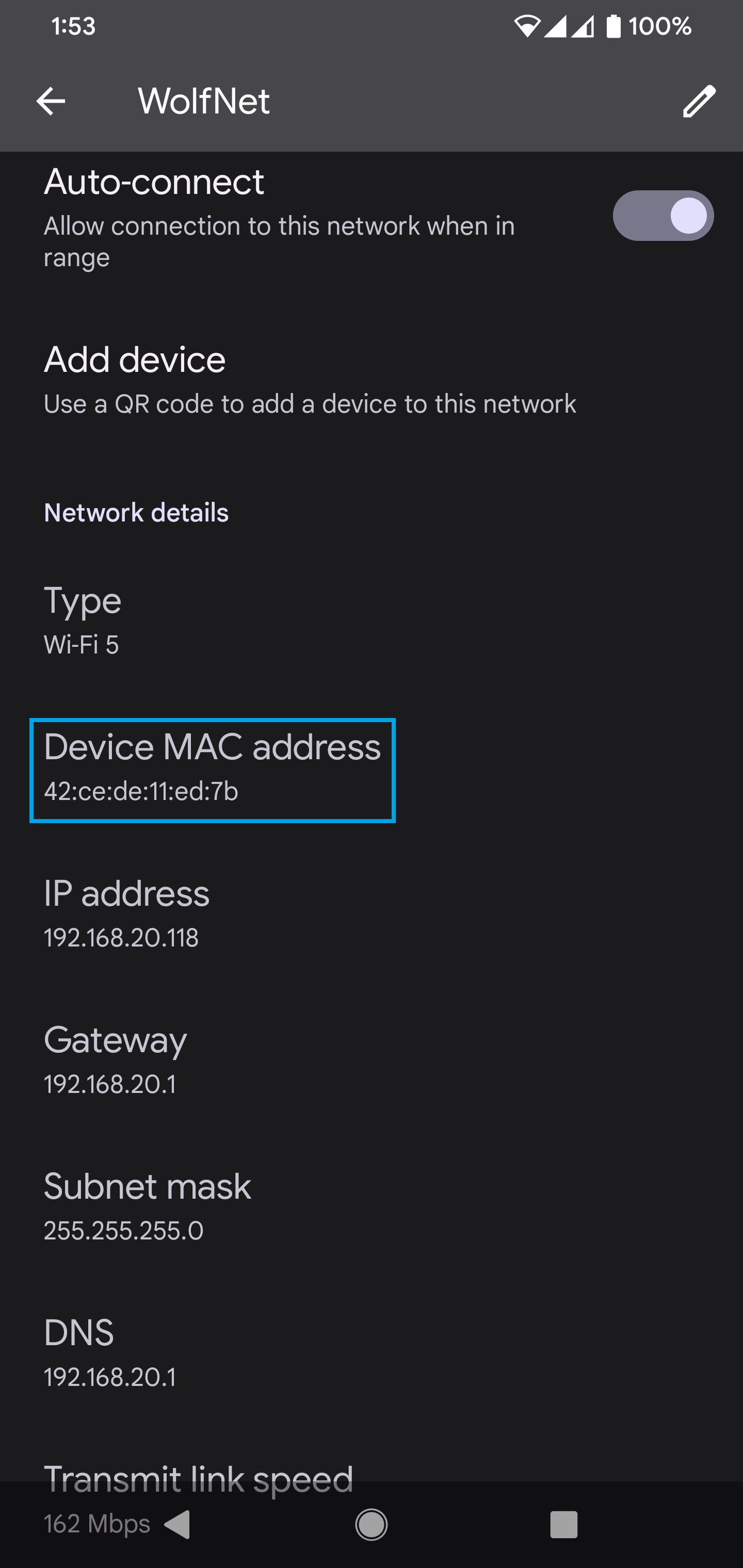
If issues persist, please provide the MAC address again, and we can re-add the non-random MAC address.