
1. How to Remove a Printer Via Settings
2. How to Remove a Printer Via Control Panel
How to Remove a Printer Via Settings
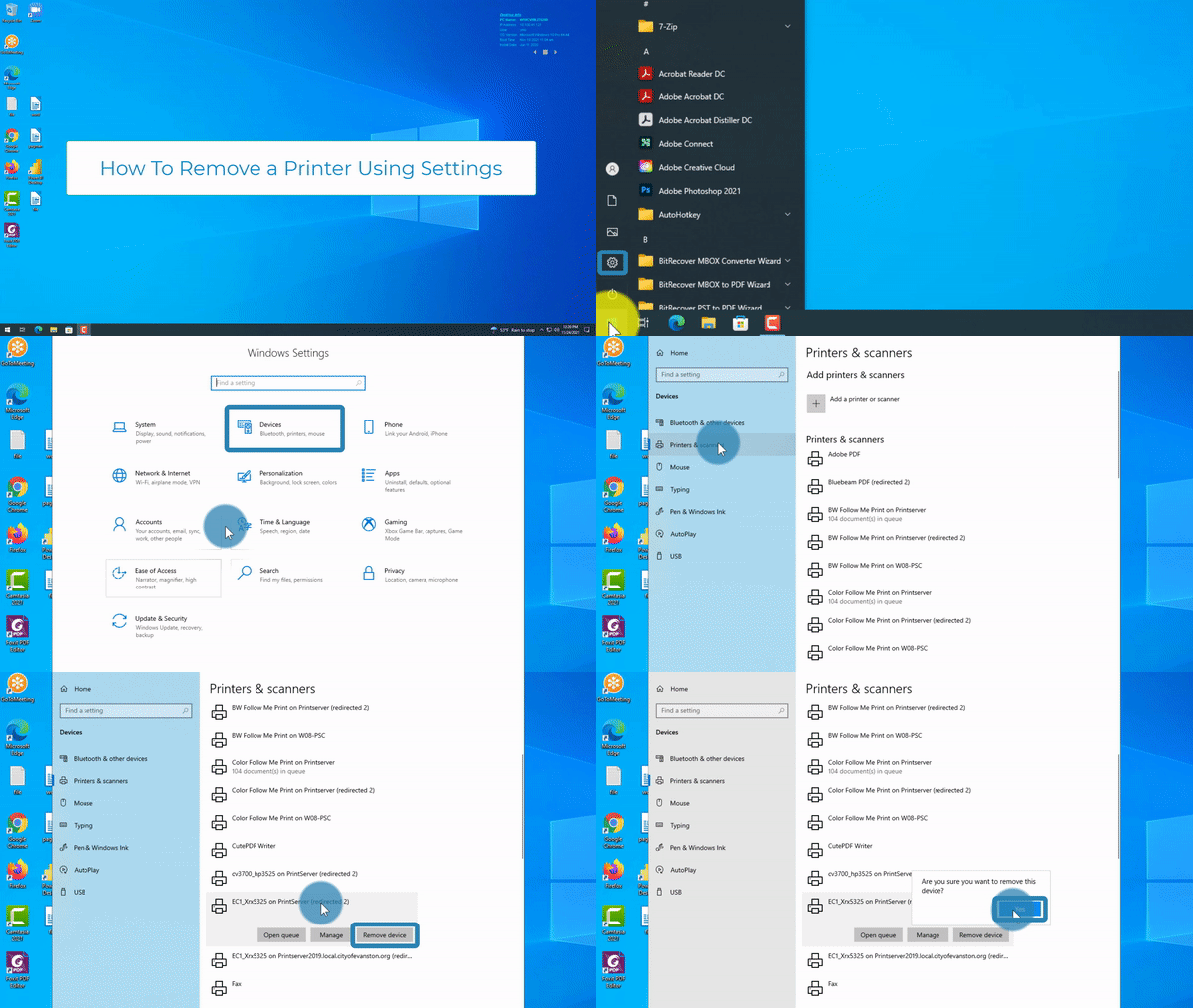
Steps:
1. Left-Click on the Windows icon on the bottom left of your screen 
2. Select the "Settings" button 
3. Select the "Devices" button 
4. Select "Printers & Scanners" 
5. Left-Click on the printer you would like to remove 
6. Select "Remove Device" 
7. Select "Yes" 
How to Remove a Printer via Control Panel

Steps:
1. Left-Click on the Windows icon on the bottom left of your screen
2. Type "Control Panel"
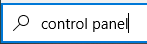
3. Select "Control panel"

4. Select "Hardware and Sound"
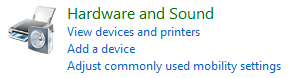
5. Select "Devices and Printers" 
6. Right-Click the printer you want to remove
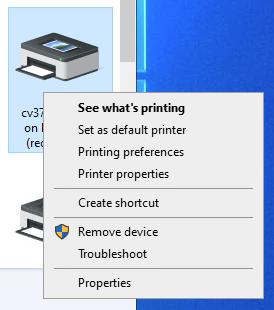
7. Select "Remove Device" 
8. Select "Yes" 