
Windows Privacy Settings
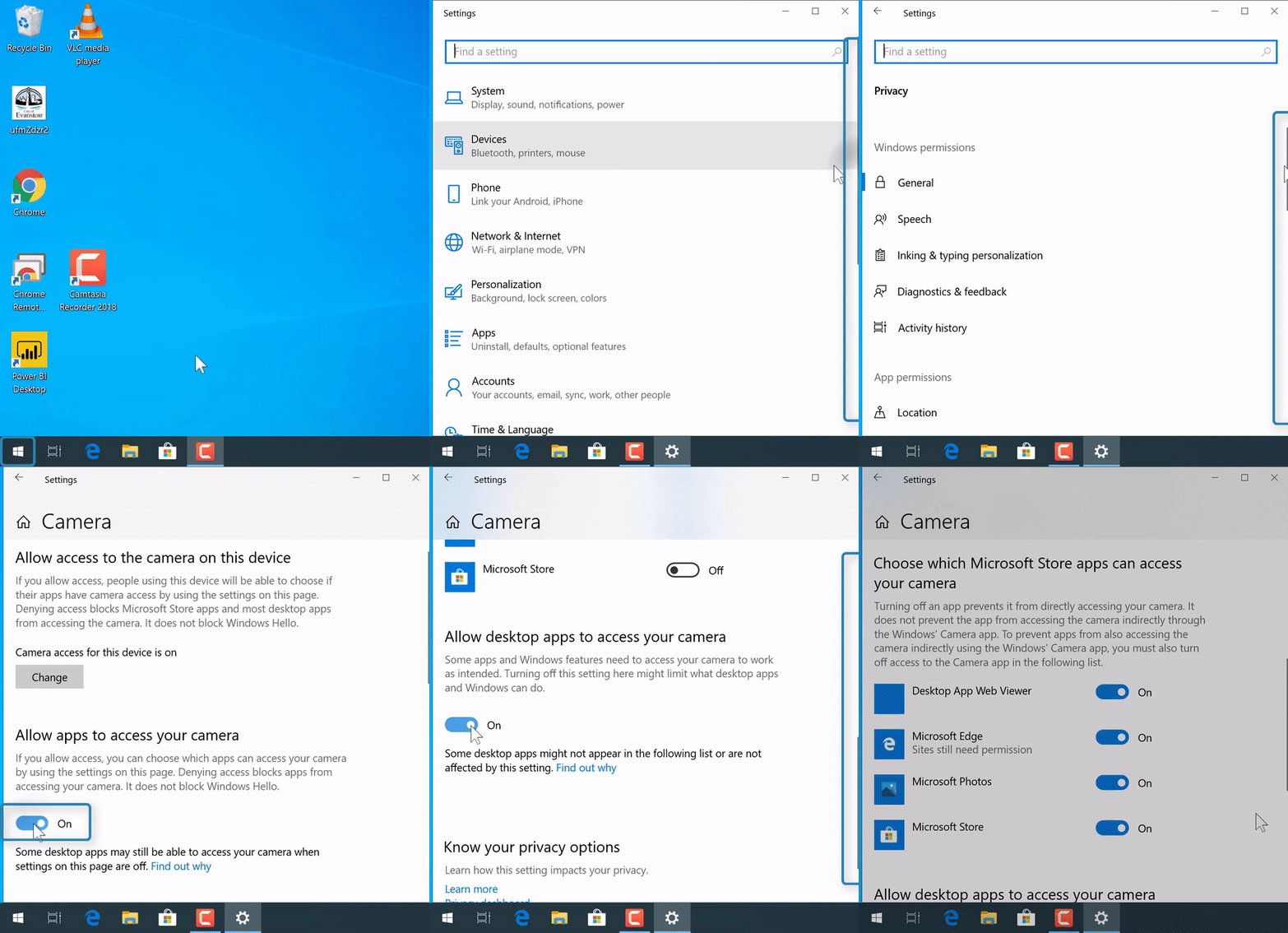
Steps
1. In the search bar in the bottom left of the computer, enter "Settings"

NOTE: If there's no search bar, select the "Start menu" icon  at the bottom left corner, then start typing (without a search bar)
2. Select "Settings"

3. Select "Privacy"

4. Scroll down on the left and select "Camera" or "Microphone"


5. Confirm "Allow apps to access your _____" is on 
6. Scroll down and confirm "Allow desktop apps to access your _____" is on
7. Switch access for individual apps on or off under "Choose which Microsoft Store apps can access your _____"
