
When you open File Explorer in Windows 10, it displays Quick Access, a list of the folders you browse most frequently and the files that you recently accessed. This list changes over time as you use different folders. You can pin folders of your choice to this list as well with the process below.
Pin Folder
(Video Loading)
Steps
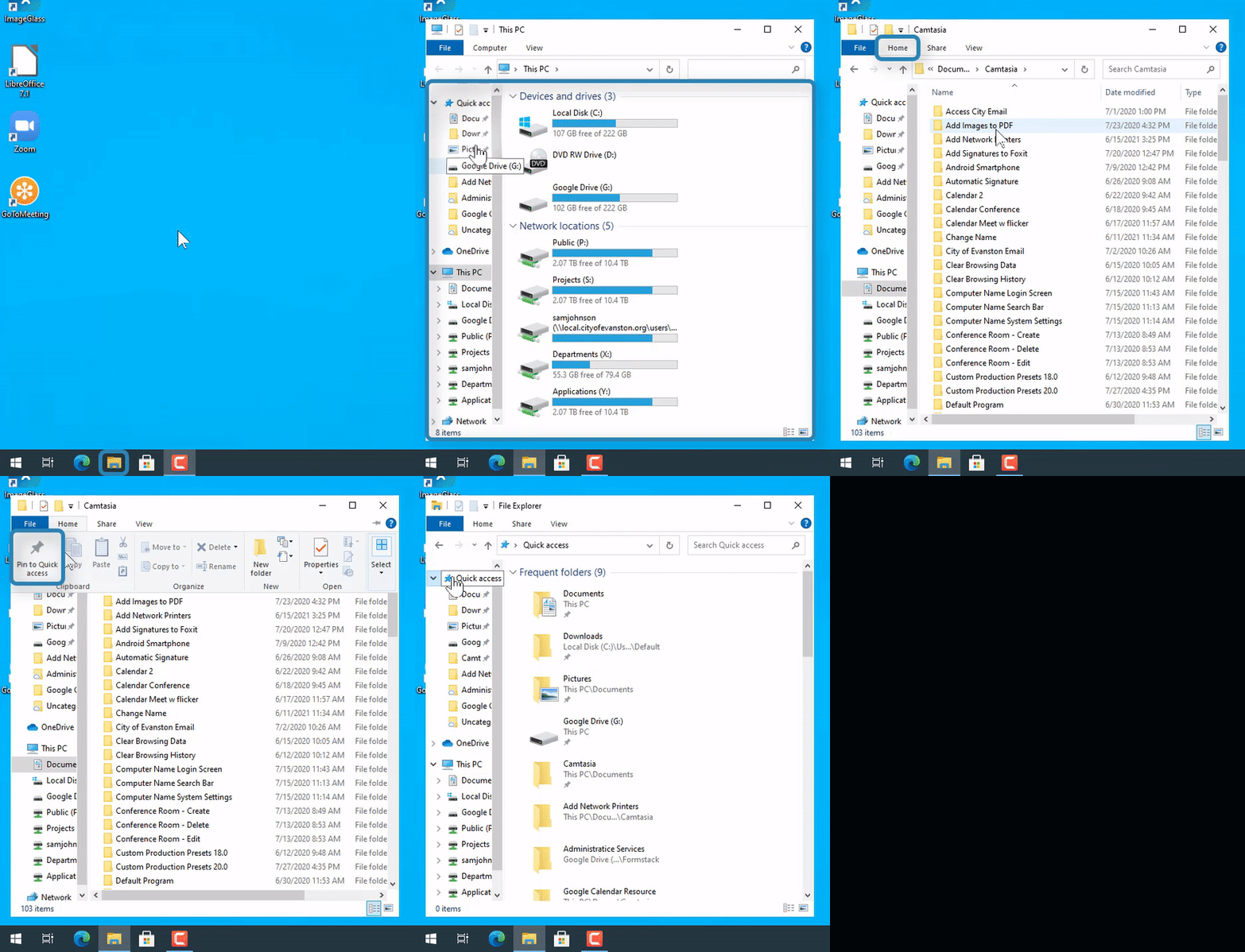
1. Select the file explorer icon  on the bottom Windows bar
2. Locate the folder that you want to pin to Quick Access
3. Open that folder by selecting it (so you are inside the desired folder)
4. Select the "Home" tab  in the menu ribbon
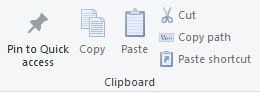
5. Select the "Pin to Quick Access"  button in the "Clipboard" section
6. Select "Quick access"  in the left menu to view the pinned folder
Remove Pinned Folder
(Video Loading)
Steps
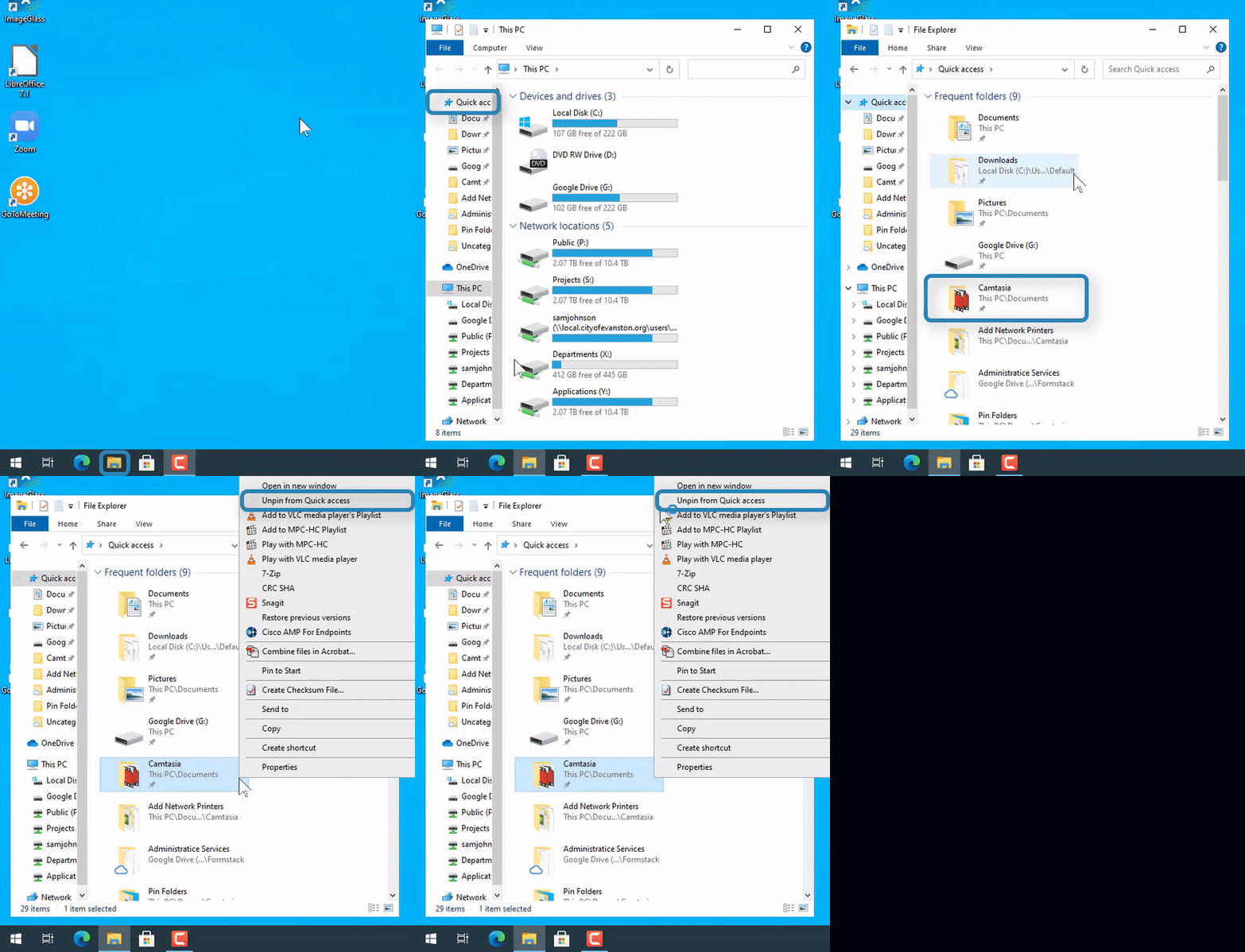
1. Select the file explorer icon on the bottom Windows bar
2. Select "Quick access" in the left menu
3. Right-click on the pinned folder to be removed 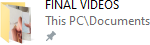
4. Select "Unpin from Quick access" 