
This article will cover how to disable (or enable) apps in Windows 10 starting up when your computer turns on
Disable Using Settings:

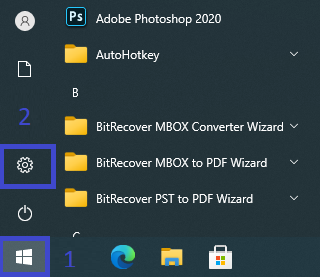
1. Open “Settings” by selecting the start button, then selecting “Settings” OR using the keyboard shortcut Windows Key + “I"
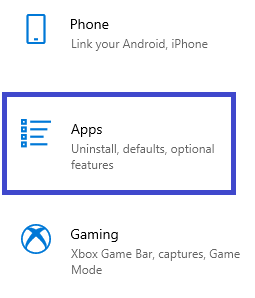
2. In “Settings”, select “Apps" on the left side of the screen
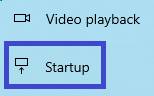
3. Select “Startup” on the left side of the screen
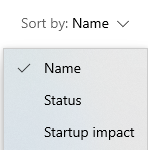
4. Apps set to open on startup will appear on the right. You may choose to sort them by Name, Status, or Startup Impact
5. Navigate to your desired app(s) and disable or enable them as needed

Disable Using Task Manager:

Note: This method also works for other versions of Windows
1. Right click on the taskbar and select “Task Manager” from the list
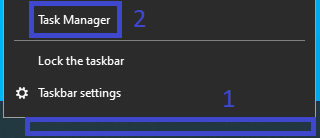
2. Select the “Startup” tab and a list of apps will appear, as well as whether they are set to open on startup. You may sort this list by Name, Publisher, Status, or Startup Impact
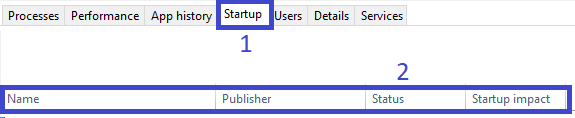
3. Navigate to your desired app(s) and select  or
or  in the bottom right of the screen as needed