
Using a Link

Steps:
1. Open a web browser 


2. Type in "gmail.com" into the search bar on the top and Hit "Enter" on your keyboard

3. Select the email from your IT Agent that contains the link to connect

4. Select the link to connect

5. Select the file "ConnectWiseControl" that was just downloaded on the bottom left of your screen
6. If a prompt pops up asking you to allow it to make changes, Select "Allow"
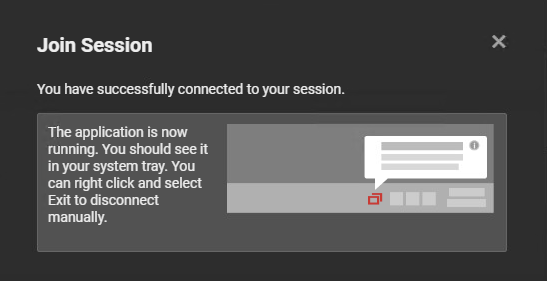
7. You know you are finished when a box pops up saying "You have successfully connected to your session"
Using a Code

Steps:
1. Open a web browser
2. Type "evanston.screenconnect.org" into the search bar on the top and Hit "Enter" on your keyboard

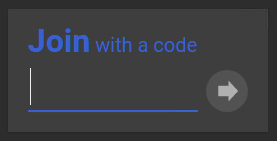
3. Type in the code (provided to you by your IT Agent) into the box labeled "Join With a Code"
4. Select the file "ConnectWiseControl" that was just downloaded on the bottom left of your screen
5. If a prompt pops up asking you to allow it to make changes, Select "Allow"
6. You know you are finished when a box pops up saying "You have successfully connected to your session"