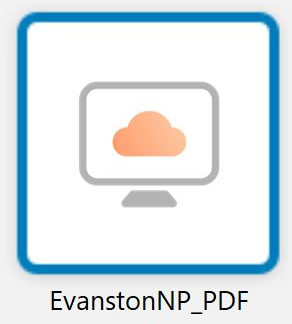
IMPORTANT: Please make sure you have a virtual desktop assigned to you already (if you are unsure whether you have a virtual desktop or not, contact IT).
Installation
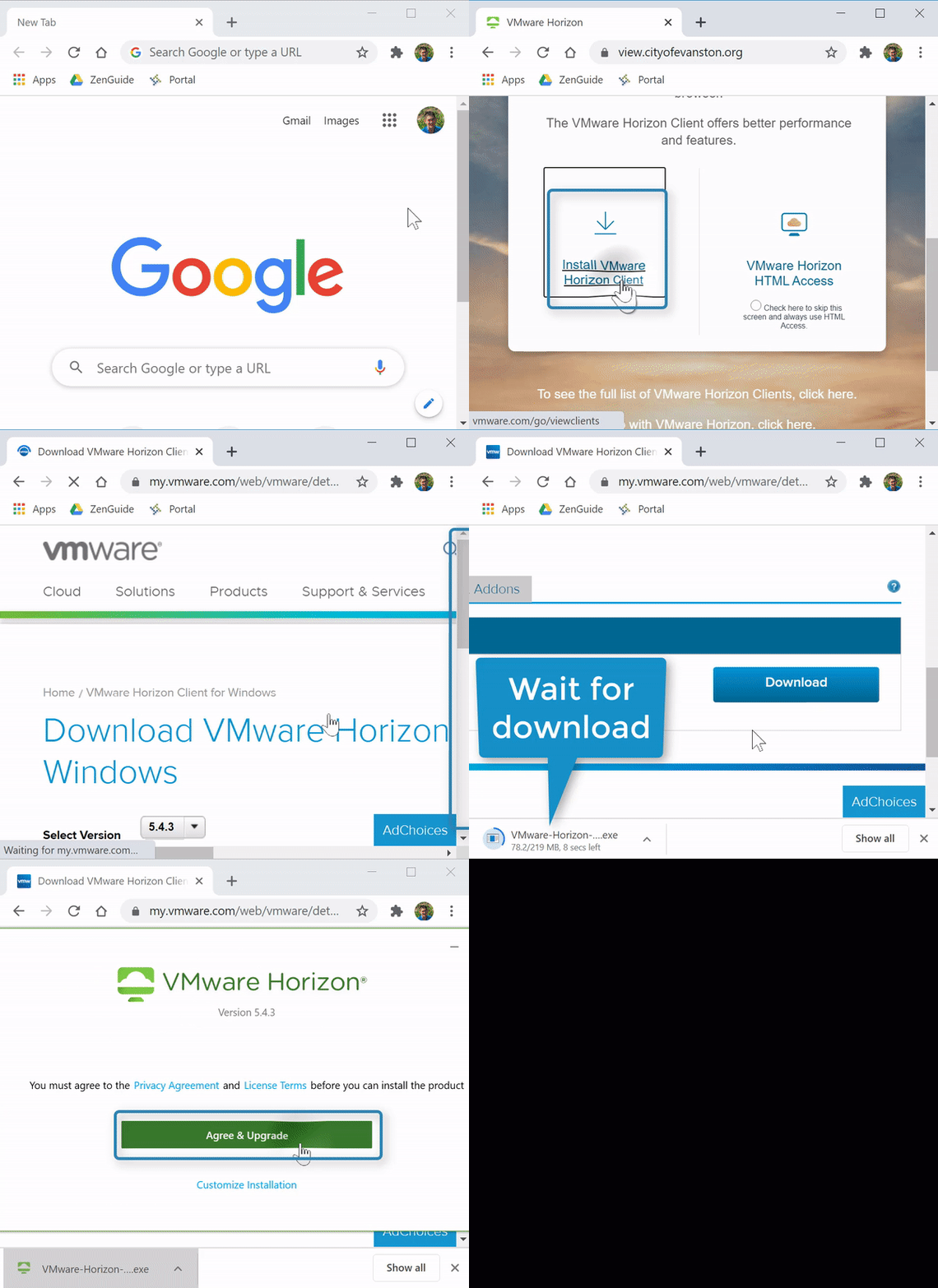
(Video Loading)
Steps
1. Open your preferred browser 


2. Enter "view.cityofevanston.org" into the search bar  and select "Enter"
3. Select "Install VMware Horizon Client" 
4. Under "VMware Horizon Client for Windows" select "Go to Downloads" 

5. Select "Download" 
6. If prompted, select "Save" 
7. Once it is finished downloading, select the download 
8. If asked, "Do you want to allow this app to make changes to this device?" select "Yes" 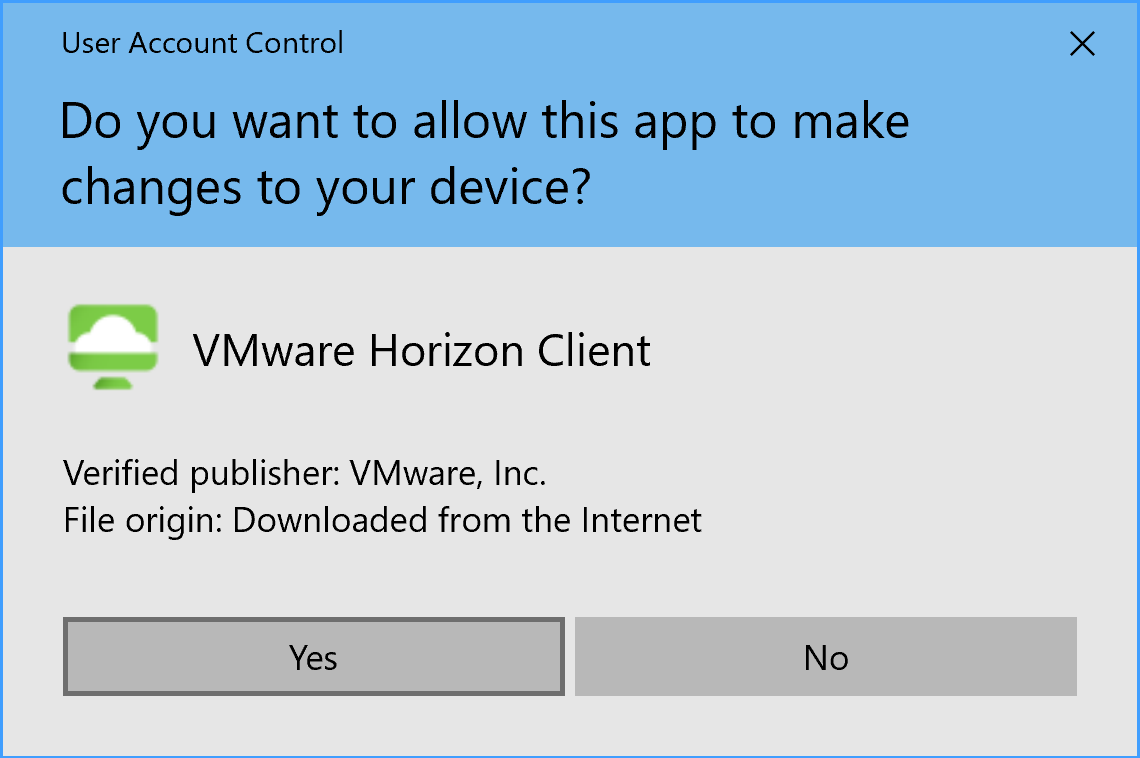
9. In the new window that pops up, select "Agree & Install" 
10. Once the install completes, select "Finish" 
11. Save & close any other windows and select "Restart now" 
Setup
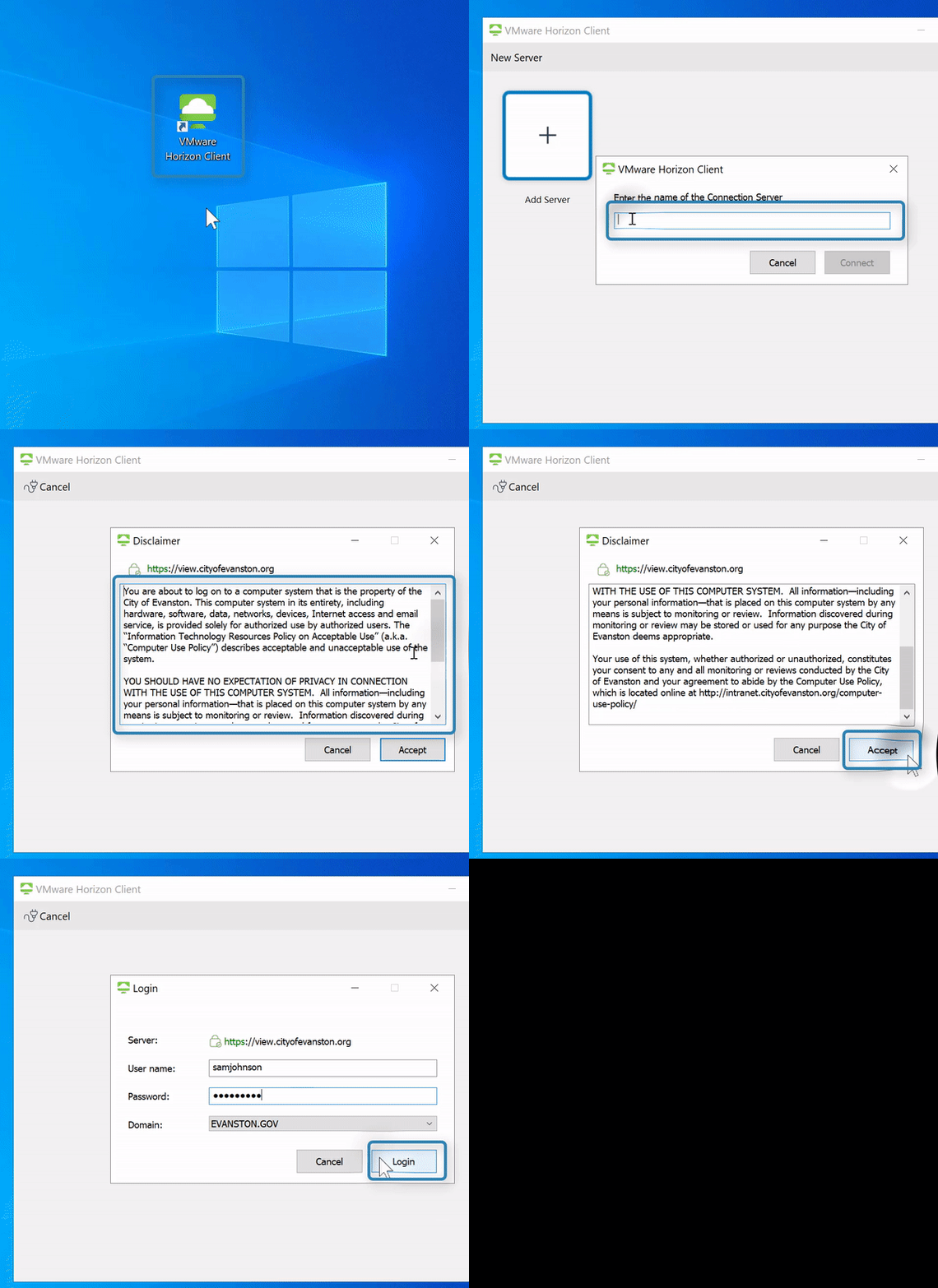
(Video Loading)
Steps
1. Open "VMware Horizon Client" from your desktop 
2. Select "New Server"
3. Type "view.cityofevanston.org" into the field 
4. Select "Connect" 
5. Read the disclaimer, then select "Accept" 
6. Enter username and password 
7. Select "Login" 
8. Double click on your virtual desktop (if you have been assigned a persistent desktop, this is usually the icon not named "EvanstonNP").