IMPORTANT: Please make sure you have a virtual desktop assigned to you already (if you are unsure whether you have a virtual desktop or not, contact IT).
Installation
(Video Loading)
Steps
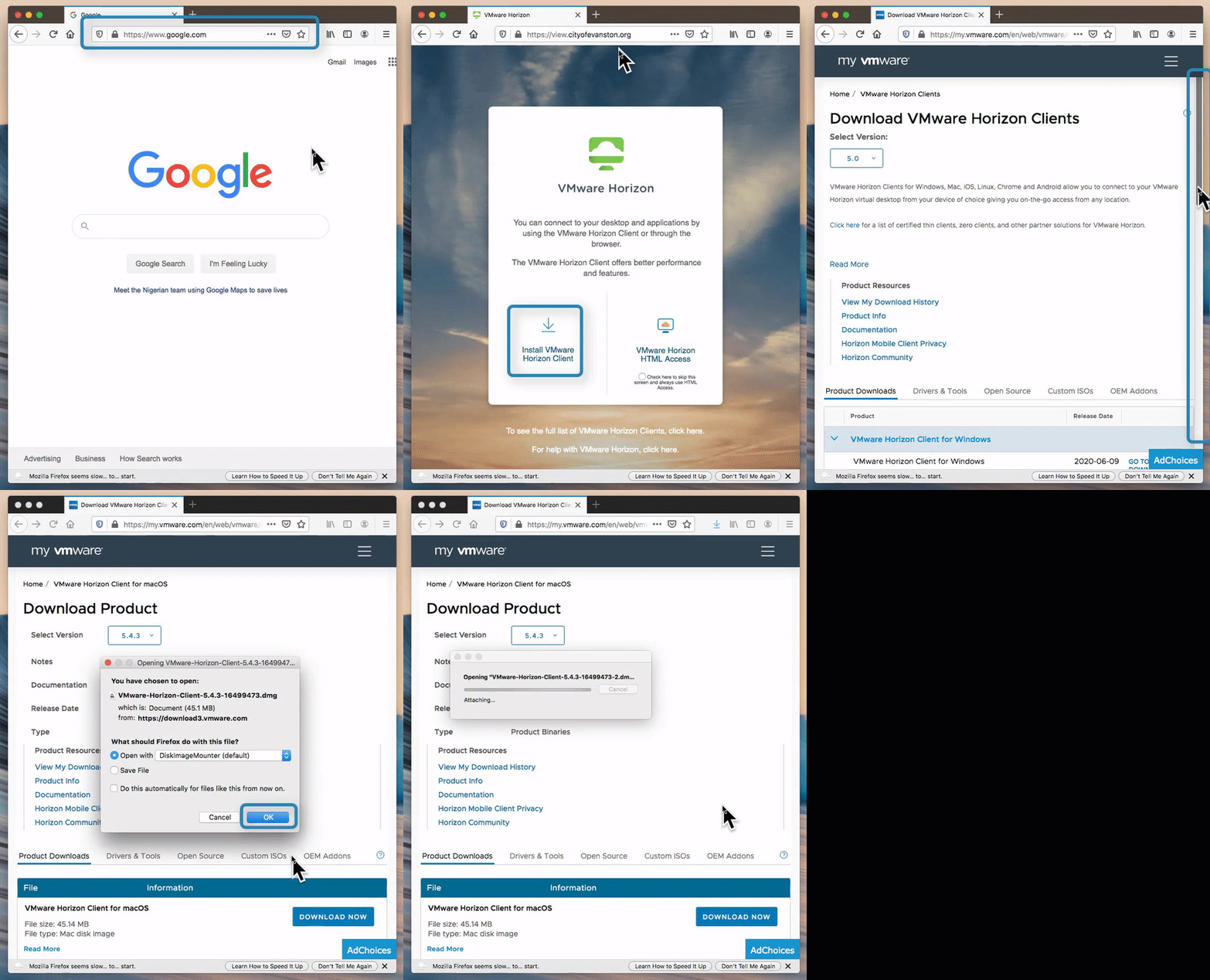
1. Open your preferred browser 


2. Enter "view.cityofevanston.org" into the search bar  and select "Enter"
3. Select "Install VMware Horizon Client" 
4. Under "VMware Horizon Client for Mac" select "Go to Downloads" 

5. Select "Download" 
6. If prompted, select "Save"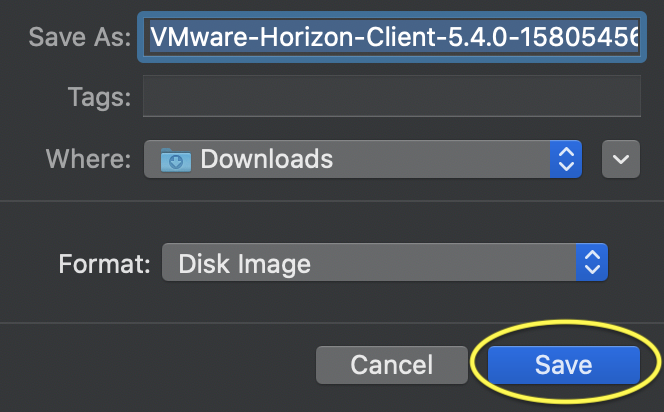
7. Once it is finished downloading, select the download 
8. If this warning appears, select "OK" (If not, skip this step)
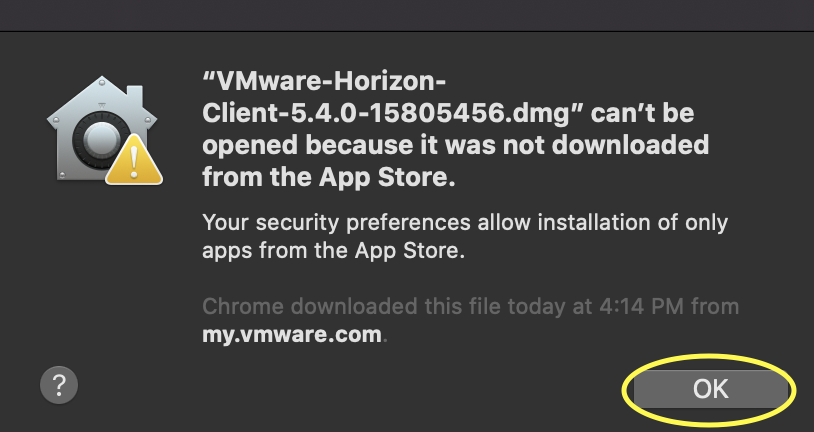
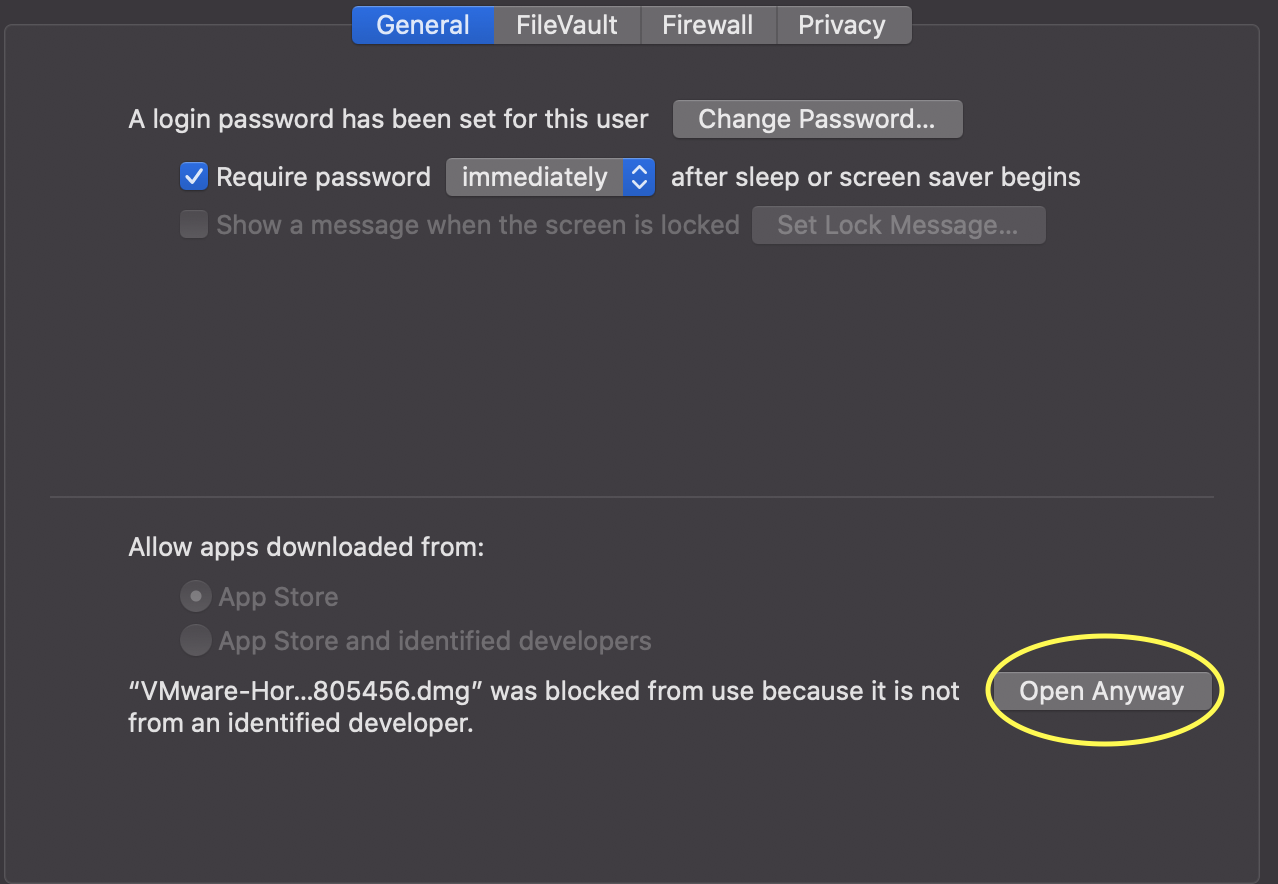
- Open "System Preferences" application

- Select "Security and Privacy"

- Next to "VMware-horizon..." select "Open Anyway"
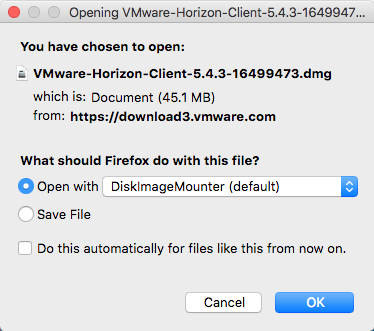
- Select "Open"
9. Select "OK" if prompted
10. Choose "English" from the dropdown (or your preferred language) 
11. Select "Agree" 
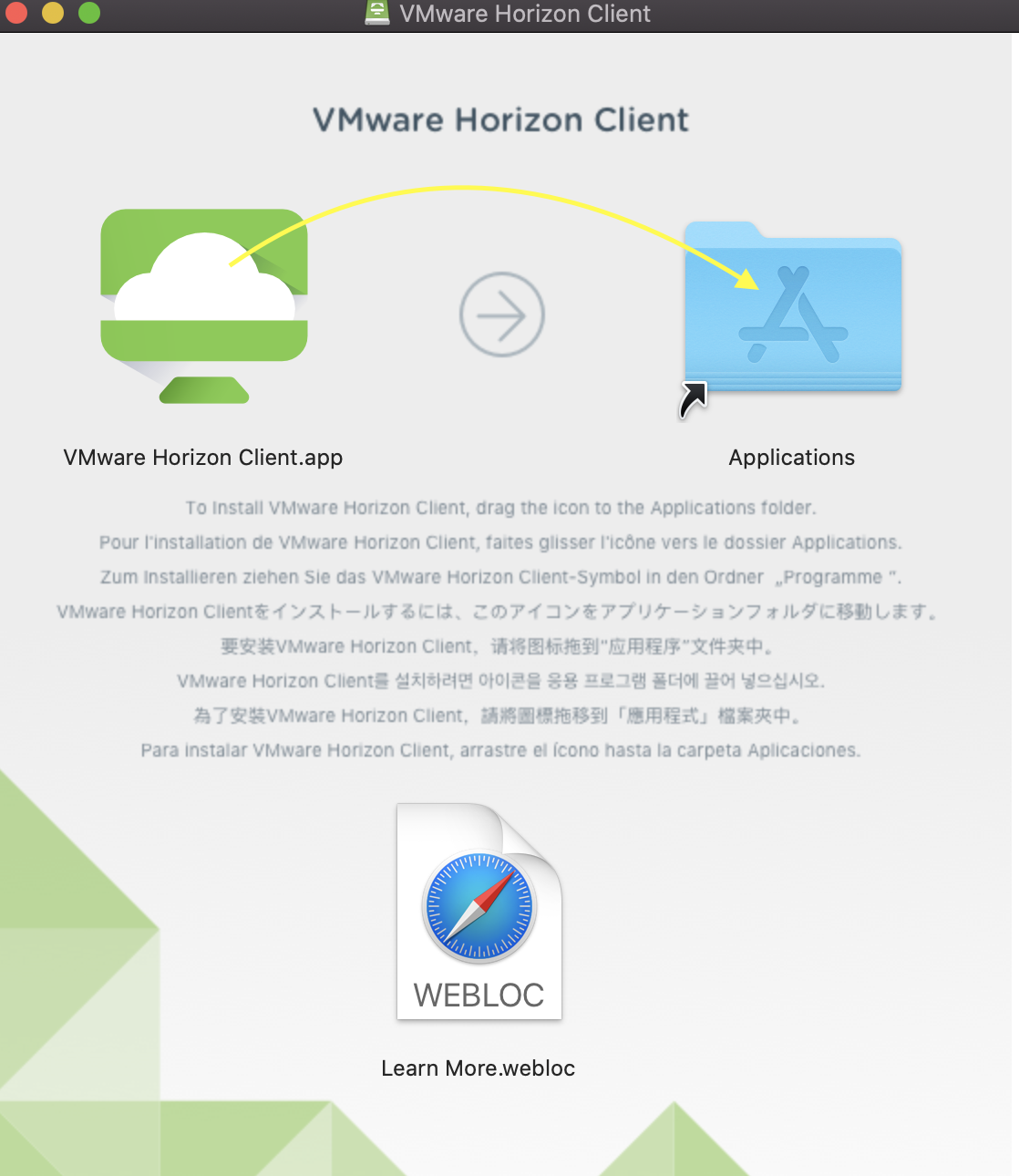
12. Click and drag the "VMware Horizon Client.app" icon into the "Applications" folder
Setup
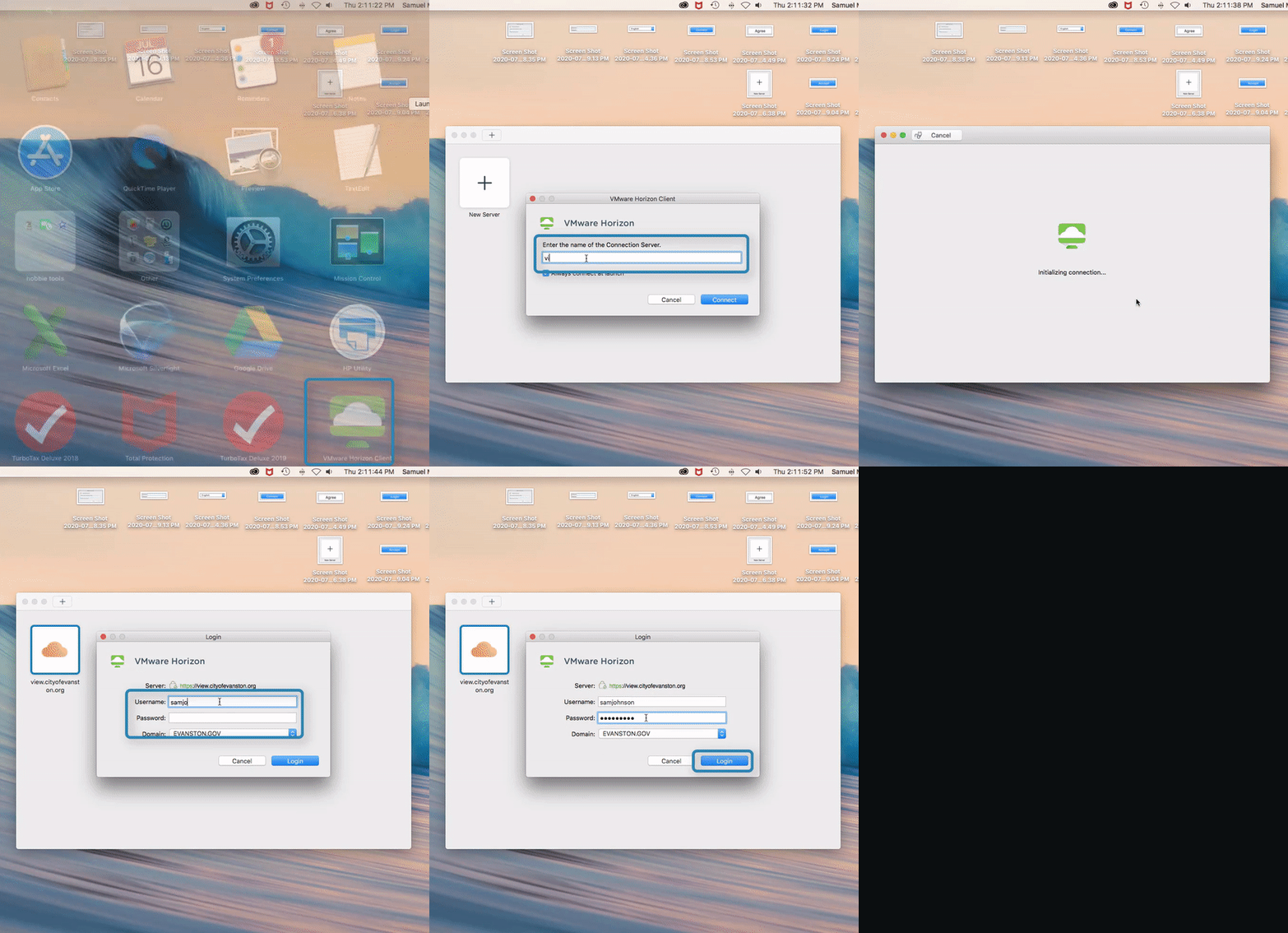
(Video Loading)
Steps
1. Open "VMware Horizon Client" application
2. If this warning appears, repeat Step 8 from the "Installation" section
3. Select "New Server"
4. Type "view.cityofevanston.org" into the field
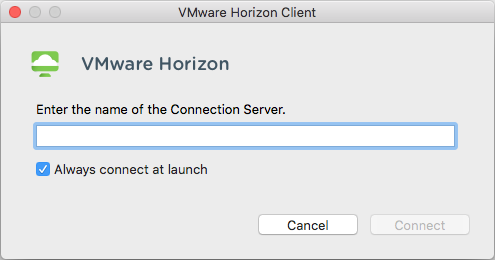
5. Select "Connect" 
6. Read the disclaimer, then select "Accept" 
7. Enter username and password

8. Select "Login" 
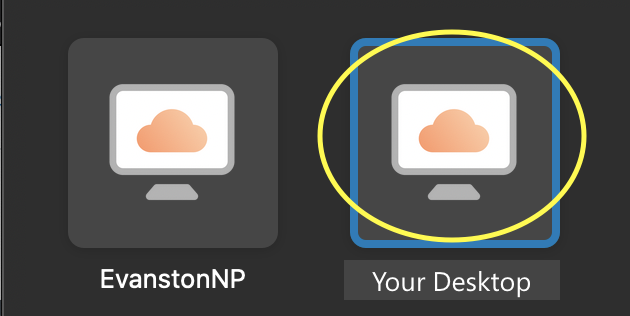
9. Double click on your virtual desktop (if you have been assigned a persistent desktop, this is usually the icon not named "EvanstonNP").