This guide will walk you through the scan to email process covering two scenarios. These instructions are meant to work with copiers that do not have PaperCut setup or require a login.
How do I scan to an email to an outside address?
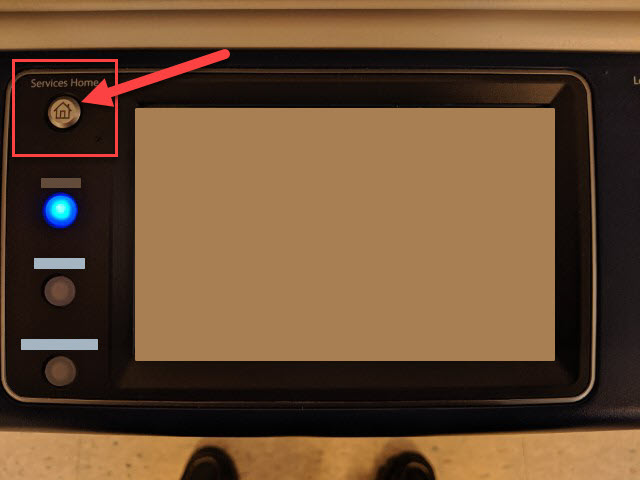
1. Press "Services Home." This should power on the copier from sleep, and send you to the main screen.
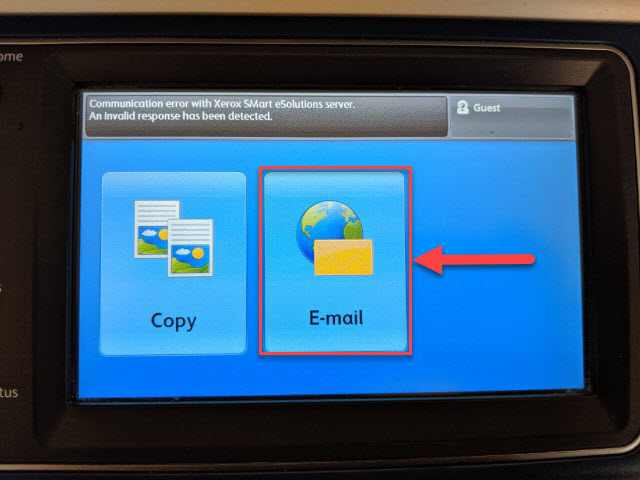
2. Select "E-mail"
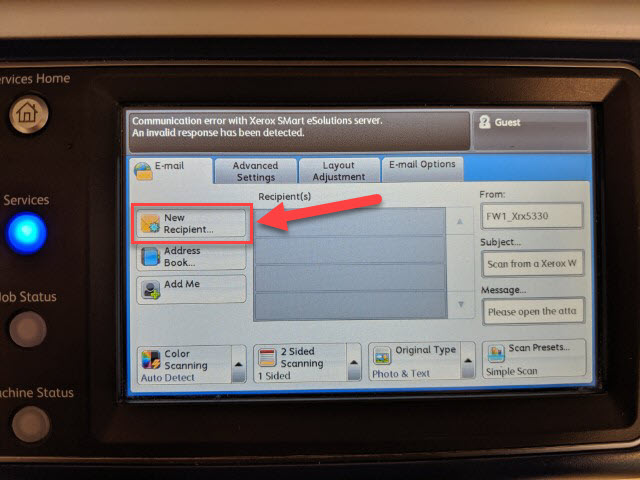
3. Select on "New Recipient..."
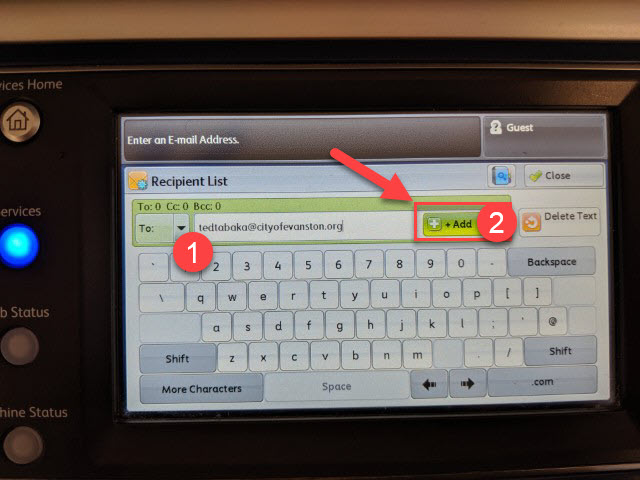
4. Enter in the outside email address and then select "+ Add"
5. Press the "Start" button to scan the document to the address
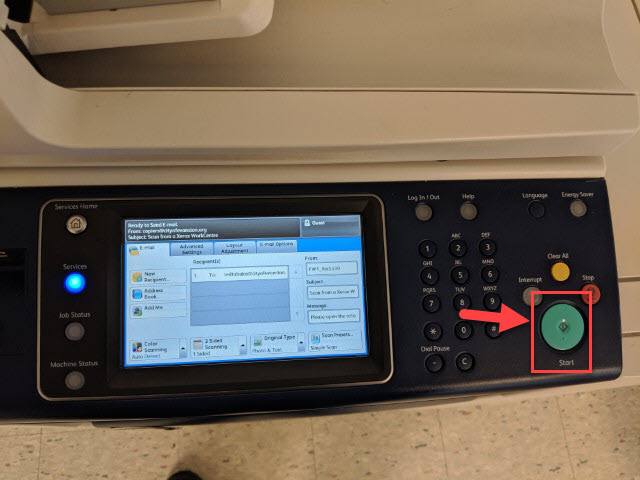
Wait a couple of minutes and the scanned attachment will be sent to your desired email address.
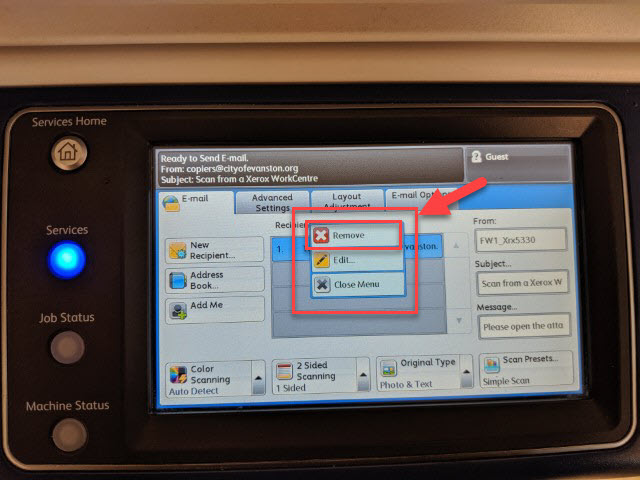
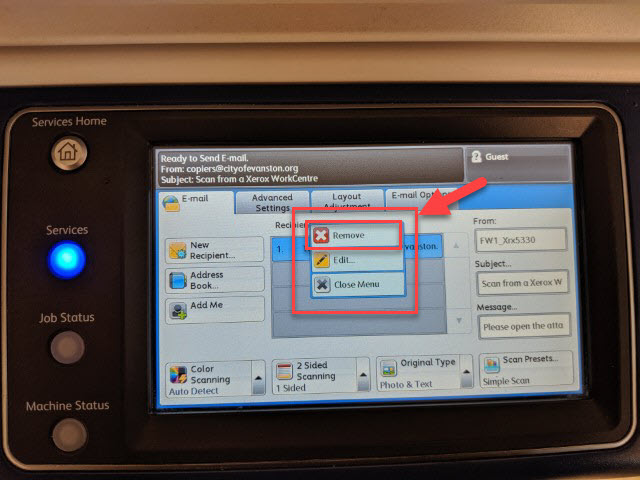
6. When you are done sending the email, we recommend selecting the email, and then selecting "Remove" to delete the entry from the list.
How do I scan to an email using an inside/City address?
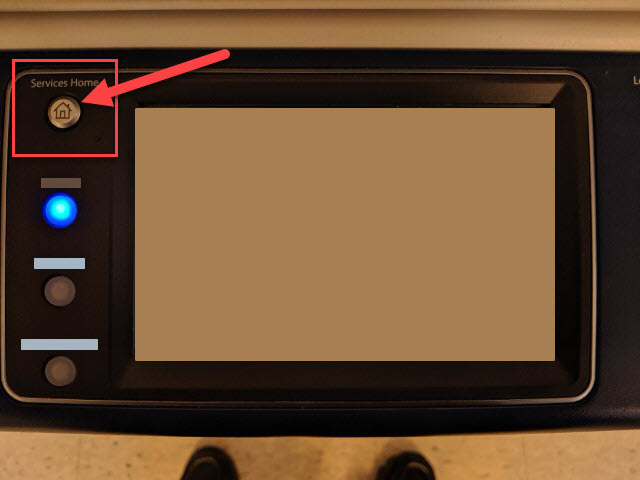
1. Press on "Services Home." This should power on the copier from sleep, and send you to the main screen.
2. Select on "Email"
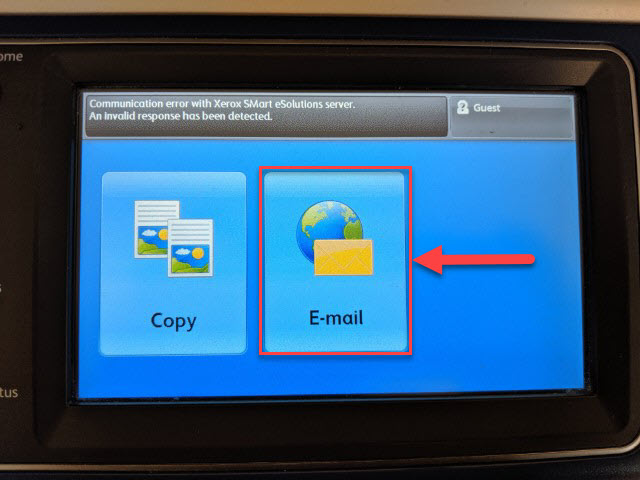
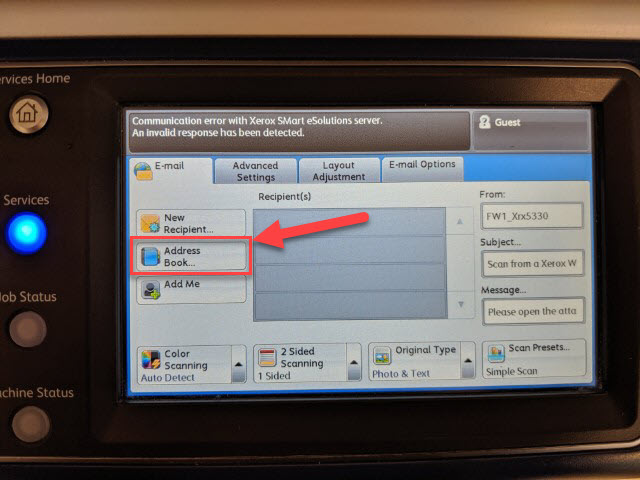
3. Select on "Address Book..."
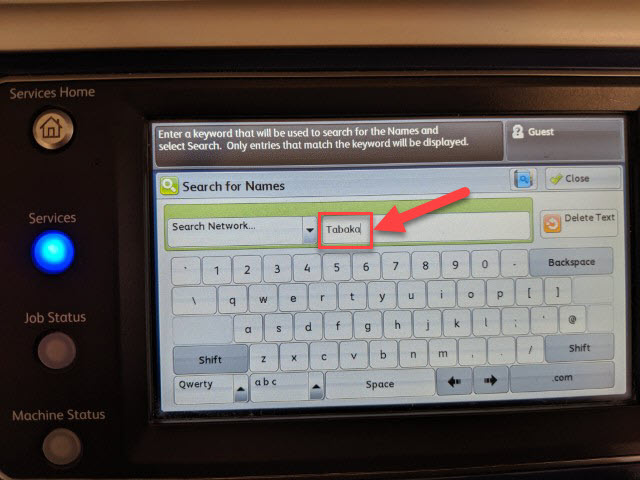
4. Under "Search Network..." enter the name of the individual you would like to lookup.
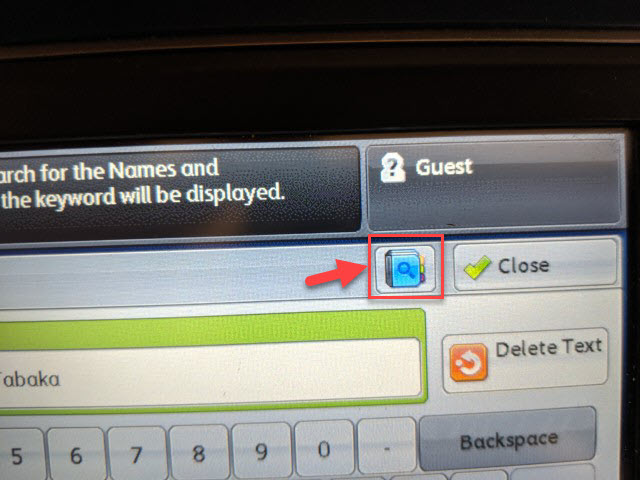
5. Select the "Search" logo to scan for the contact's email address.
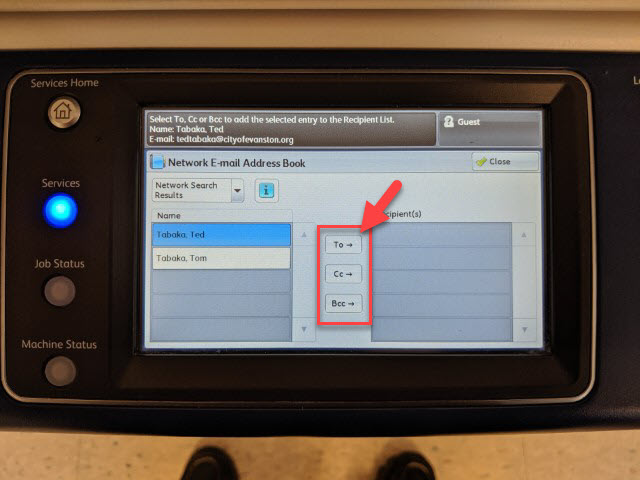
6. Select the contact name, and then select either "To→", "CC→", or "Bcc→"
7. Press the "Start" button to scan the email to the address
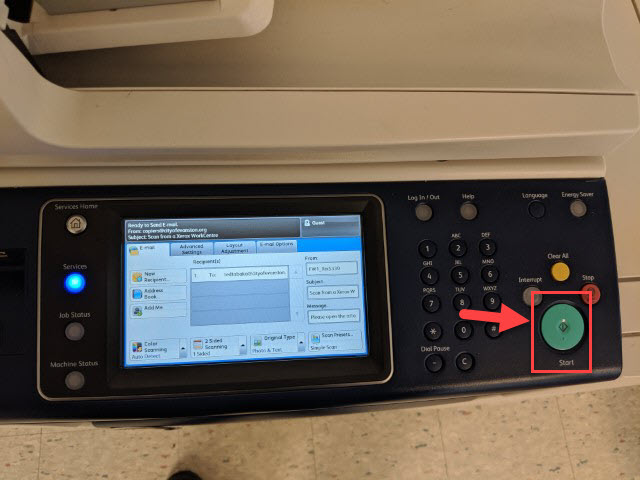
Wait a couple of minutes and the scanned attachment will be sent to your desired email address.
8. When you are done sending the email, we recommend selecting the email, and then selecting "Remove" to delete the entry from the list.