
Audacity is a free program that can be used to cut or trim. It can be downloaded for free at this link. https://www.audacityteam.org/download/ (cannot be downloaded on Chromebooks). We recommend the Audacity Installer which includes the manual.
Editing on Audacity is quite simple. Audacity applies each edit to a selected region of the audio track or tracks. To select a particular region, click and drag on the track with the mouse, creating a shaded region. You can then delete/edit the selected audio. If no audio is selected, Audacity by default selects all the audio in the project window.
The tutorial Editing an Existing Audio File has more detailed information on how to edit audio. This will help you get started on editing and trimming files in Audacity.
----------
How to Edit a Sound File:
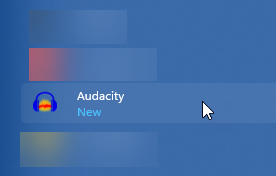
- Open "Audacity" through the "Start" menu.
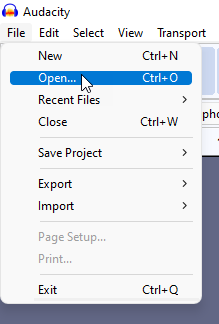
- "File" > "Open... (Ctrl + O)"
- Browse for the MP3 file and click on "Open".
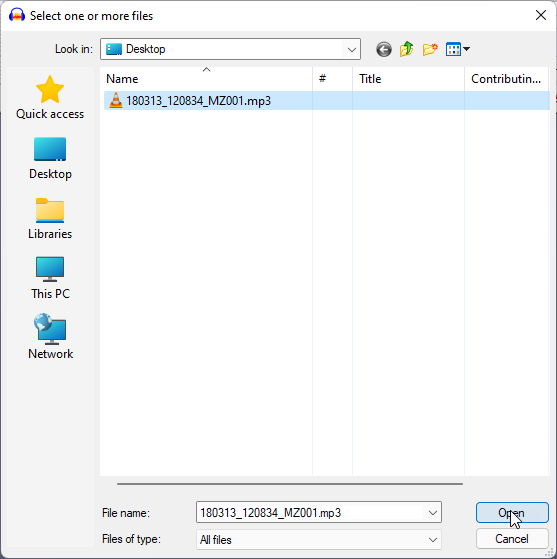
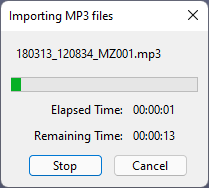
- Let it fully import into Audacity.
- Press "F1" on the keyboard to make sure you are on "Selection Tool (F1)" or click on the "I" button.
- Click into the audio file to select the track.
- Under "Start and End of Selection" enter your timestamp.
- The first box is the start of your selection. See "1" for the start selection box. And the second box is the end of the selection. See "2" for the end selection box.
- The audio position will be presented as 00h00m00.000s or hour, minute, second, and nanosecond. 00h = Hour, 00m = Minute, and 00.000s = Second/Nanosecond.
-

-
- The first box is the start of your selection. See "1" for the start selection box. And the second box is the end of the selection. See "2" for the end selection box.
- The selection will change to highlight the change if done correctly.
-
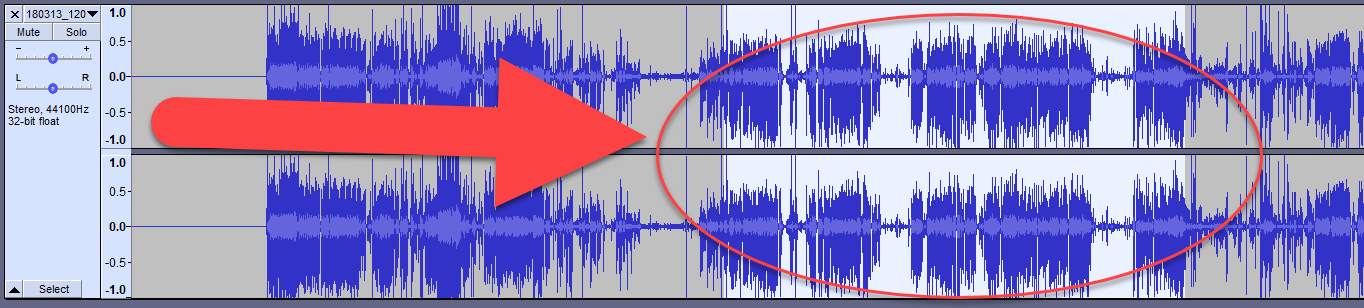
-
- Press "Ctrl+T" on the keyboard or click on the "Trim audio outside selection (Ctrl+T) button.
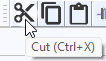
- Press "Ctrl+X" on the keyboard or click on the "Cut (Ctrl+X)" button.
- Press "Ctrl+A" on the keyboard or go to the "Select" menu, and then the "All" sub-menu option.
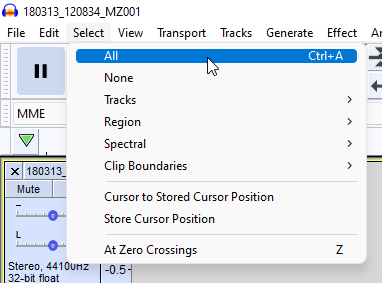
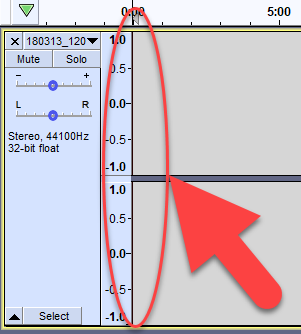
- This should hopefully bring the audio snippet to the start of the recording
- Press "Ctrl+V" on the keyboard or click on the "Paste (Ctrl+V)" button.
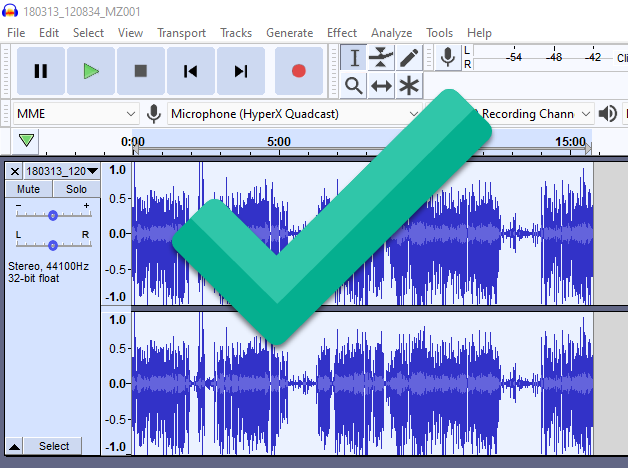
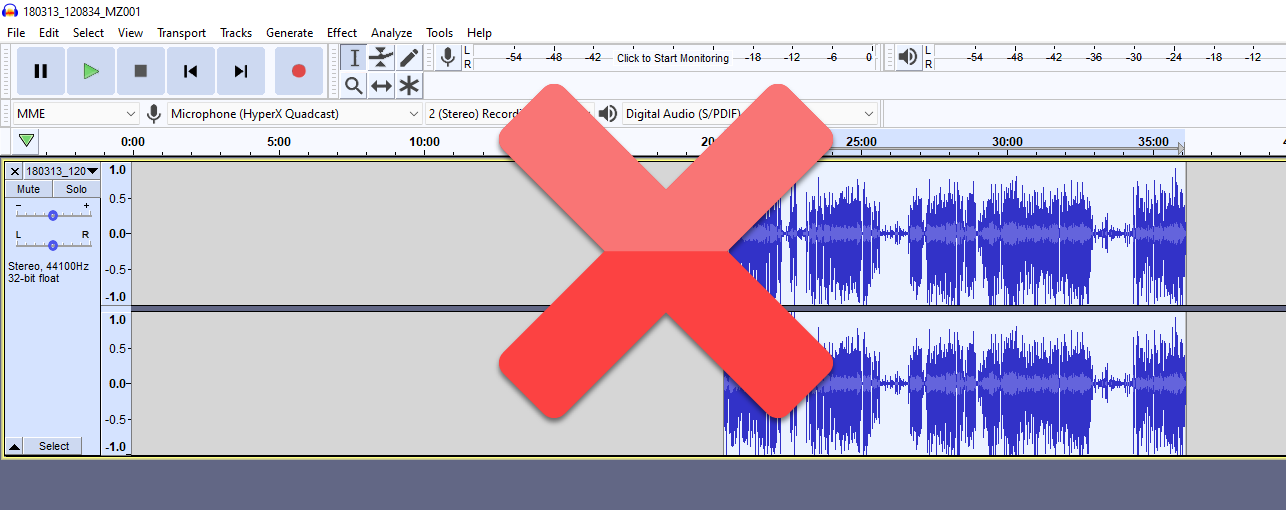
- If all went well, this should bring the recording to the start of the track.
- Yes.
- No.
- Yes.
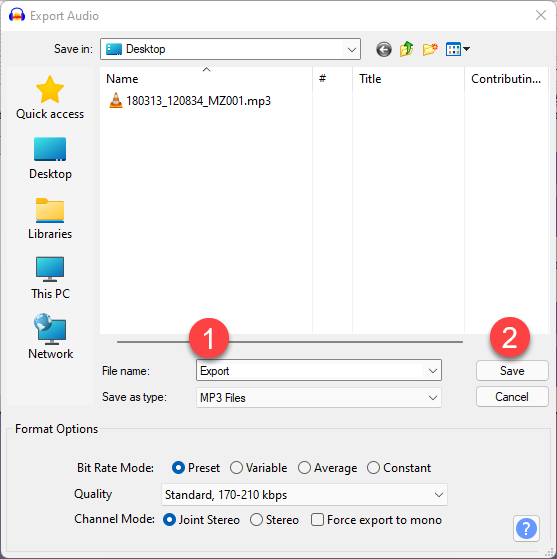
- Finally, export the audio file.
- "File" > "Export" > "Export as MP3"
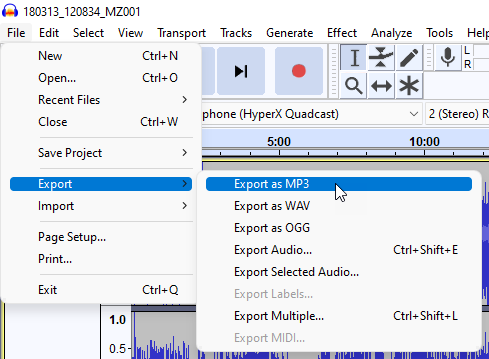
- Name your file and click on "Save".
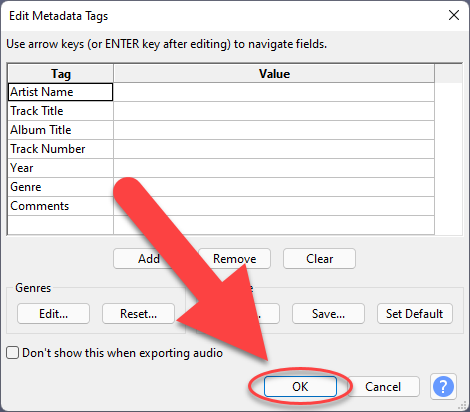
- Enter some Metadata or leave it blank, and click on "OK".
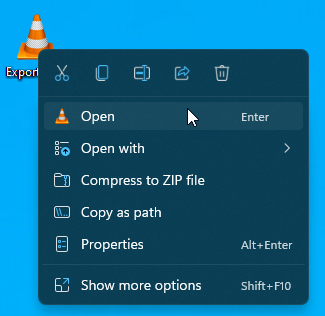
- Open the audio file and listen to the audio file to make sure that it is what you expected from the export.






Helpful or Related Documentation:
- This link will help get you familiar with Audacity:
https://manual.audacityteam.org/man/audacity_tour_guide.html - This page will provide some information on editing and general topics when getting started in Audacity: https://manual.audacityteam.org/man/basic_recording_editing_and_exporting.html
- This page provides more information on editing: https://manual.audacityteam.org/man/edit.html