
The City of Evanston uses 2 Cisco Phones: 7841 and 8851.
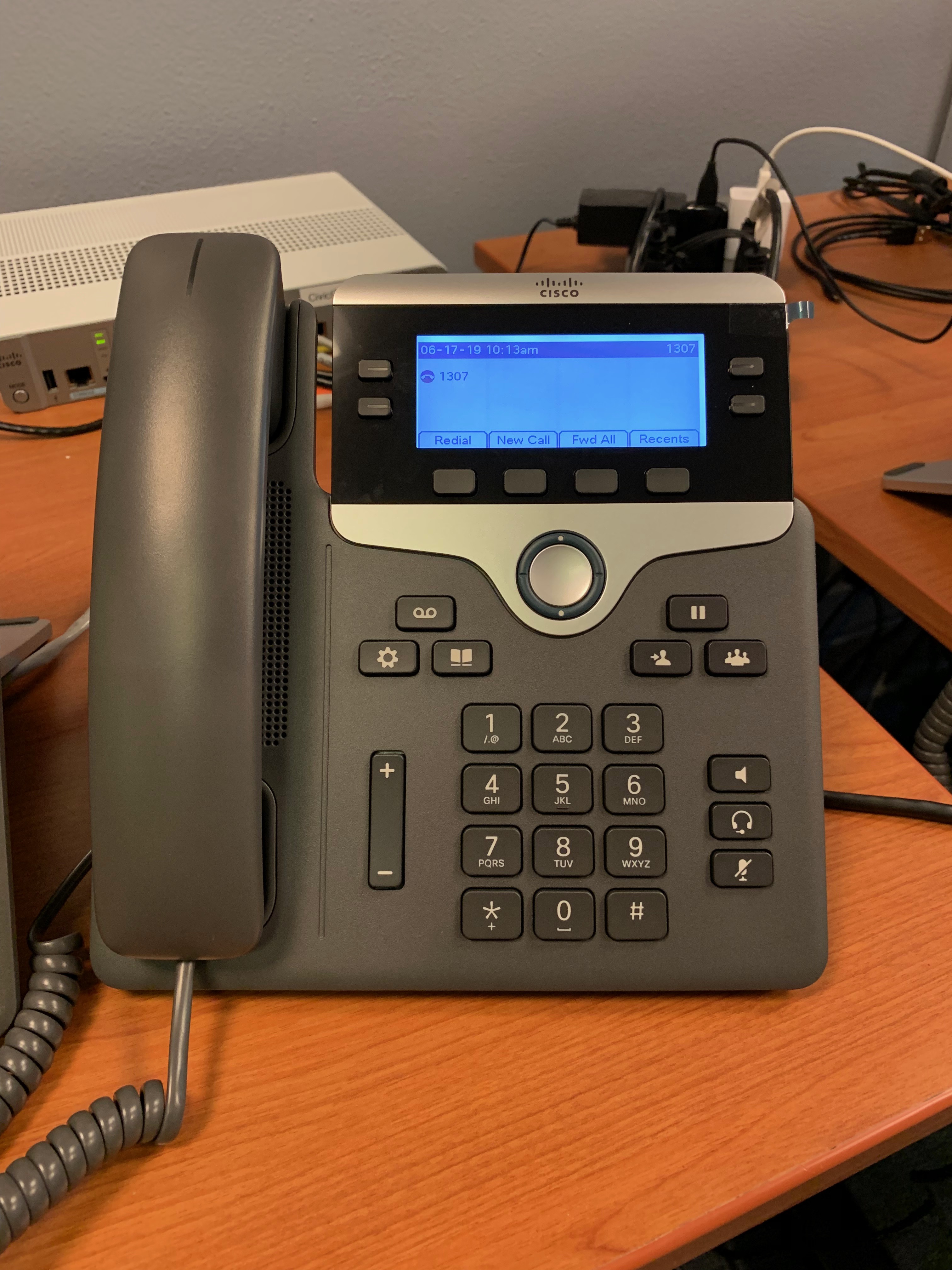
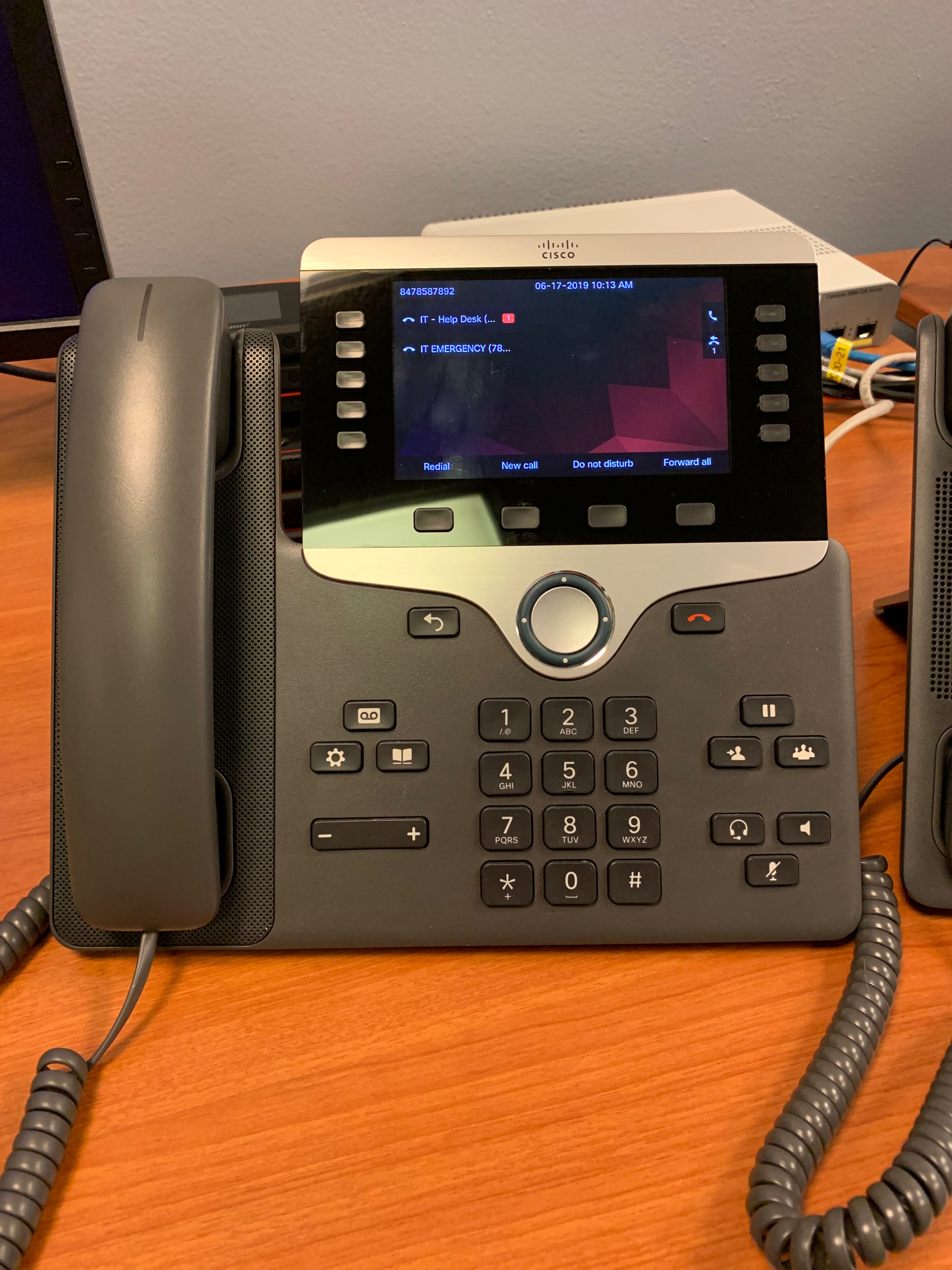
Black and White Cisco 7841 Color Cisco 8851
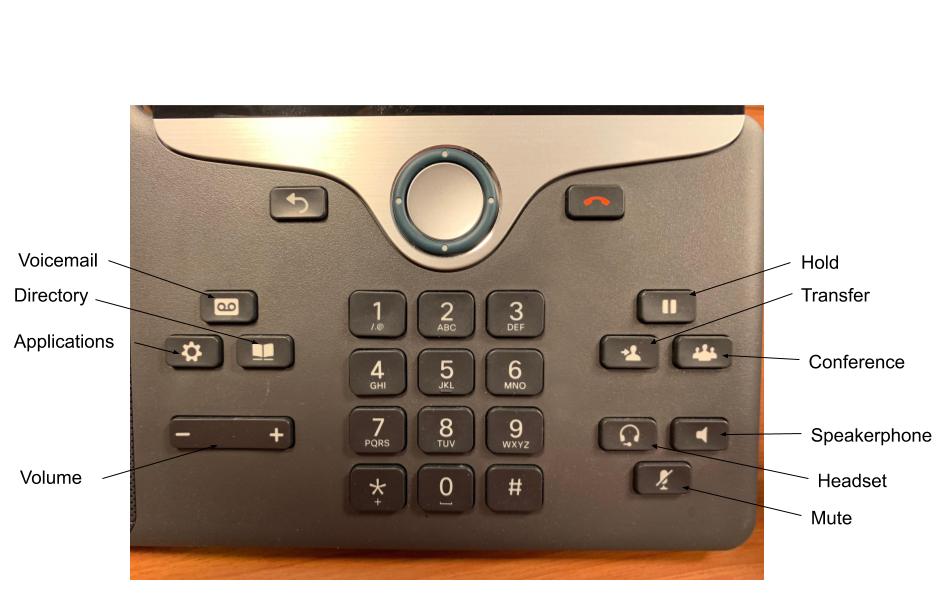
User Guide
To select an on-screen option, press the corresponding button to the right, left, or bottom of the screen
Make a Call
Enter a number and pick up the handset
Answer a Call
Press the flashing amber line button
Put a Call on Hold
1. Press "Hold" 
2. To resume a held call, press "Hold" again
View Your Recent Calls
1. Press "Applications" 
2. Select "Recents"
3. Select a line to view
Transfer Call to Another Person
1. From a call that is not on hold, press "Transfer" 
2. Enter the other person's phone number
3. Press "Transfer" again
Add Another Person to a Call
1. From a connected call that is not on hold, press "Conference" 
2. Press "Active Calls" to select a held call
3. Press "Conference" again
Make a Call with a Headset
1. Plug in a headset
2. Enter a number using the keypad
3. Press "Headset" 
Make a Call with the Speakerphone
1. Enter a number using the keypad
2. Press "Speakerphone" 
Mute your Audio
1. Press "Mute" 
2. Press "Mute" again to turn mute off
Listen to Your Voice Messages
Press "Messages"  and follow the voice prompts. To check messages for a specific line, press the line button first.
Forward All Calls
1. Select a line and press "Forward all"
2. Enter the number that you want to forward to, or press "Voicemail"
3. To receive calls again, press "Forward off"
Adjust the Volume in a Call
Press "Volume"  left or right to adjust the handset, headset, or speakerphone volume while the phone is in use
Adjust the Ringtone Volume
Press "Volume" left or right to adjust the ringer volume while the phone is not in use
Change the Ringtone
1. Press "Applications"
2. Select "Settings" > "Ringtone"
3. Select a line
4. Scroll through the list of ringtones and press "Play" to hear a sample
5. Press "Set" and "Apply" to save a selection
Adjust the Screen Brightness
1. Press "Applications"
2. Select "Settings" > "Brightness"
3. Press the Navigation cluster left to decrease, or right to increase, the brightness.
Change the Font Size
1. Press "Applications"
2. Select "Settings" > "Font Size"
3. Select a font size
4. Press "Save"