
We require all users to "Accept" the agreement for our wireless access points. Some users may experience trouble accessing the agreement page.
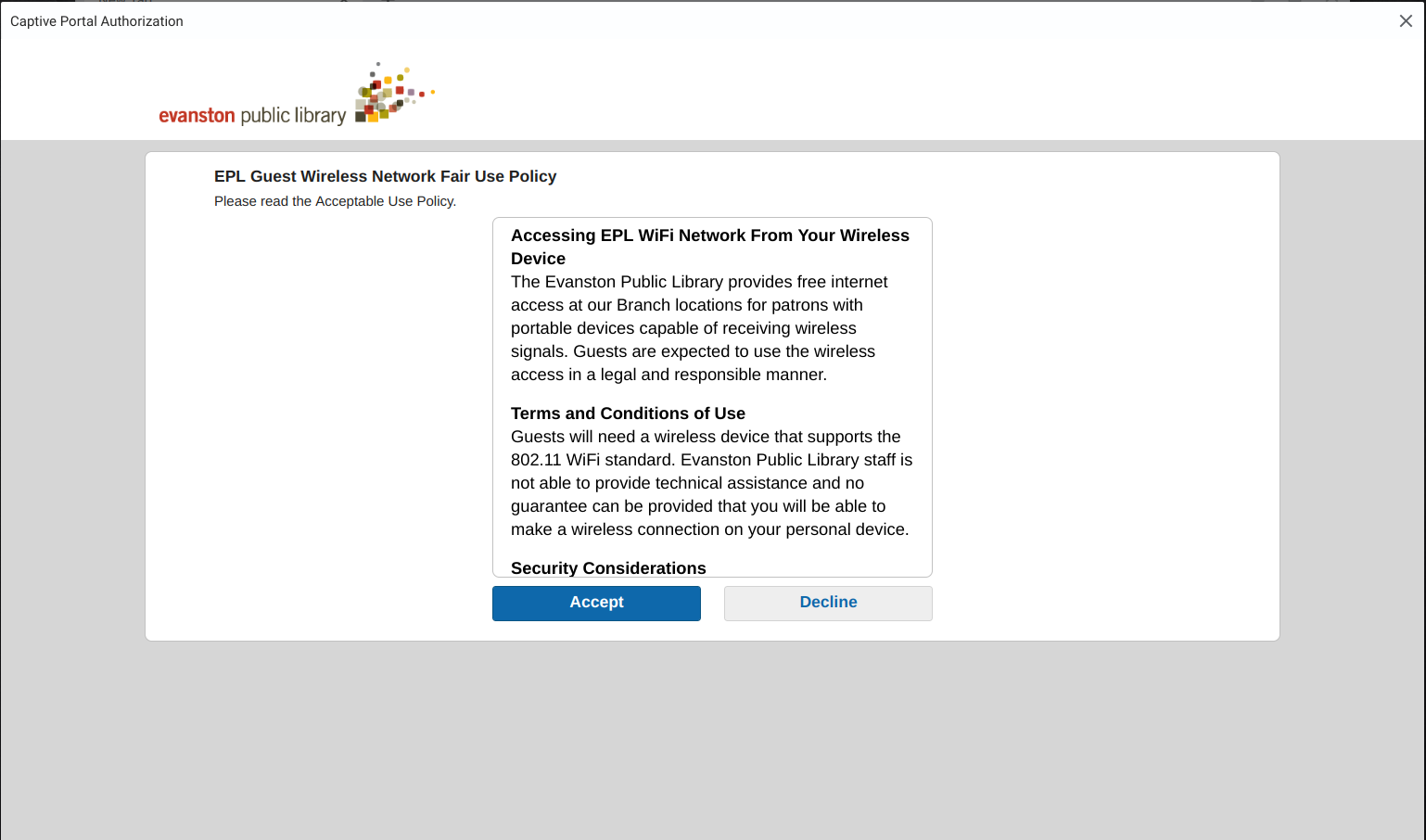
Below are some troubleshooting steps that can help connect your device to our network and see the agreement page.
1. Make sure you are close enough to one of our wireless networks, and that your "signal strength" is adequate or excellent
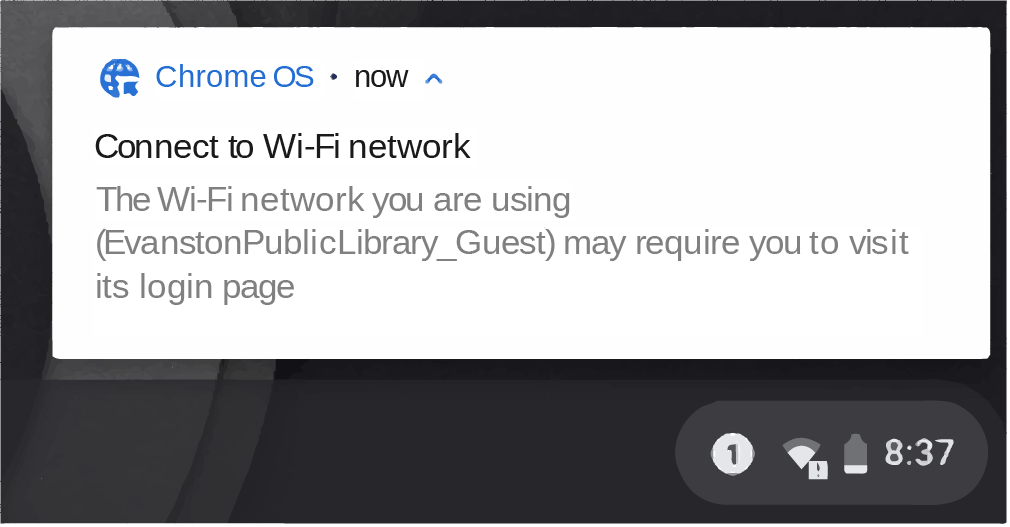
2. Your device may receive a notification about connecting to a Wi-Fi network. You may be required to select/press the notification to open the acceptance page. Examples:
Android Chromebook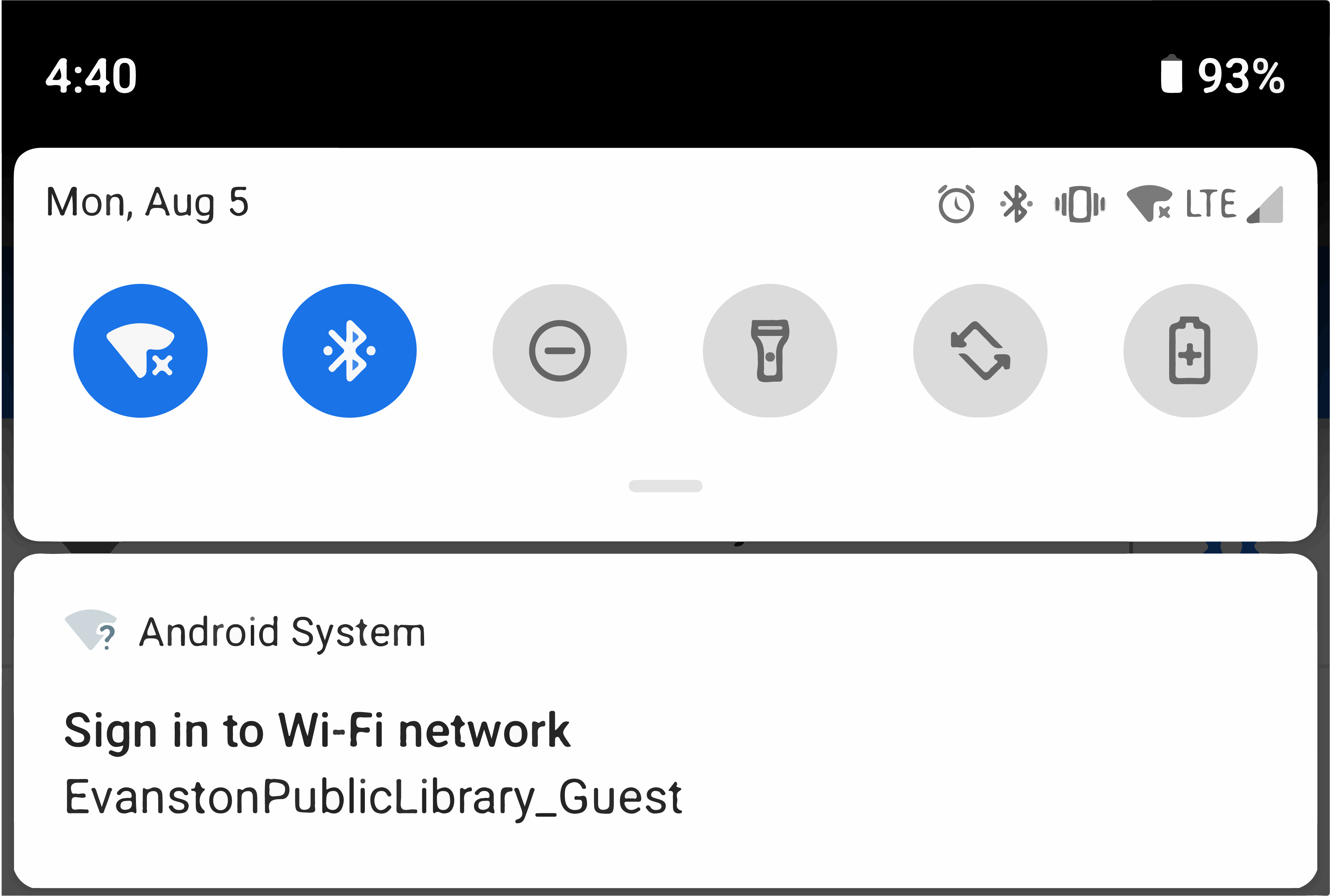
3. If the notification to log in does not appear, please try opening these websites in your preferred browser. If it still does not appear, please try visiting these websites in a different browser.
- NeverSSL - http://neverssl.com/
- Get-WiFi-Connection - http://fixwifi.it/
- Google Portal - http://clients1.google.com/
- Apple Captive Portal - http://captive.apple.com
4. "Forget" the wireless network (open the network's options/menu), and try connecting to it again.
5. Restart the computer or mobile device, and then try connecting to the wireless network again
6. Turn off any pop-up blockers.
7. Enter this website address; this should force the acceptance policy
8. Update your operating system to the latest system updates
- The latest Android, ChromeOS, iOS, or Windows Updates may be required to connect to wireless access points.
- After performing a system update, please try to "Forget" the wireless network and try connecting to it again.
9. Update your device drivers. Note: Please see your system manufacturer for information and support.
10. Disable Wi-Fi Assistant. This may vary per device or be unavailable.
Connect automatically to open WiFi networks - https://support.google.com/nexus/answer/6327199
- Turn off WiFi assistant
- Open your phone's Settings app.
- Tap "Google"
- Tap "Networking"
- Turn off, WiFi assistant or un-check "Connect to open networks"
- Disable VPN. You must disable this before connecting to the City of Evanston wireless. Please make sure that any VPN profiles are disabled on your device.
- Disable DNS-over-TLS.
- Settings
- Network & internet
- Advanced
- Private DNS
- Select "Off"
- Click on "Save"
- Try connecting to EPL Guest and try again.
- If you are still having issues after the above and are unable to connect to the agreement page. You can try the steps in the link below. (These steps are for an Apple Device only.) Please understand that this will wipe your wireless settings.
Reset your Network Settings on an Apple Device
https://evanston.zendesk.com/hc/en-us/articles/360019848714
*Evanston Public Library is not responsible for missing information or data loss if this is performed.
Notes on Older Devices:
Please note that older smartphones or devices (such as the Apple iPhone 4 or earlier) may have some difficulty connecting to any wireless access point that has an agreement page. These devices may not receive security updates that are required with the use of the wireless network. Users may need to use an updated device to connect to guest wireless.
Driver updates may also be needed. Please consult your manufacturer for information on how to update your device drivers, or if you are a Library staff member, please contact I.T. with your Library-issued equipment information.