
Below is some troubleshooting steps to see what might be going wrong.
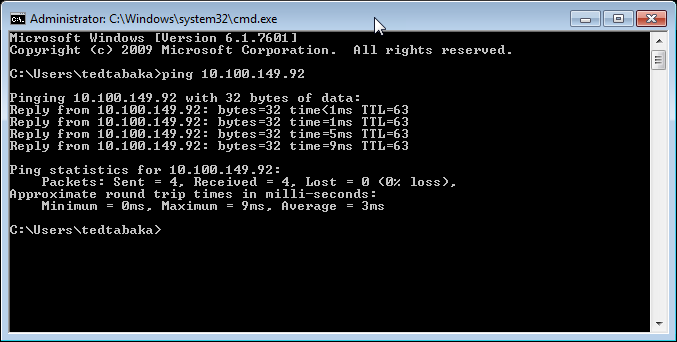
Telnet is NOT required step for support. We do not use telnet with these credit card devices. The credit card terminals only require that they are able to be pinged against. You can run a ping by the following steps.
How to Run a Ping:
"Start" ButtonType "run""Enter" keyboard keyType "cmd""Enter" keyboard keyping 10.100.149.92 (or 10.100.149.91 or 10.100.149.93 for each credit card terminal)
If you receive a ping, you should be able to use the credit card terminals normally. If they are not accepting ping, I would recommend that you please unplug the power from the credit card terminals.
Credit Card Leases/Reservations
Client IP Address Name Lease Expiration Type Unique ID Description Network Access Protection Probation Expiration Filter Profile Policy
10.100.149.90 S300-53269577.local.cityofevanston.org Reservation (active) DHCP 00176f9a4faf Spare Full Access N/A None
10.100.149.91 S300-53301728.local.cityofevanston.org Reservation (active) DHCP 00176fa4fa9a Windows 1 Full Access N/A None
10.100.149.92 S300-53301726.local.cityofevanston.org Reservation (active) DHCP 00176fa4fa98 Windows 2 Full Access N/A None
10.100.149.93 S300-53301727.local.cityofevanston.org Reservation (active) DHCP 00176fa4fa99 Windows 3 Full Access N/A None
10.100.149.94 S300-53301724.local.cityofevanston.org Reservation (active) DHCP 00176fa4fa95 Windows 4 Full Access N/A None
10.100.149.95 S300-53303258.local.cityofevanston.org Reservation (active) DHCP 00176fa50afa PD Records Full Access N/A None
10.100.149.96 S300-53303257.local.cityofevanston.org Reservation (active) DHCP 00176fa50afb Permit2 Full Access N/A None
10.100.149.97 S300-53303253.local.cityofevanston.org Reservation (active) DHCP 00176fa50af5 Permit 1 Full Access N/A None
10.100.149.100 S300-53328461.local.cityofevanston.org Reservation (inactive) None 00176fac6069 Spare2 Full Access N/A None
How-To Reset the Credit Card Terminals:
- Locate the power on CC Terminals.
- The power is located under the collector desk.
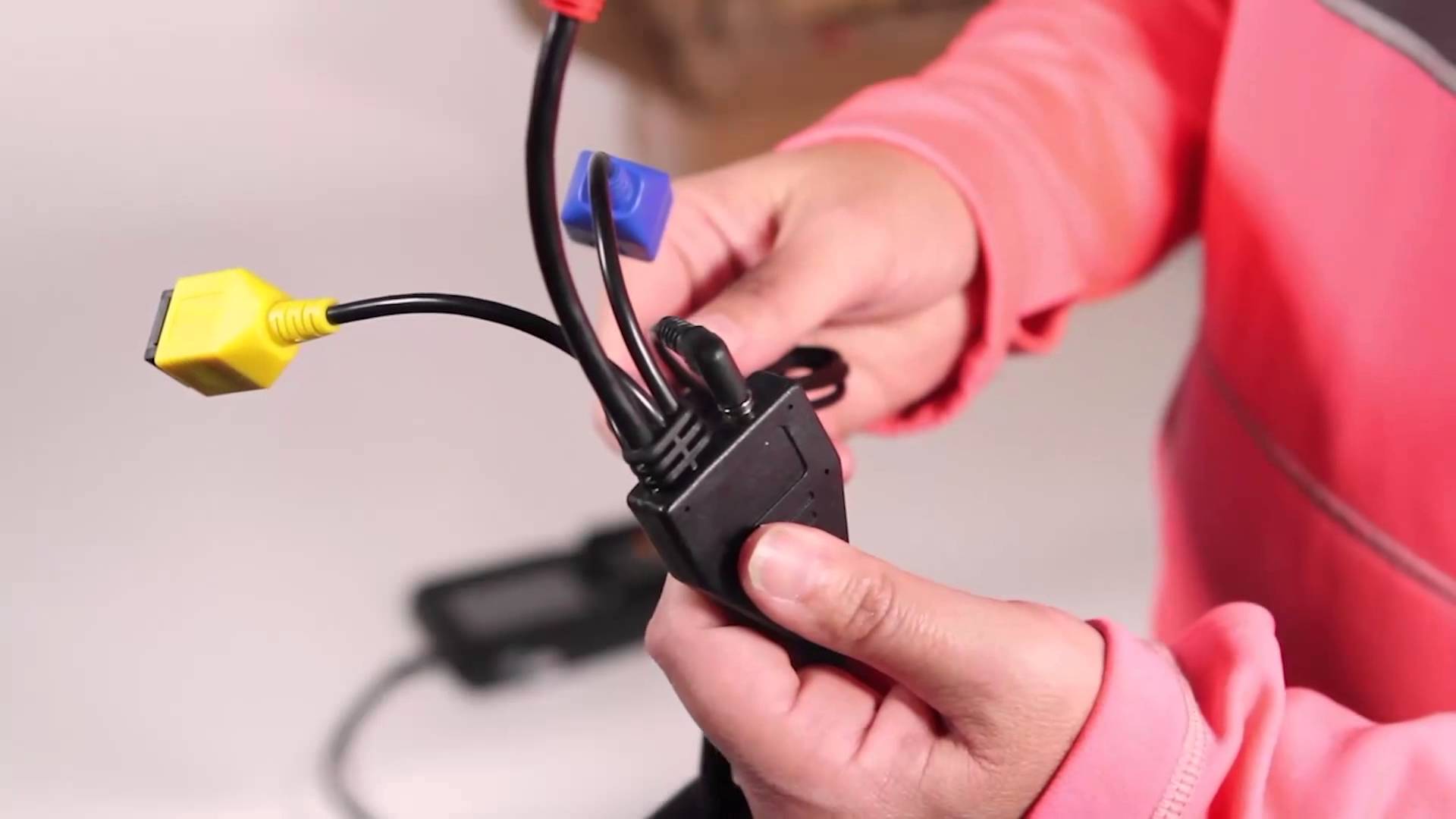
- Follow the CC terminal cable from the front top to the collector's office to the bottom. The primary cable branches into a split of three color coded cables/adapters/ports. The power is located above the split. Below the split the network/LAN cable is plugged in and used for data.
- None of the cables are connected to the computer. They are only connected to the switch.
- Turn off the computer that is trying to run the transaction. And unplug the power once the machine is off.
- Unplug the power from the credit card terminal cable splitter. Please see attachment.
- Wait 1-3 minutes for the power to discharge.
- Plug the credit card terminal power back in.
- The terminal will turn back on, and start the configuration process.
- Wait at least 5 minutes. During this process the credit card terminals maybe downloading required updates or configurations. And the terminals maybe unable to respond to ping.
- Plug in the computer power and push the computer power button.
- Login.
- Please try pinging the credit card terminals. (ping 10.100.149.91, ping 10.100.149.92, or ping 10.100.149.93)
This is the safest method to make sure that the credit card terminals are powered on first to allow them to configure, and before commands are trying to be sent to them.