
This set of instructions can reboot, restart, or reset a desktop from the WYSE login screen.
Note that this only works for users with two or more desktops.
1. Get to the WYSE login screen by hitting CTRL-ALT-F12 or pressing the power button on the WYSE terminal, and then selecting connect (if applicable) to get the standard City of Evanston login screen.
2. Log in with standard network credentials. These credentials are the same username and password that you use to login to your email.
3. When the screen comes up to select a desktop, highlight the desktop you want to restart (reset), then select the "Reset VM" button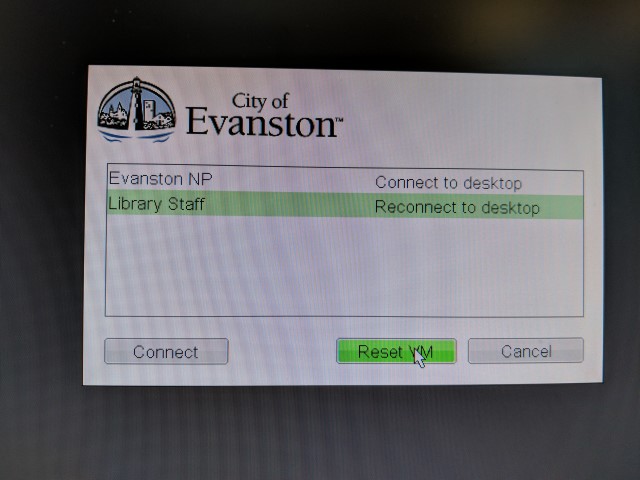 NOTE: In the case above the desktop I am restarting this desktop as "Library Staff" your desktop may be "Evanston".
NOTE 2: "Evanston NP" is the non-persistent desktop. A desktop that is generated on the fly and may not include all specific city applications.
4. When the pop-up window opens, select the "OK" button, then wait for approximately five (5) to ten (10) minutes for the desktop to restart.
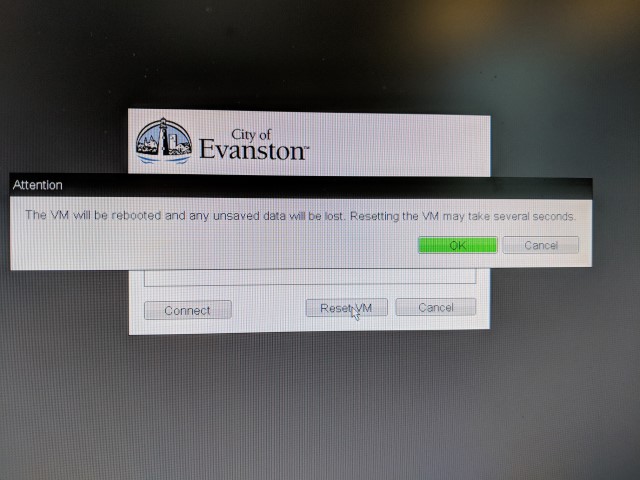
***The next time you log in to the desktop, it may take longer than usual to log in, but after that it will be back to normal speeds.