
This article will explain how to install and use the VMWare Horizon Client on a Chromebook.
Installation
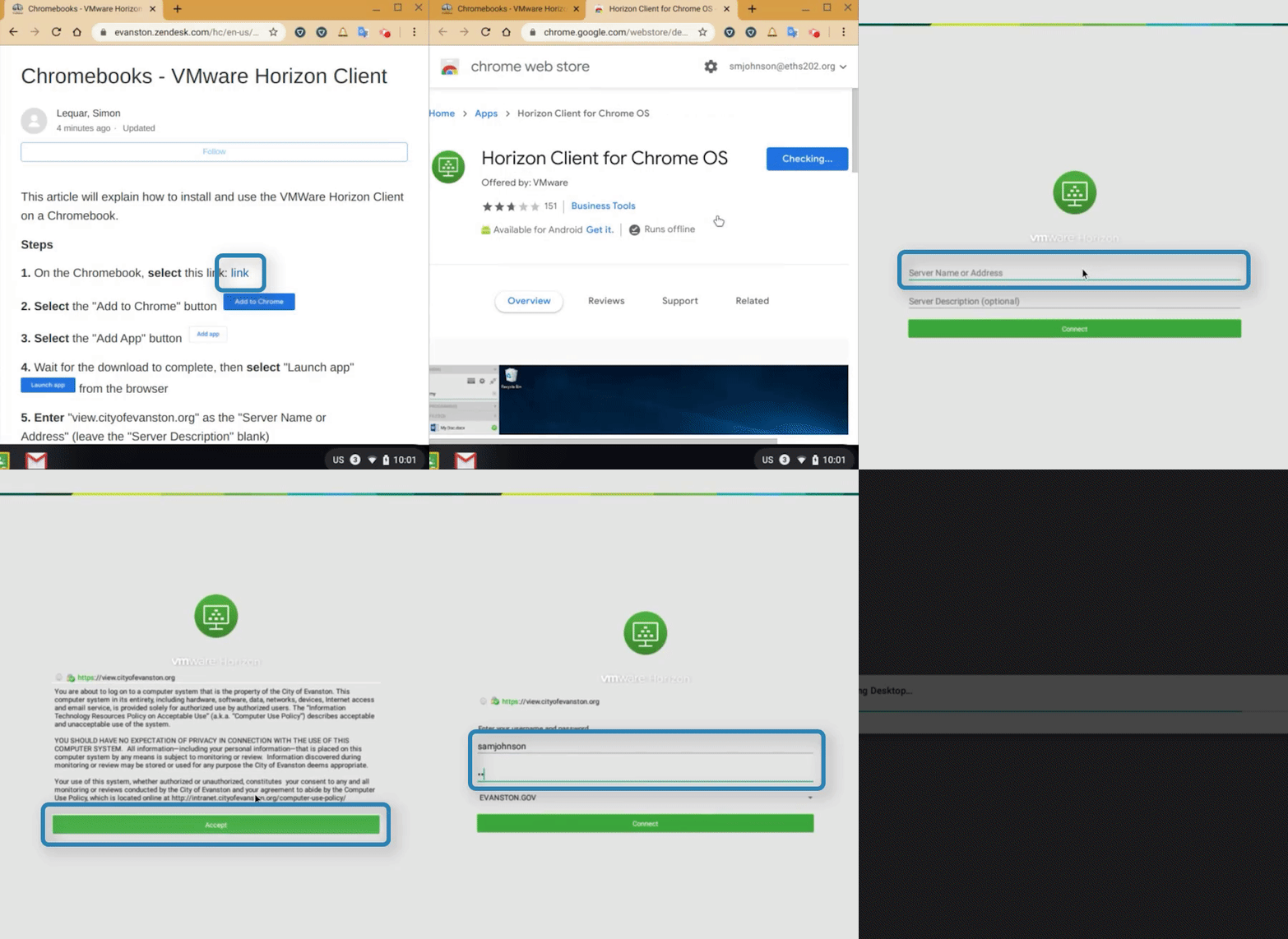
(Video Loading)
Steps
1. On the Chromebook, select this link: link
2. Select the "Add to Chrome" button 
3. Select the "Add App" button 
4. Wait for the download/installation to complete, then select "Launch app"  from the browser
5. Enter "view.cityofevanston.org" as the "Server Name or Address" (leave the "Server Description" blank)

6. Select "Accept" 
7. Enter your username and password
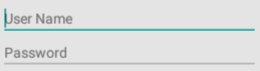
8. Select "Connect" 
Setup/Use
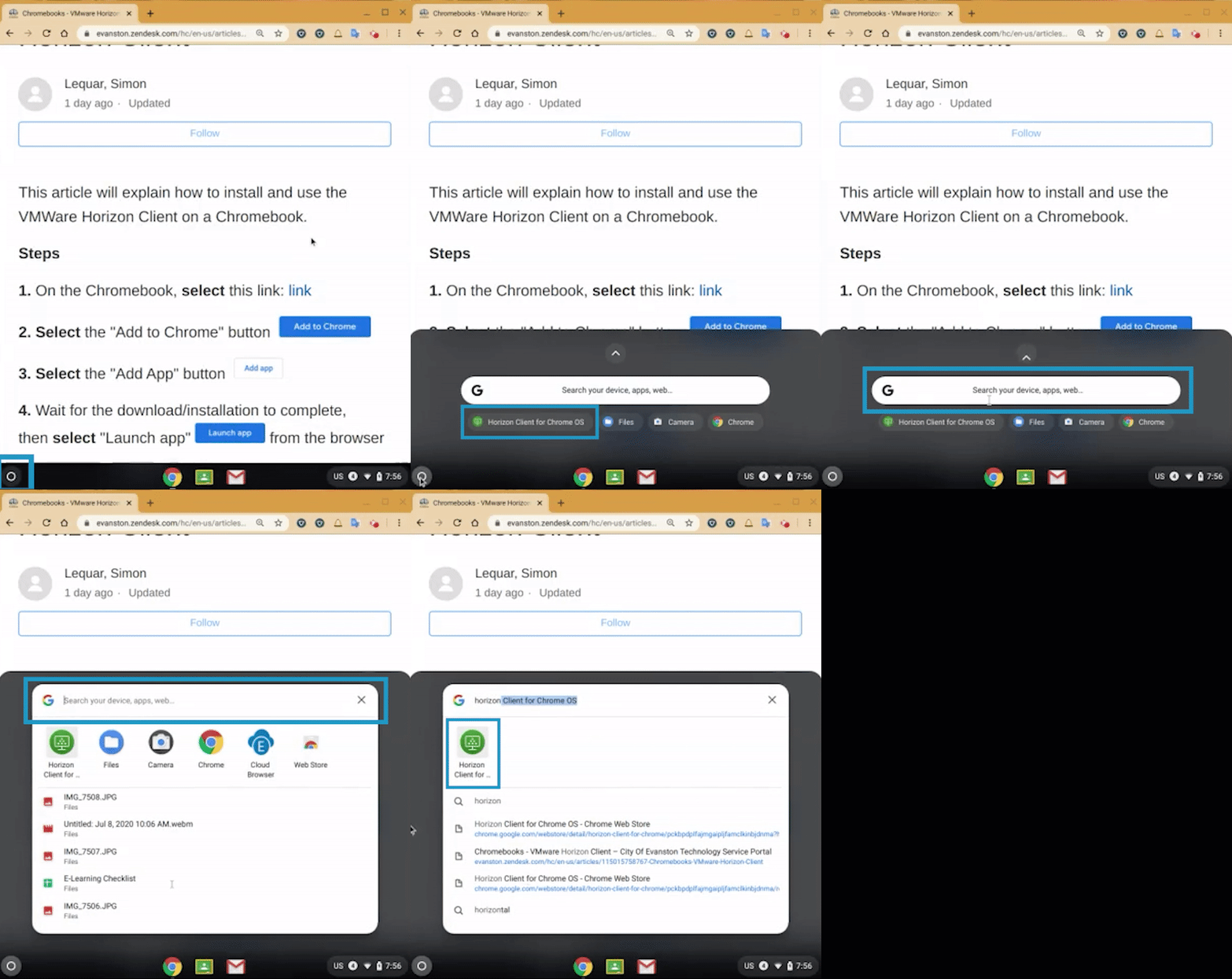
(Video Loading)
Steps
1. Select the "Launcher" menu  from the bottom left
2. Select "Horizon Client for Chrome OS"  (search for it in the search bar
  if necessary
  )
)
3. Select "view.cityofevanston.org"
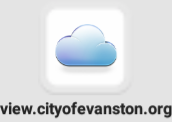
4. Select "Accept"
5. Enter your username and password
6. Select "Connect"
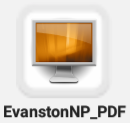
7. Select "EvanstonNP_PDF"
Uninstall and Reinstall
Steps To Uninstall:
1. Select the "Launcher" menu from the bottom left
2. Right-Click "Horizon Client for Chrome OS" (search for it in the search bar if necessary )
3. Select "Uninstall" or "Remove from Chrome"
4. To reinstall, follow the install instructions above