
Option 1 - File Explorer:
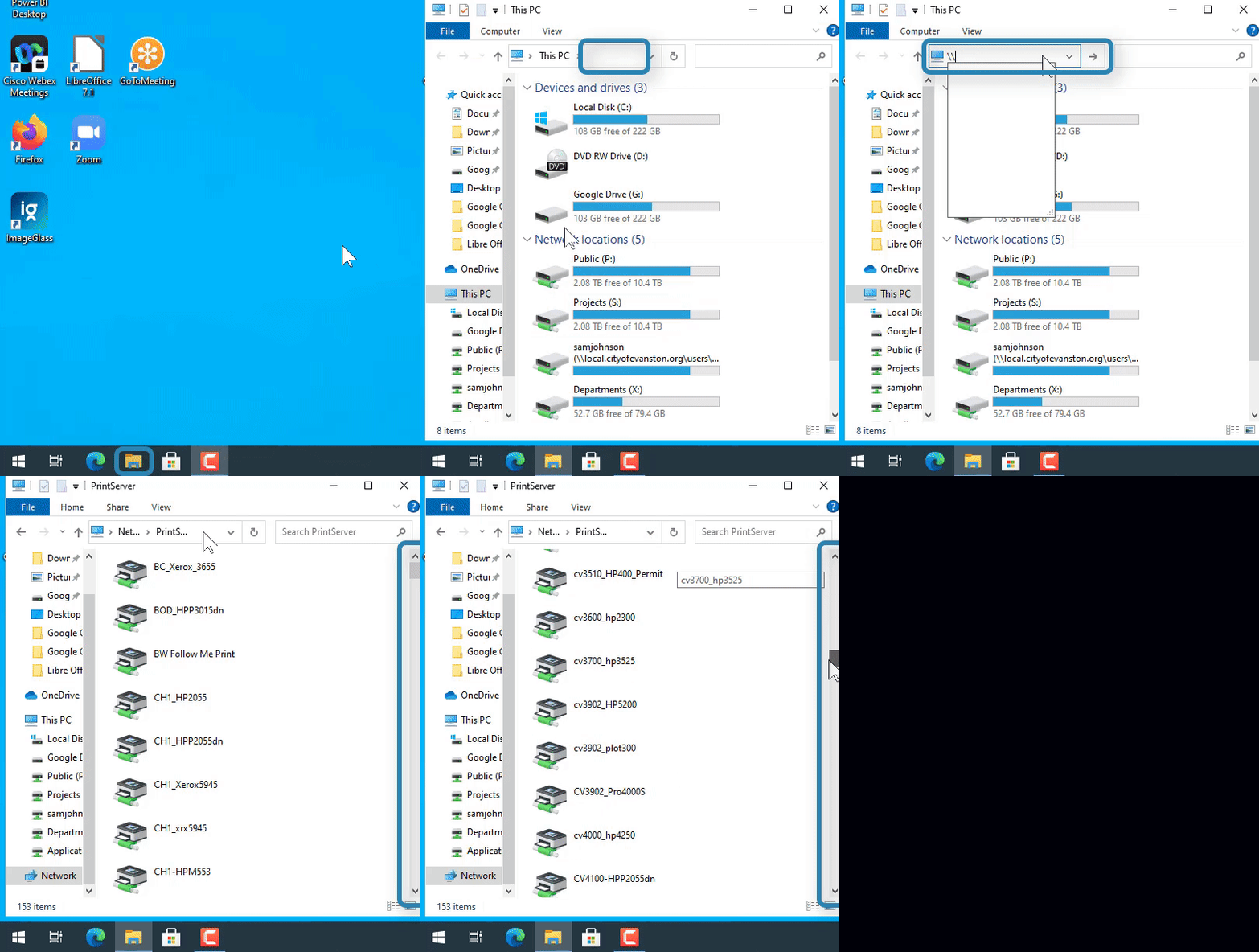
(Video Loading)
Steps
1. Select the file explorer icon  on the bottom Windows bar
2. In the address bar, select the empty space within the address bar to highlight the entire contents

3. Type "\\PrintServer" and press the enter key. The address bar will now show:

4. Type or scroll to locate the desired printer
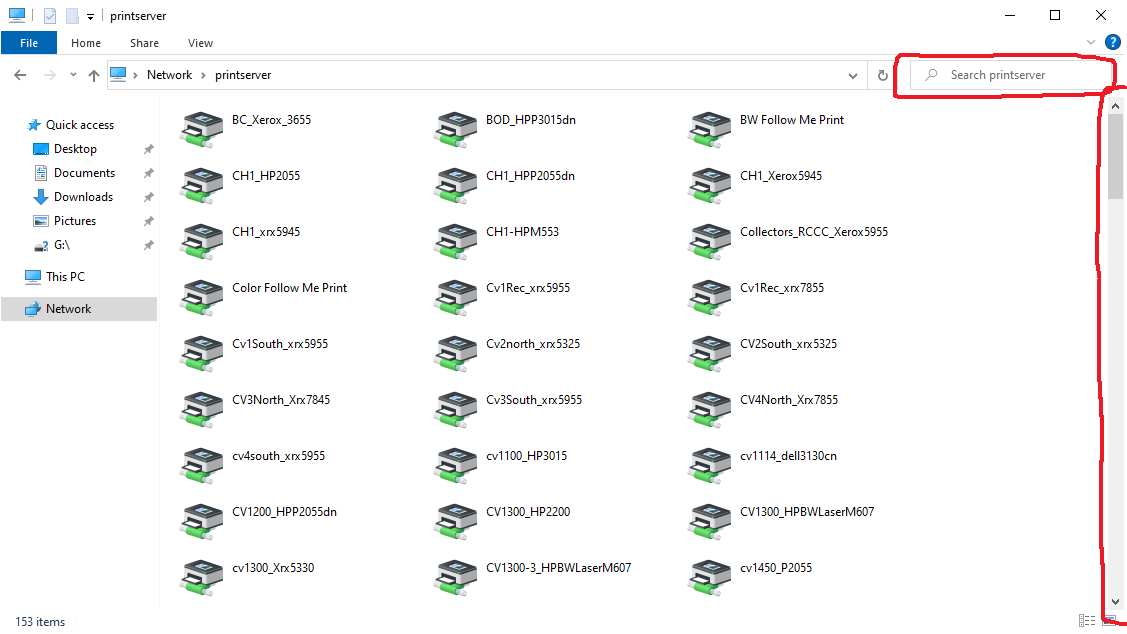
5. Double-click on the printer to add it to your computer
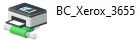
The naming convention should give you the target printer- for example, if you need to add a printer at the civic center RM 1600, you would find 'cvc1600hp2033.' The printer should then be added to your printer list. You can ask your neighbor for the name of the printer and look it up that way as well.
Note: Google Chrome might need you to change your default printer in their 'print settings'
__________________________________________________________________________
Option 2 - Printer Script:
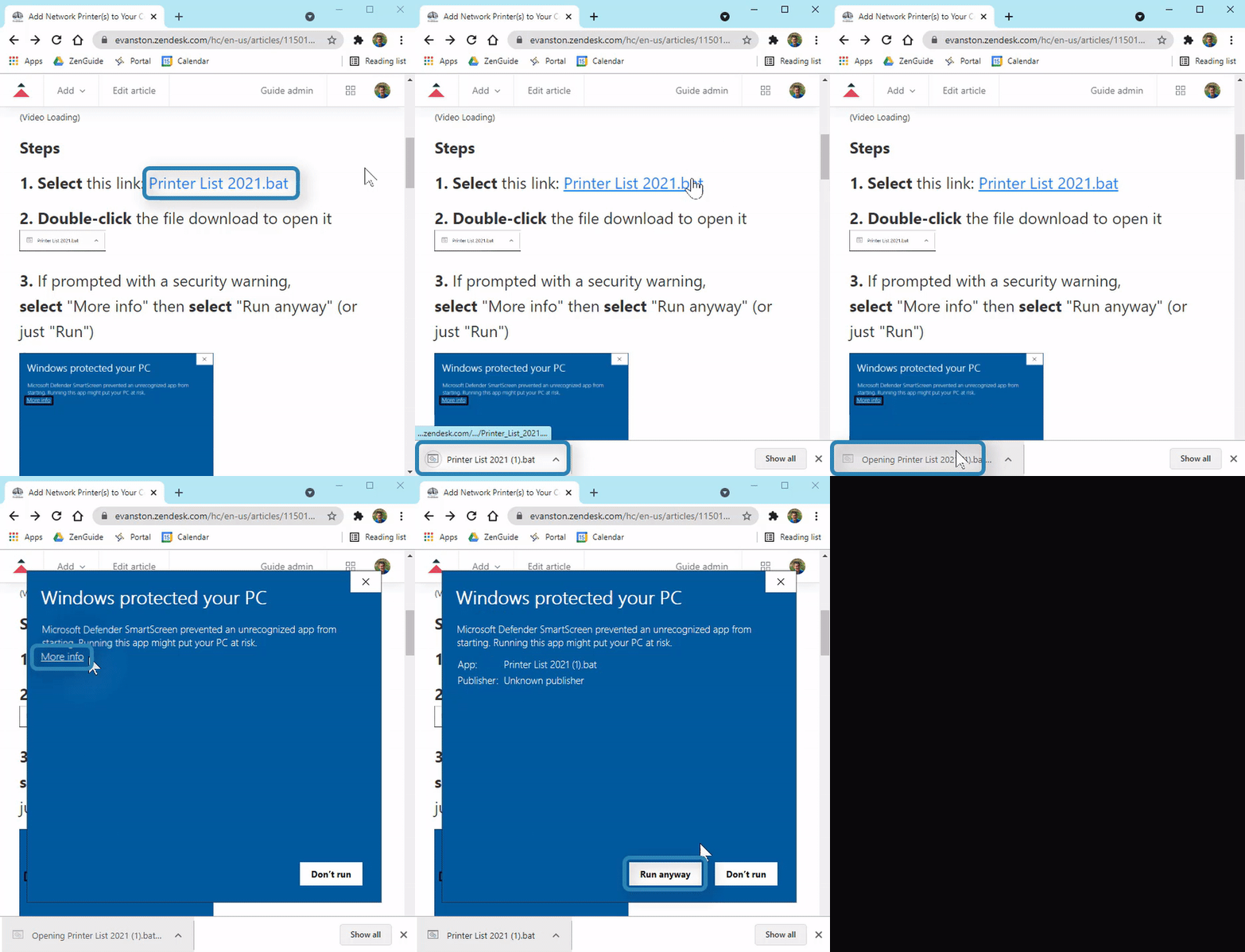
(Video Loading)
Steps
1. Select this link: Printer List 2021.bat
2. Double-click the file download to open it 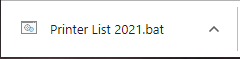
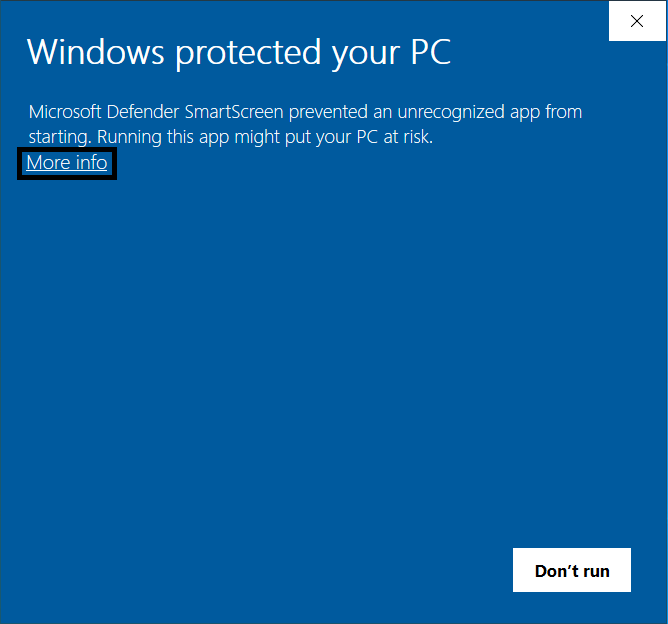
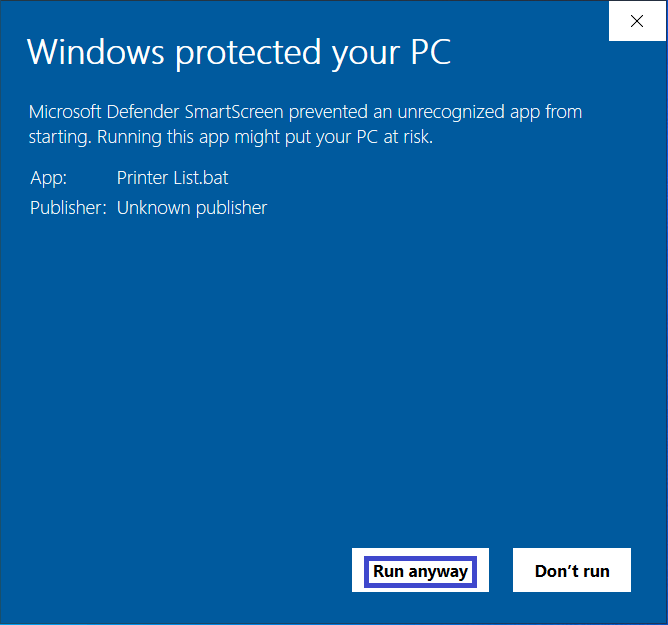
3. If prompted with a security warning, select "More info" then select "Run anyway" (or just "Run")
4. Type or scroll to locate the desired printer
5. Double-click on the printer to add it to your computer
The naming convention should give you the target printer- for example, if you need to add a printer at the civic center RM 1600, you would find 'cvc1600hp2033.' The printer should then be added to your printer list. You can ask your neighbor for the name of the printer and look it up that way as well.
If you have an issue adding a printer- please open a ticket