
Add/View Conference Room Reservation(s)
Edit Conference Room Reservation
Delete Conference Room Reservation
Add/View Conference Room Reservation(s)
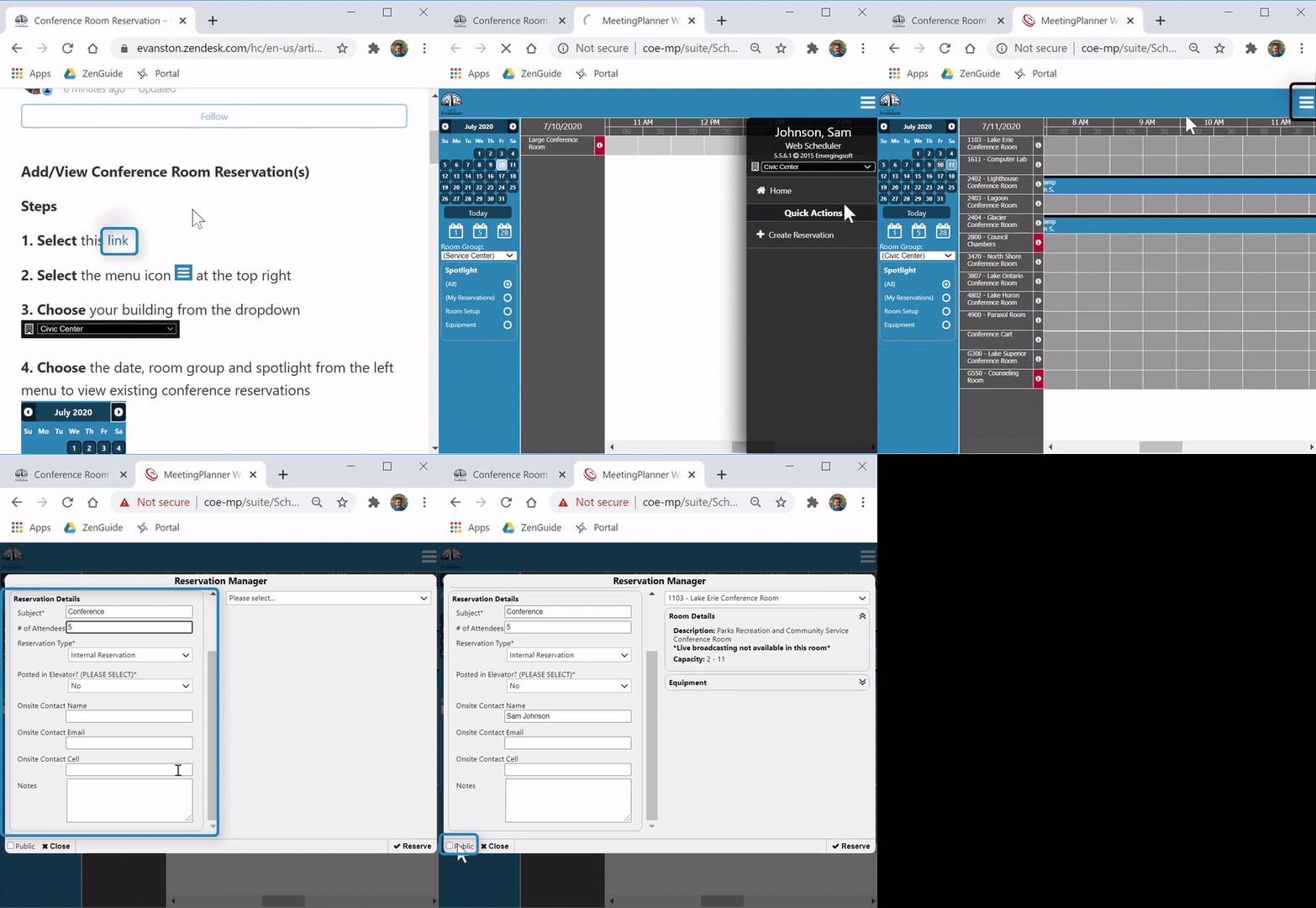
(Video Loading)
Steps
1. Select this link
2. Select the menu icon  at the top right
3. Choose your building from the dropdown 
4. Choose the date, room group and spotlight from the left menu to view existing conference reservations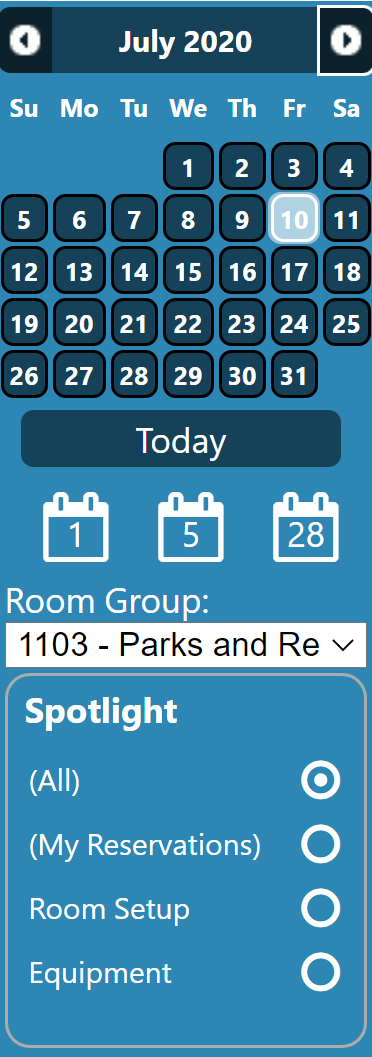
5. Select the menu icon at the top right
6. Select "Create Reservation" 
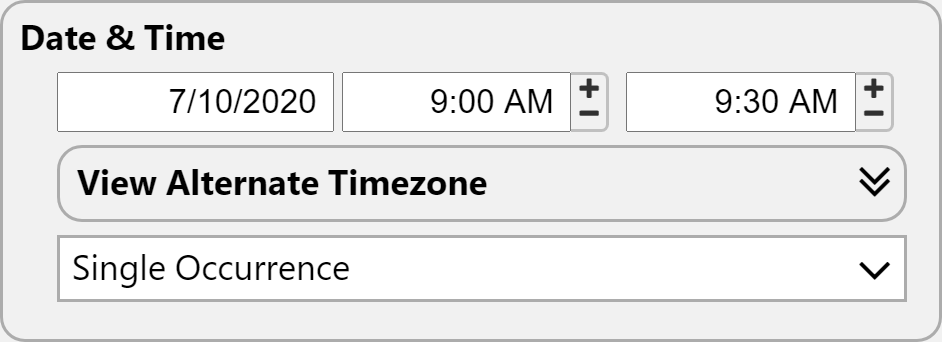
7. Choose date, time in and out, time zone and occurrence
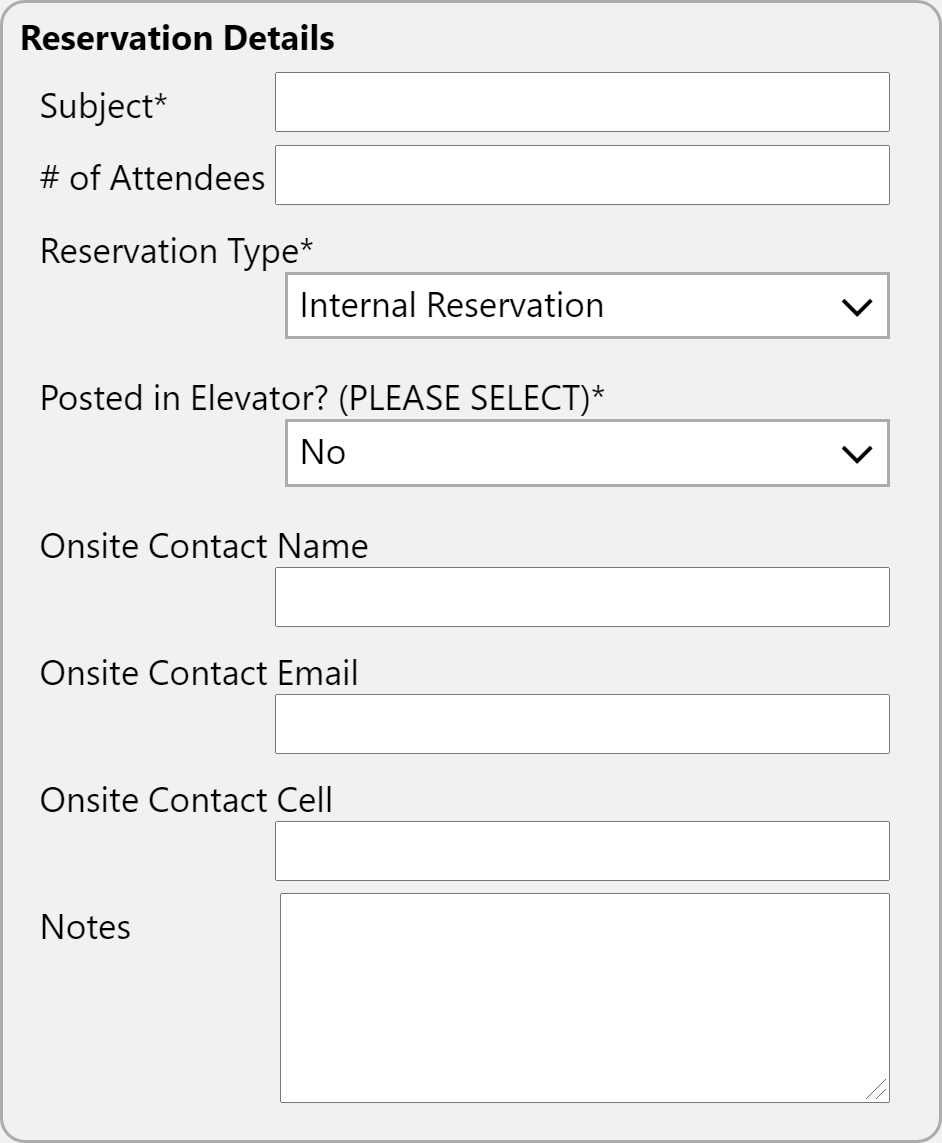
8. Enter subject, choose reservation type and if posted in elevator. Other information is optional
9. Choose conference room 
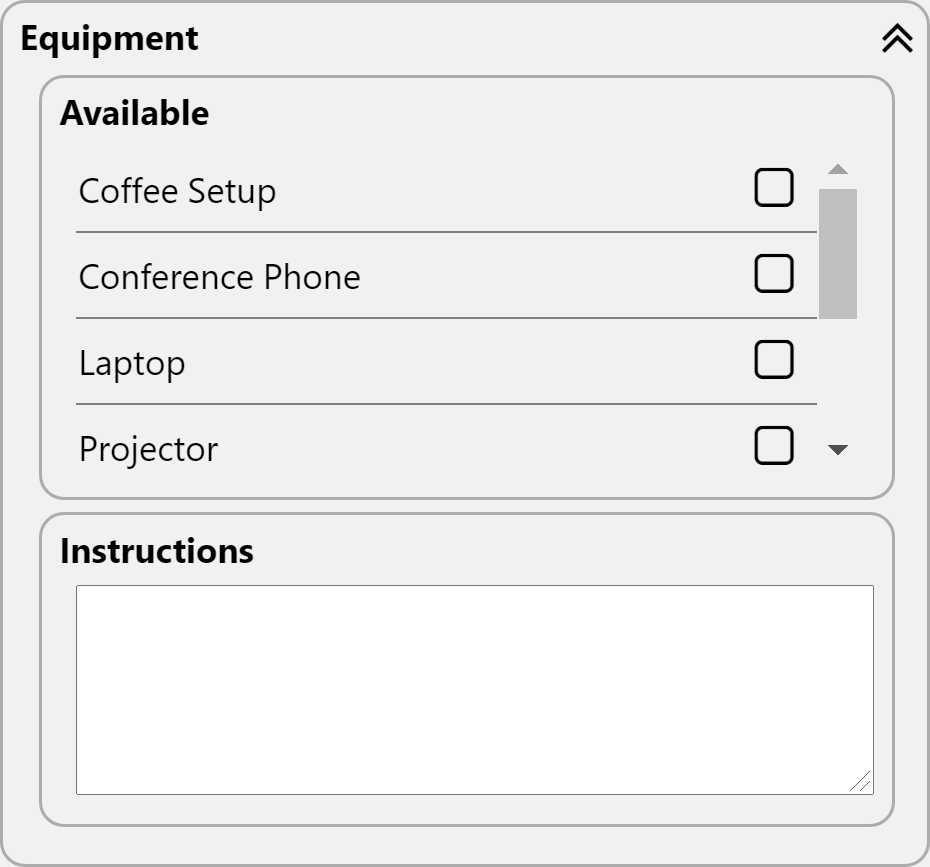
10. Optional: select equipment and enter instructions
11. Check the box next to "Public"  in the bottom left of the window if conference is public
12. Select "Reserve" 
13. Select "Close" 
Edit Conference Room Reservation

(Video Loading)
Steps
1. Select this link
2. Select the menu icon at the top right
3. Choose your building from the dropdown
4. Choose the date, room group and spotlight from the left menu to view existing conference reservations
5. Select a reservation to edit 
6. Scroll down on the left and select "edit"  next to a room to edit (if there's only one room, skip this step)

7. Edit details under "Reservation Details"
8. To change the time, scroll down on the left and select "Edit Time" 
9. To add a room, scroll down on the left and select "Add Room"  , then select room, edit details and select "Reserve"
10. Select "Update"  then select "Close"
Delete Conference Room Reservation
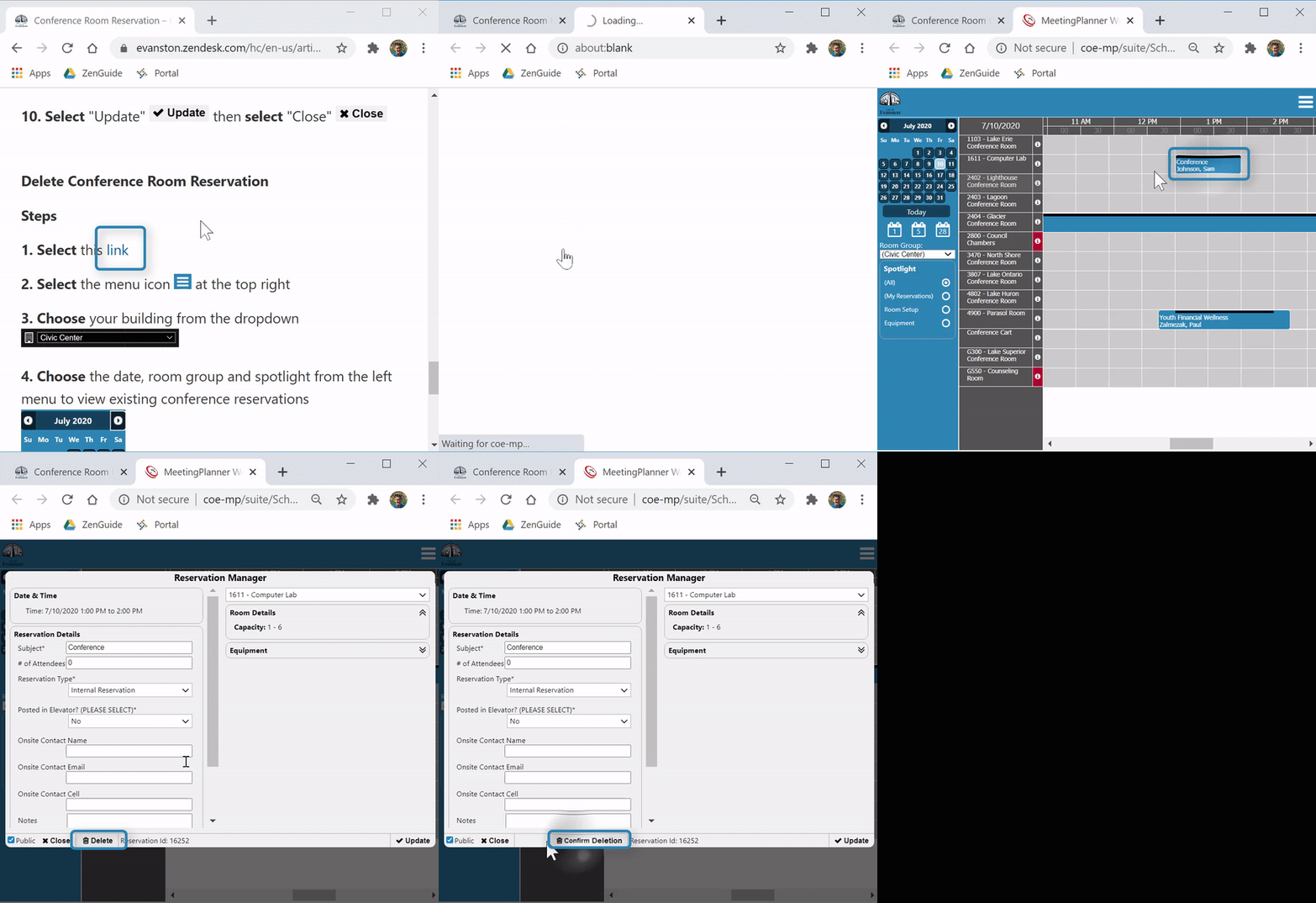
(Video Loading)
Steps
1. Select this link
2. Select the menu icon at the top right
3. Choose your building from the dropdown
4. Choose the date, room group and spotlight from the left menu to view existing conference reservations
5. Select a reservation to delete
6. Select "Delete" 
7. Select "Confirm deletion" 