
How to Create a Fillable Form in Word
Office 2010
Enabling Developer Tab

Steps:
1. Select "File" on the top left 
2. Select "Options" 
3. Select "Customize Ribbon" 
4. Check the box next to "Developer" on the right 
5. Select "Ok" on the bottom right 
Creating a Form
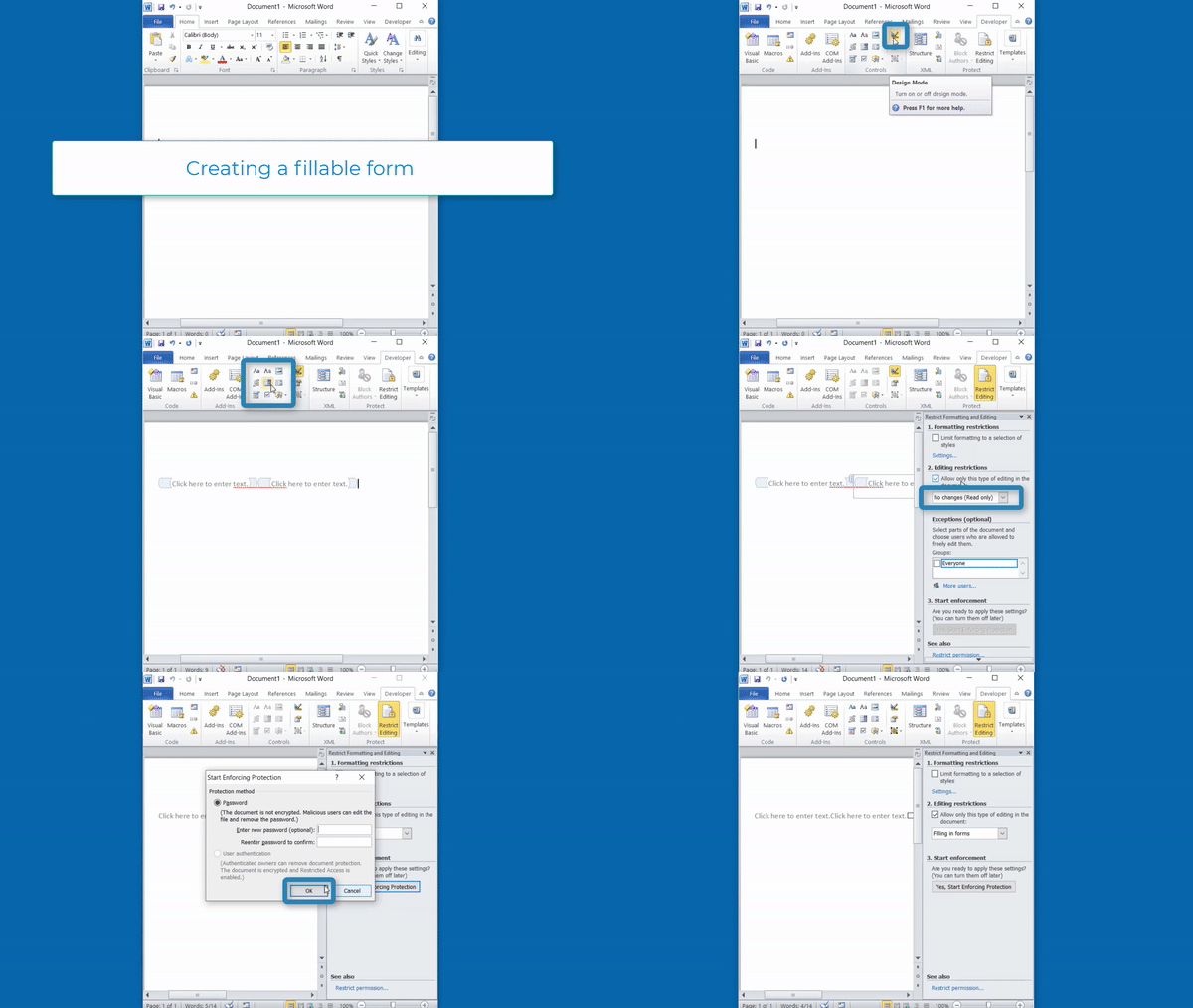
Steps:
1. Select the "Developer" tab on the top 
2. Select the "Design Mode" button 
3. Select whichever tool you want to the left 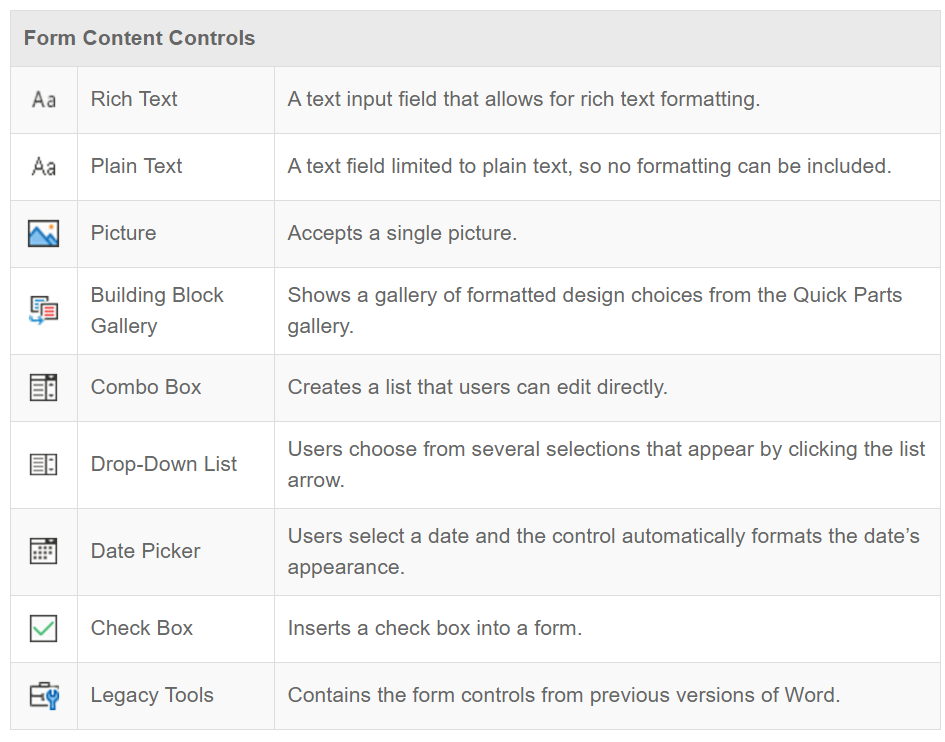
4. Select "Restrict Editing" on the top 
5. Check "Allow only this type of editing in the document:" 
6. Select the drop down below it and Select "Filling in forms" 
7. Disable "Design Mode" by Selecting button again
8. Select "Yes, Start Enforcing Protection" 
9. Select "Ok" after entering a password (leave the password blank if you don't want a password)
10. Select "Stop Protection" if you want to edit the document again

Office 365
Enabling Developer Tab

Steps:
1. Select "File" on the top left 
2. Select "Options" 
3. Select "Customize Ribbon" 
4. Check the box next to "Developer" on the right
5. Select "Ok" on the bottom right
Creating a Form

Steps:
1. Select the "Developer" tab on the top 
2. Select the "Design Mode" button 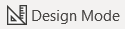
3. Select whichever tool you want to the left
4. Select "Restrict Editing" on the top 
5. Check "Allow only this type of editing in the document:" 
6. Select the drop down below it and Select "Filling in forms"
7. Disable "Design Mode" by Selecting button again
8. Select "Yes, Start Enforcing Protection"
9. Select "Ok" after entering a password (leave the password blank if you don't want a password)
10. Select "Stop Protection" if you want to edit the document again
