LibreOffice
How To Open Files With LibreOffice
How To Save Files as .Doc (and other Microsoft Document Formats)
Save Files From LibreOffice to Google Drive
Advantages of LibreOffice
-
No licensing fees. LibreOffice is free for anyone to use and distribute at no cost. Many features that are available as extra cost add-ins in other office suites (like PDF export) are free with LibreOffice. There are no hidden charges now or in the future.
-
Open source. You can distribute, copy, and modify the software as much as you wish, in accordance with the LibreOffice Open Source licenses.
-
Cross-platform. LibreOffice runs on several hardware architectures and under multiple operating systems, such as Microsoft Windows, Mac OS X and Linux.
-
Extensive language support. The LibreOffice user interface, including spelling, hyphenation, and thesaurus dictionaries, is available in over 100 languages and dialects. LibreOffice also provides support for both Complex Text Layout (CTL) and Right to Left (RTL) layout languages (such as Urdu, Hebrew, and Arabic).
-
Consistent user interface. All the components have a similar “look and feel,” making them easy to use and master.
-
Integration. The components of LibreOffice are well integrated with one another.
- All the components share a common spelling checker and other tools, which are used consistently across the suite. For example, the drawing tools available in Writer are also found in Calc, with similar but enhanced versions in Impress and Draw.
- You do not need to know which application was used to create a particular file. For example, you can open a Draw file from Writer.
-
Granularity. Usually, if you change an option, it affects all components. However, LibreOffice options can be set at a component level or even at document level.
-
File compatibility. In addition to its native OpenDocument formats, LibreOffice includes support for opening and saving files in many common formats including Microsoft Office, HTML, XML, WordPerfect, Lotus 1-2-3, and PDF.
-
No vendor lock-in. LibreOffice uses OpenDocument, an XML (eXtensible Markup Language) file format developed as an industry standard by OASIS (Organization for the Advancement of Structured Information Standards). These files can easily be unzipped and read by any text editor, and their framework is open and published.
-
You have a voice. Enhancements, software fixes, and release dates are community-driven. You can join the community and affect the course of the product you use.
LibreOffice Writer Overview
- Getting Started with LibreOffice Writer - link
LibreOffice Calc Overview
- Getting Started with LibreOffice Calc - link
How To Open Files With Libre Office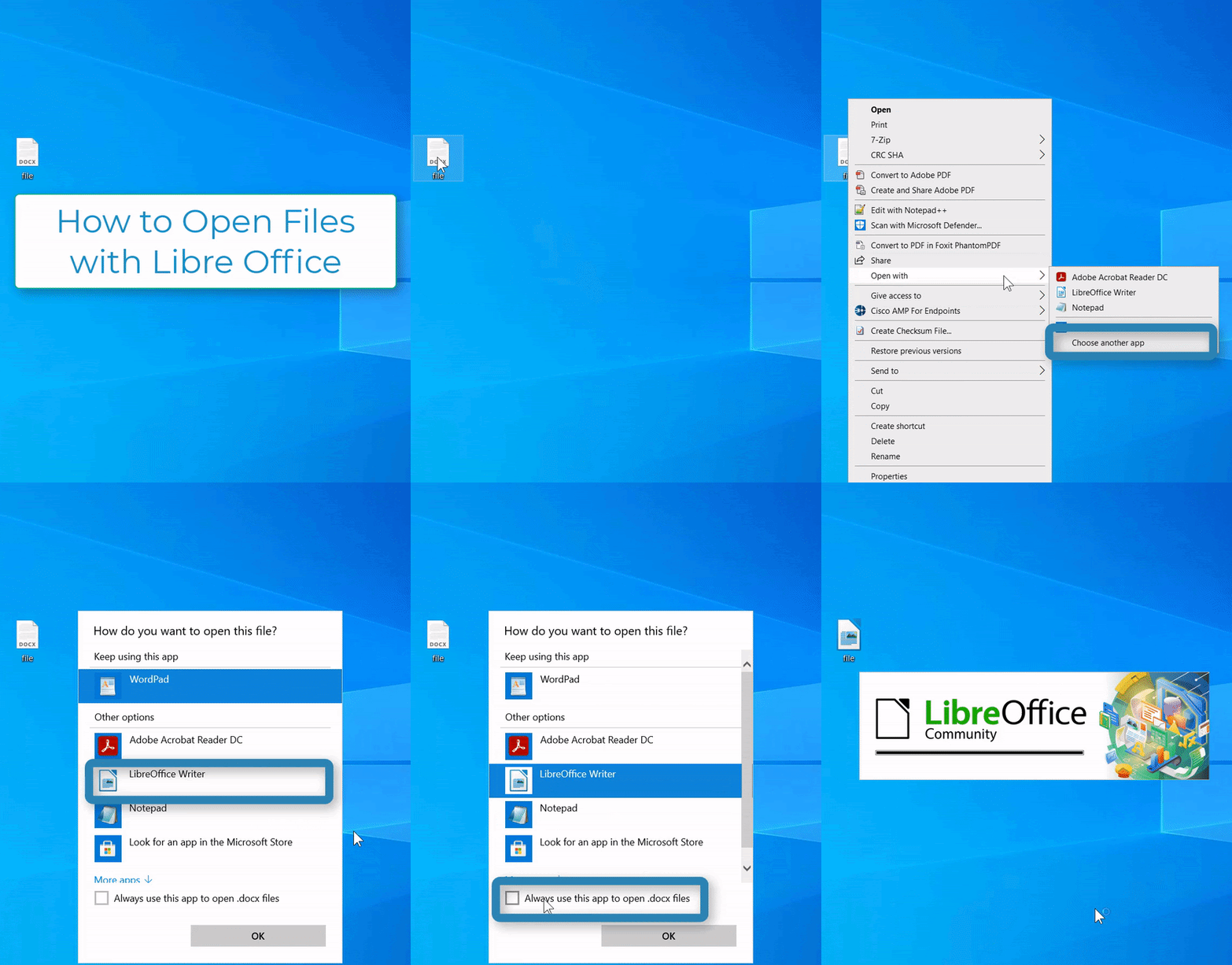
Steps:
1. Right-Click on the file
2. Select "Open With" 
3. Select "Choose another app" 
4. Select the libre office app you want to use 
5. Select "Always use this app" 
6. Select "Ok" 
How To Save Files as .Doc (and other Microsoft Document Formats)
Steps:
1. Select "File" on the top left 
2. Select "Save As" 
3. Type the name of the file 
4. Select "Save" 
5. If you get a pop up, Select "Use Word 2007 - 365 Format"
Save Files From LibreOffice to Google Drive
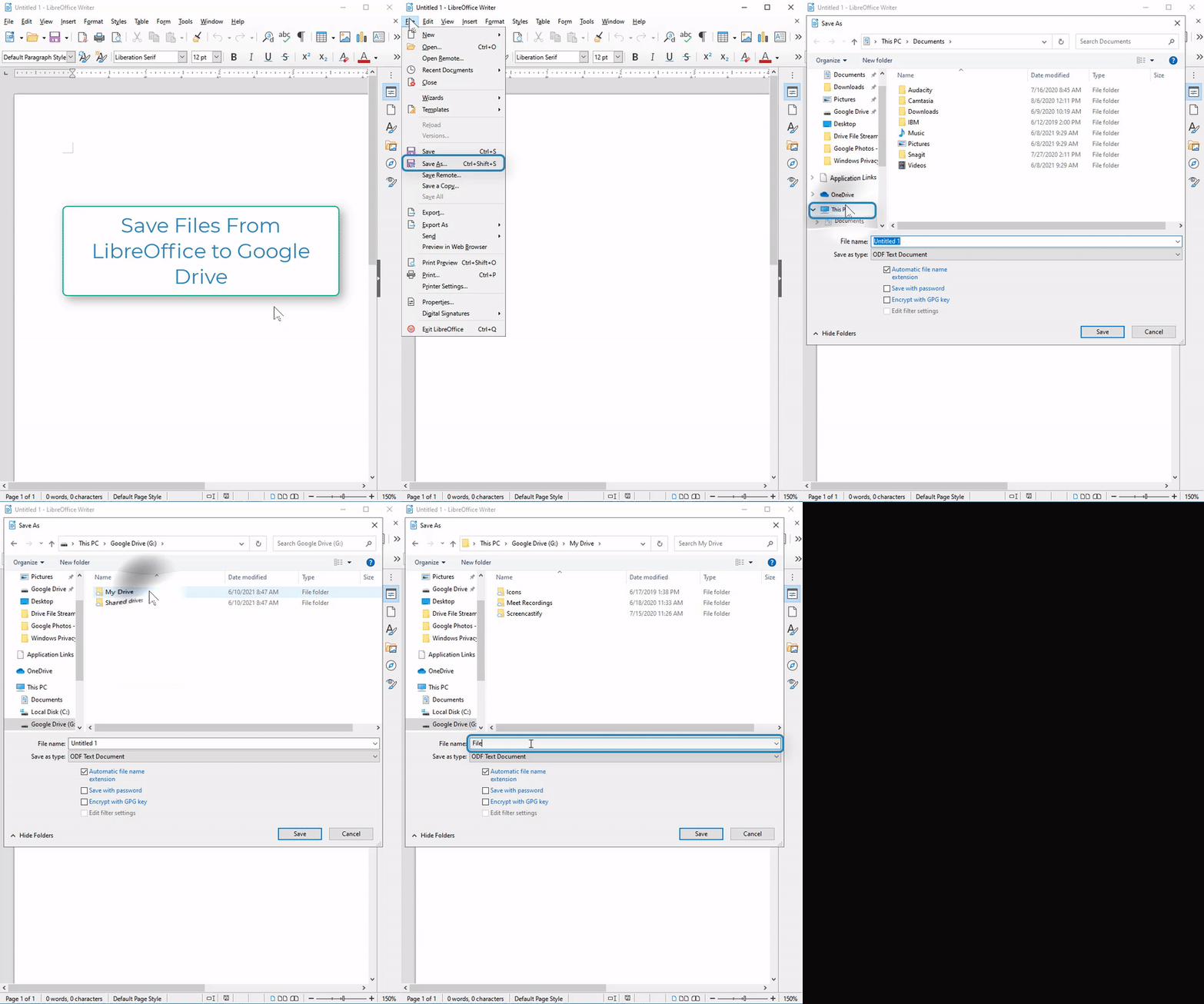
Steps:
1. Select "File" on the top left
2. Select "Save as" 
3. Select "This PC" 
4. Select "Google Drive (G:)"
If this drive isn't there, follow this article before returning to this step: link
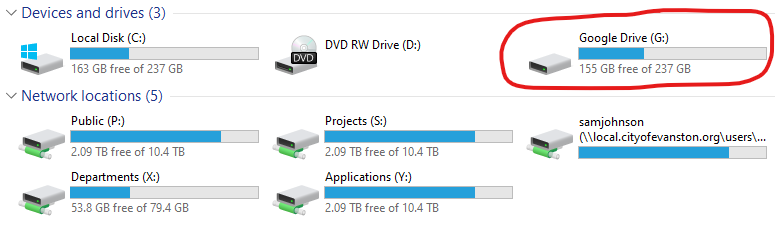
5. Locate the desired save location
6. Type the file name
7. Select "Save"
Saving a Template

Steps:
1. Select "File" on the top left
2. Select "Templates" 
3. Select "Save as Template" 
4. Type in the name of your template 
5. Select the template category
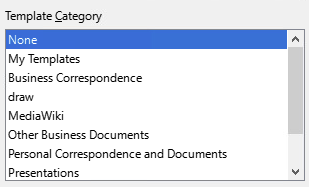
6. Select "Save" 
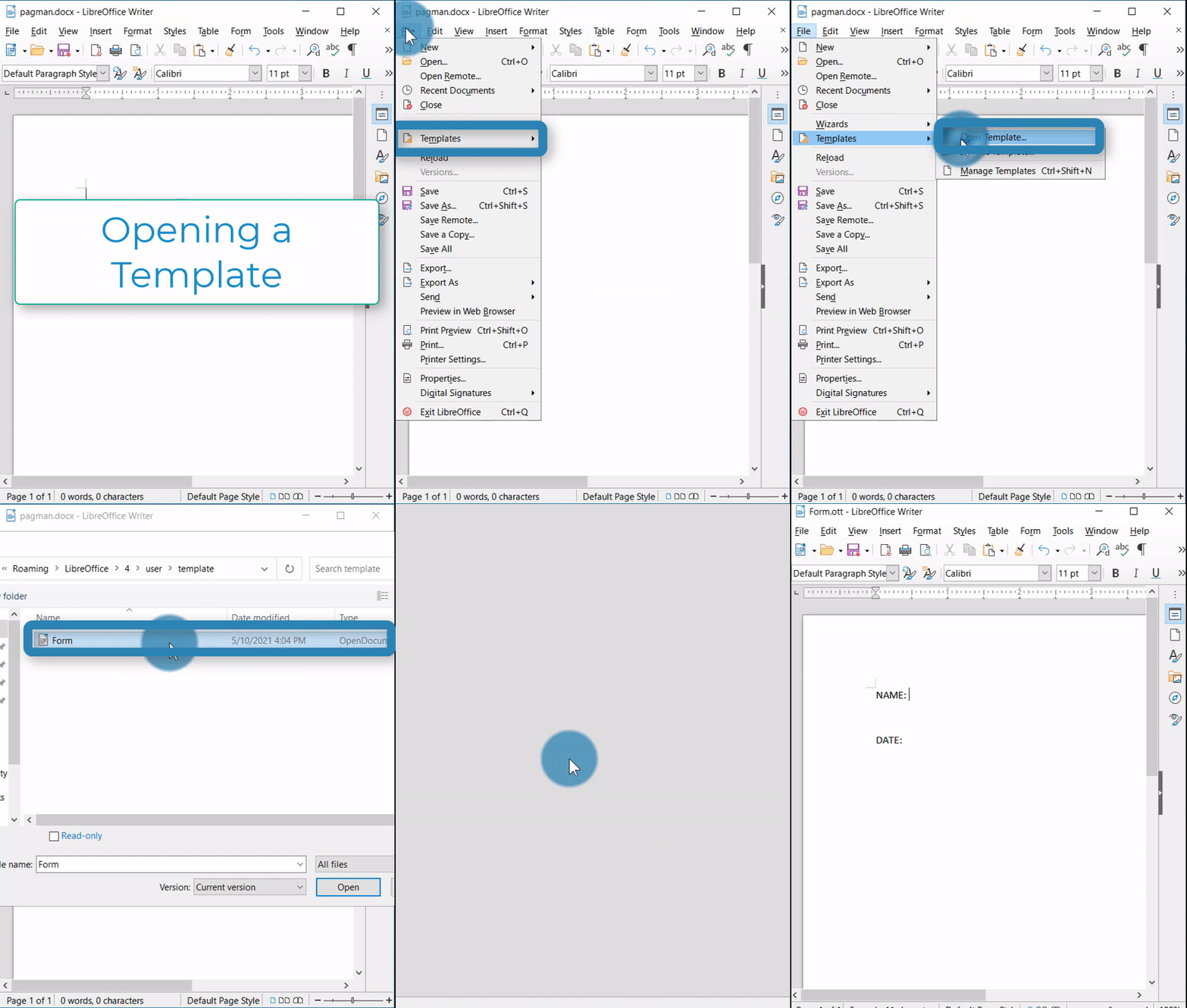
Opening a Template
Steps:
1. Select "File" on the top left
2. Select "Templates"
3. Select "Open Templates" 
4. Select the template
5. Select "Open"